Familiarizing with the Interface |
  
|
Familiarizing with the Interface |
|
The HIPAA Compliance Editor application is designed to be as user-friendly and intuitive as possible. Please take a moment to review the basic commands in the main menu:

The Tab Menu Bar may contain different tabs and options accesible depending on the licensed modules.
The Tab Menu Bar at the top of the main menu window shows different options and their sub-menus for the various features of the application. See the description of each tab below:
oFile — This tab contains all file-related activities such as opening a file or a directory, saving changes, and exiting the application.
oEdit — This tab contains the tools needed to modify and navigate EDI files: Undo/Redo, Copy, Cut, Paste, Find, Replace, and Go to Line.
oView — This tab provides access to the reports and allows you to show or hide the Tree View.
oSettings — This tab provides access to the different setup windows; see Report Generation Settings, File Sorting Settings, Transaction Set Sorting Settings, Acknowledgment Settings, and Large File Splitter Settings.
oPre-Processing — This tab has options to begin the pre-processing of files to ensure they are compliant.
oLogs — This tab has the option to show the daily general logs of the application. See Accessing Daily Logs.
oHelp — This shows the documentation and context-sensitive help topics. You can also find information about the application and licensing.
Note: There may be additional menu items if you have licensed modules. Each module adds a separate menu and options. See Trials, Licensing, and Enabling Application Components.

The "Taskbar" allows quick access to the most important functions.
The Taskbar sits below the Tab Menu Bar. It contains the most important functions accessible through quick-launch icons. The Taskbar shows the following icons:
oOpen File |
oFind |
oOpen Folder |
oFind and Replace |
oSave |
oRefresh |
oPrevious / Next File |
oGenerate Report |
oExpand / Collapse All Nodes |
oShow Reports |
oShow / Hide Tree View |
oReport Settings |
oPop Out Warnings Table |
oGenerate TA1 |
oUndo / Redo |
oGenerate 999 |
oCopy |
oShow Summary |
oCut |
oHelp |
oPaste |
|
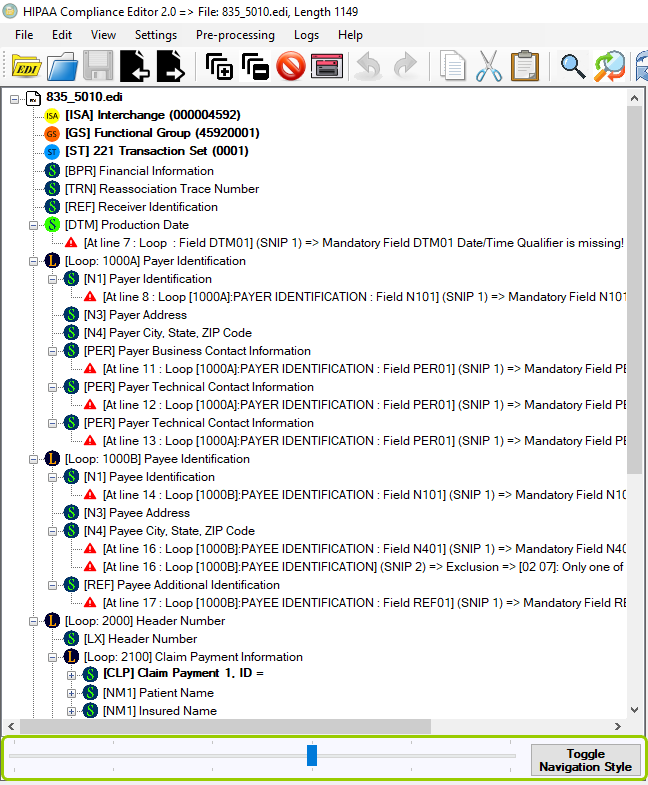
The Tree View Panel is on the left side of the window.
The Tree View panel displays the full structure of the EDI file. With the toggle bar at the bottom, you can collapse or expand the sections within the tree. You can also click the "Toggle Navigation Style" button to change the visibility of the tree to a flat or hierarchical mode.
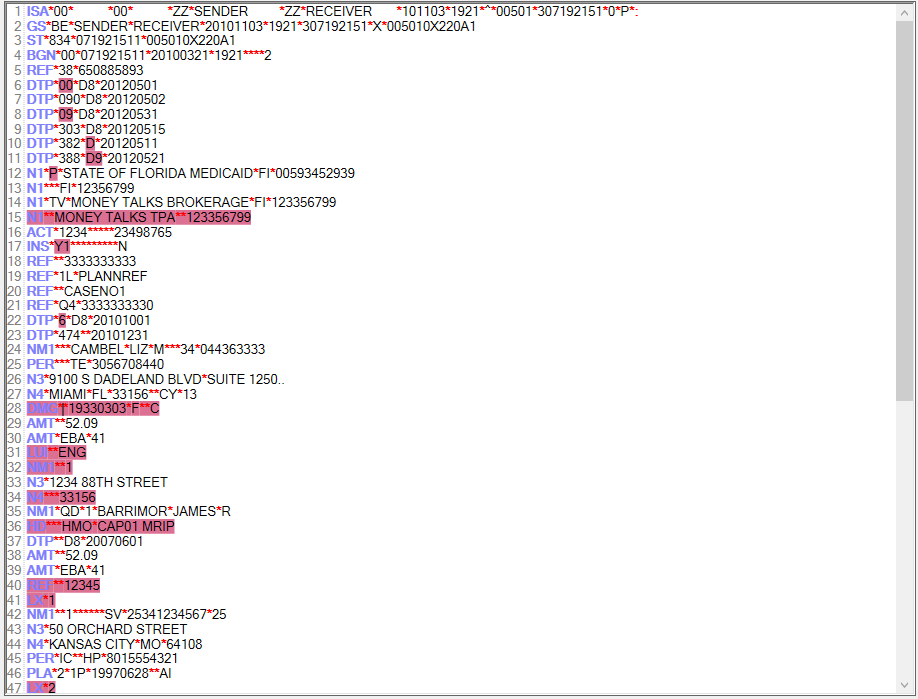
The "EDI View" box.
The EDI View box displays the EDI file. You can see each line and, if there are errors, they will be highlighted in red. You can right-click on a line to open a drop-down menu with editing options. If you hover your mouse pointer over any line with an error, a pop-up bubble will detail the type of error within that line.
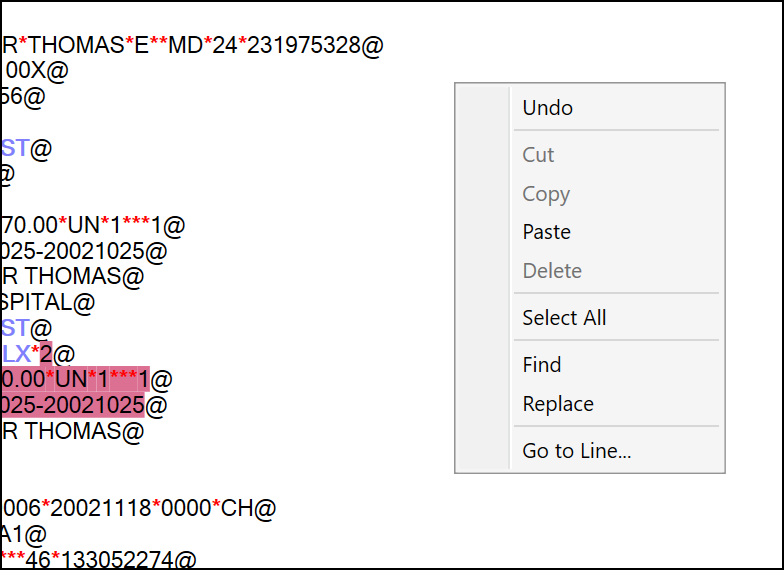
The right-click drop-down menu.

The "Warnings Table" is below the "EDI View" box.
The Warnings Table displays all the errors found within the EDI file. You can see details such as the line where it was found, how serious it is, and the complete error message.
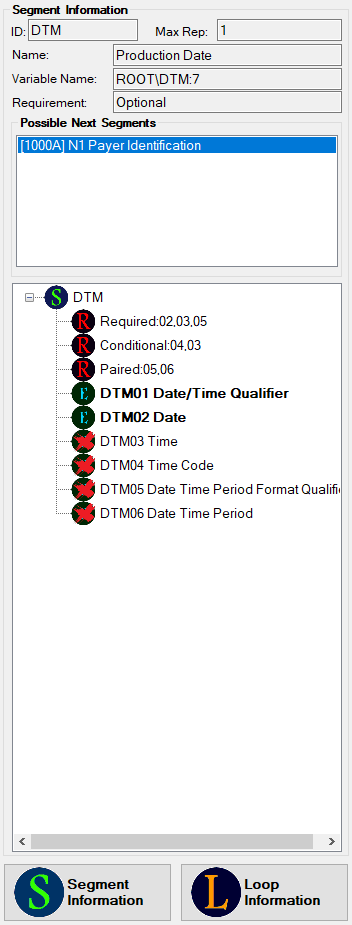
The "Segment / Loop Information" panel.
The "Segment Information" panel displays the details of the segments and loops shown in the Tree View panel. You can switch the view between segment and loop details by clicking the "Segment Information" and "Loop Information" buttons, respectively. This panel also shows which fields are mandatory or optional.