Acknowledgment Settings |
  
|
Acknowledgment Settings |
|
To access the acknowledgment settings, go to Settings > Acknowledgment Settings in the main menu window.
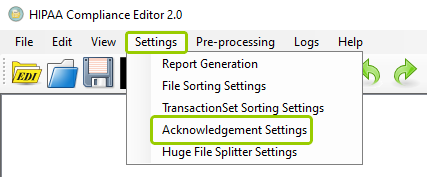
The "Acknowledgment Settings" option is under the "Settings" tab.
The following window will open:
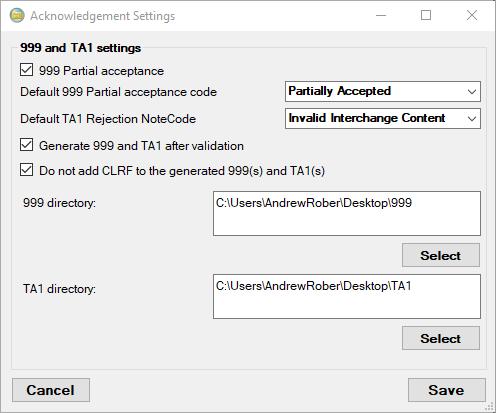
The "Acknowledgment Settings" window.
The acknowledgment settings have various configurations regarding the generation of 999 and TA1 acknowledgment files for the recipients. See the details of each setting within the "999 and TA1 settings" box below:
If you check this box, the application will generate 999 acknowledgment files even when some transaction sets in a file are rejected, as long as at least one is valid. This creates a “middle ground” status—neither fully accepted nor fully rejected.
If you choose to partially accept 999 files, you can override the default code and specify a custom one that better matches your organization's internal logic or trading partner expectations.
If a TA1 file is rejected, you can select the rejection note code to accompany the rejection acknowledgment to the recipient.
By default, the application does not generate any acknowledgments after validating files. Checking this box will allow for 999 and TA1 acknowledgments to be generated after the validation process is complete.
Checking this box will prevent new lines to be created between 999 and TA1 segments.
Within these boxes, you can determine the location of the directories in which your 999 and TA1 files will be stored, respectively. To select the location, click the "Select" button next to the directory you want to define.
Once you have made your selections, there are two actions you can take:
oCancel — If you want to leave the acknowledgment settings as they were, click "Cancel," which will close the window without keeping any changes if you did not save them.
oSave — Click this button to keep your changes. If you close the window or click "Cancel" before saving, any changes made will not be kept.