Report Generation Settings |
  
|
Report Generation Settings |
|
To access the generation settings, go to Settings > Report Generation in the main menu window.
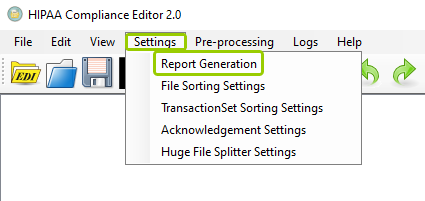
The "Report Generation" option is under the "Settings" tab.
The following window will open:
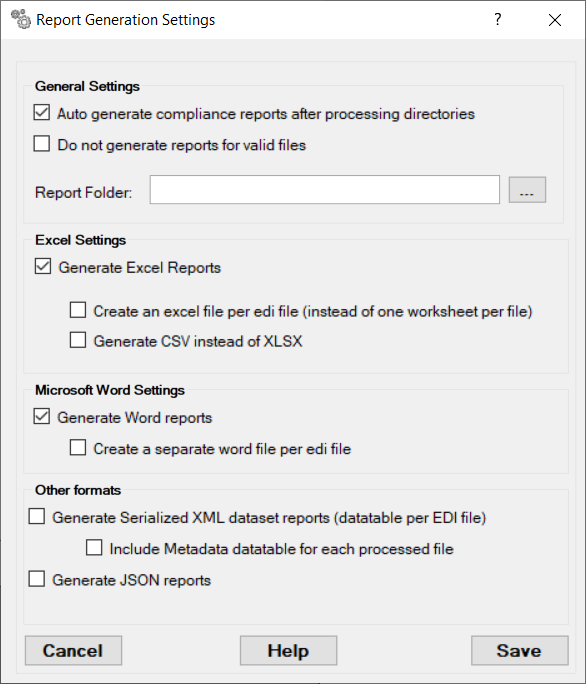
The "Report Generation Settings" window.
When you generate a report from a compliance check, you can determine the format in which you want to save the report. With the generation settings, you can establish certain conditions per format type. This setting is necessary before any report can be created. See the details of each setting below:
Within the General Settings box, there are three configurations:
If you check this box, a report will be created after processing your directories. By default, these reports will not be created for processed directories.
Check this box if you want to prevent generating reports for files that pass the compliance check. By default, valid files will have a report generated as well.
Click the "..." icon to select the folder in which the reports will be stored. This setting must be setup before attempting to generate any reports.
Within the Excel Settings box, there are three configurations:
Check this box if you want your reports to be in Excel (.xlsx) format.
By default, when an Excel report format is selected, the reports is made in a single Excel file but with multiple sheets per EDI file. If you check this option, an Excel file will be created per EDI file.
By default, reports will be created as XLSX files. Check this option to create CSV files instead of XLSX.
Within the Microsoft Word Settings box, there are two configurations:
Check this box if you want your reports to be in Word (.doc) format.
By default, a single Word file would be created for all EDI files. Check this box if you want a Word file created per EDI file.
Within the Other Formats box, there are three configurations:
Check this box if you want to create serialized XML reports; by default, this type of report format would not be created.
Check this box if you want to create a metadata file for each processed file; by default, these files would not be generated.
Check this box if you want your reports to be in JSON format.
Once you have made your selections, there are three actions you can take:
oCancel — If you want to leave the generation settings as they were, click "Cancel," which will close the window without keeping any changes if you did not save them.
oHelp — Click this button to open the user manual.
oSave — Click this button to keep your changes. If you close the window or click "Cancel" before saving, any changes made will not be kept.