Extra Large File Splitter Settings |
  
|
Extra Large File Splitter Settings |
|
To access the general settings, go to Settings > Extra Large File Splitter Settings in the main menu window.
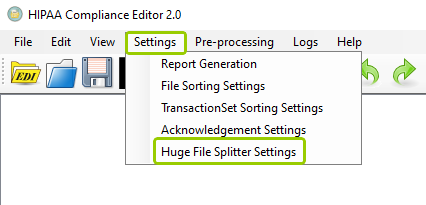
The "Extra Large File Splitter Settings" option is under the "Settings" tab.
The following window will open:
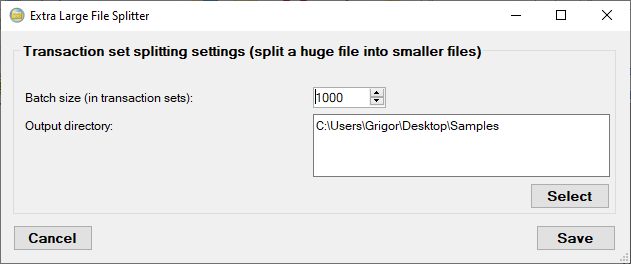
The "Extra Large File Splitter" window.
You may have files with hundreds or even thousands of enrollments and other types of files to process and check for compliance. This can slow processing and even crash the application. With this tool, you can divide a large file into smaller batches that are easier to process. There are two settings under the "Transaction set splitting settings" box:
Here, you can determine how many transaction sets you want to process at a time.
Here, you can determine the location of the directory in which your processed batches will be stored, respectively. To select the location, click the "Select" button.
Once you have made your selections, there are two actions you can take:
oCancel — If you want to leave the extra large file splitting settings as they were, click "Cancel," which will close the window without keeping any changes if you did not save them.
oSave — Click this button to keep your changes. If you close the window or click "Cancel" before saving, any changes made will not be kept.