General Settings |
  
|
General Settings |
|
To access the general settings, go to Settings > Transaction Set Sorting Settings in the main menu window.
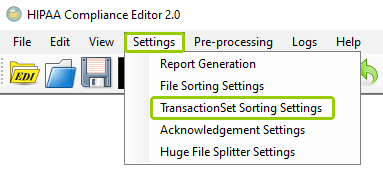
The "Transaction Set Sorting Settings" option is under the "Settings" tab.
The following window will open:
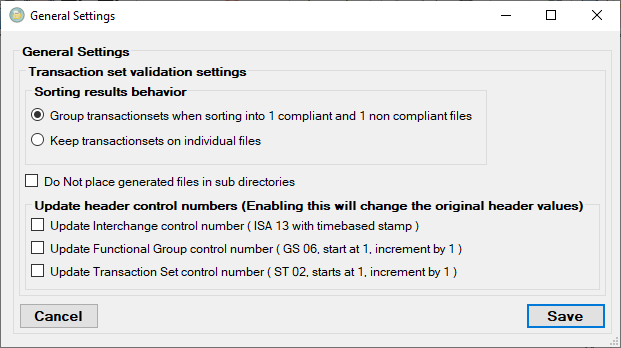
The "General Settings" window.
The general settings have various configurations that will determine certain behaviors within the application, in particular regarding sorting and validation behaviors for transaction sets. See the details of each setting below:
Within the Sorting Results Behavior box, there are two settings, plus an additional checkbox:
If this option is selected, the application will group the transaction sets into two files: one for compliant and one for non-compliant transaction sets.
If this option is selected, the application will sort each transaction set into individual files, regardless of whether they are compliant or not.
If this option is selected, the application will generate output files directly in the root of the sorting and acknowledgment directories. These files will use the original file name with some additional identifying information appended to it.
By default, the application will create a sub-folder named after the file inside the sorting and acknowledgment directories, and place the generated files within that sub-folder. In both cases, the contents of the files are the same—it’s just a matter of organizational preference.
This setting can be helpful depending on how your automation or file-watching tools are configured:
oIf you're monitoring the root directories directly, enabling this option may simplify your setup.
oIf you're fine navigating sub-folders (each named after the file), the default behavior may help keep things more organized.
Either way, the file name remains consistent enough for automated tools to find the appropriate files.
Within the Sorting Results Behavior box, there are three settings that change the control number within the headers:
oUpdate Interchange control number (ISA 13 with timebased stamp)
oUpdate Functional Group control number (GS 06, start at 1, increment by 1)
oUpdate Transaction Set Control number (ST 02, starts at 1, increment by 1)
Once you have made your selections, there are two actions you can take:
oCancel — If you want to leave the general settings as they were, click "Cancel," which will close the window without keeping any changes if you did not save them.
oSave — Click this button to keep your changes. If you close the window or click "Cancel" before saving, any changes made will not be kept.