Open Directories |
  
|
Open Directories |
|
Instead of processing a single file, you may want to process multiple files at once for compliance. The HIPAA Compliance Editor allows you to do this by selecting a directory and processing all EDI files within. Once it is done, a report will be created depending on the settings established as well as sort files according to your configurations. To process an entire directory of EDI files, follow the steps below:
1.Go to File > Open Directory in the main menu window.
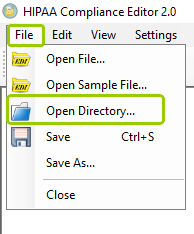
The "Open Directory..." option is under the "File" tab.
2.You can also click the "Open Folder" icon in the Taskbar.
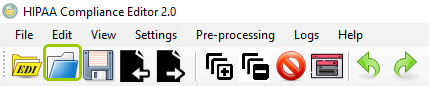
The "Open Folder" icon.
3.Either option will open a search window where you can locate the directory folder you want to open. Once you find it, click "OK." You could also create a new folder by clicking the "Make New Folder" button.
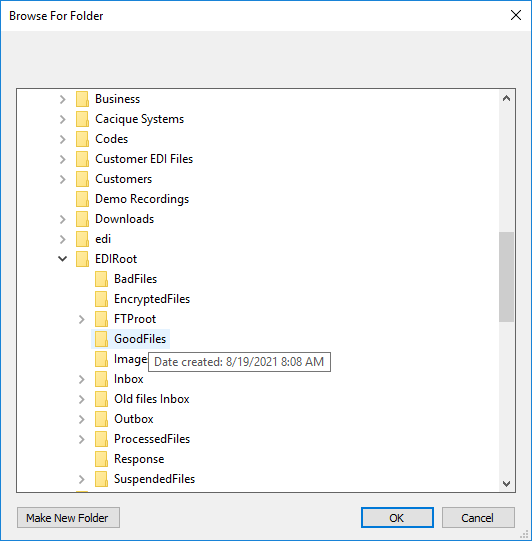
The "Browse For Folder" window allows you to search for a directory.
4.If the selected directory folder is empty, you will see this pop-up warning message:
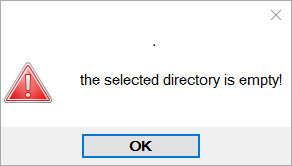
Empty directory pop-up message.
5.A progress bar will show you the compliance check and report generation status.

The progress bar shows the diretory process status.
6.Once the processing is complete, the following pop-up message will open:
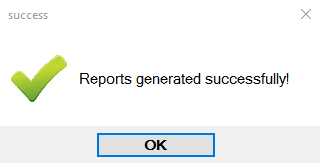
Success message after directory processing.
You can find the reports in the specified folder.

The directory processing reports will be in your designated folder.