Sorting EDI files |
  
|
Sorting EDI files |
|
The HIPAA Compliance Editor can sort EDI files into compliant and non-compliant. This functionality will not load files into the editor and is invoked when processing a directory.
To configure how to sort your EDI files after processing a directory and determine the location of compliant and non-compliant files, follow the steps below:
1.Go to Settings > File Sorting Settings in the main menu window.
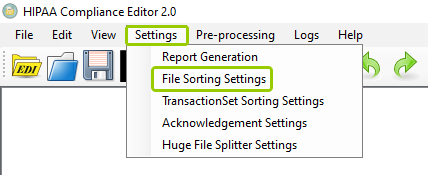
The "File Sorting Settings" option is under the "Settings" tab.
The following window will open:
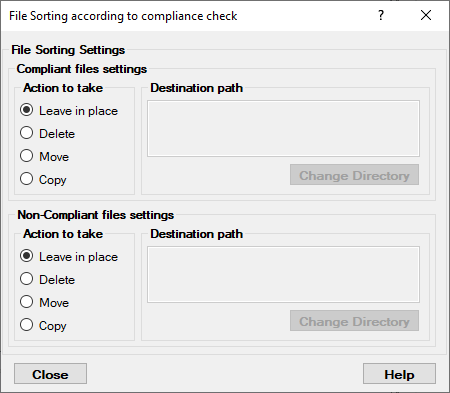
The "File Sorting" window.
2.You can configure your file sorting settings for both compliant and non-compliant files. The settings described below apply to both types of files.
Within the "Action to take" box, you can choose one of four actions to take with your EDI files when processing a directory. Make your selection of these actions for the compliant and non-compliant files:
oLeave in place — Selecting this option will leave the EDI file in the original directory.
oDelete — Selecting this option will delete the EDI file.
oMove — Selecting this option will enable the "Destination path" box so you can determine where you want to move the EDI file.
oCopy — Selecting this option will make a copy of the EDI file; you can determine the location in the "Destination path" box.
When you select either "Move" or "Copy" from the "Actions to take" box, the "Destination path" box will be enabled. If you click "Change Directory," you can search for the location where you want to move or copy your compliant or non-compliant EDI files.
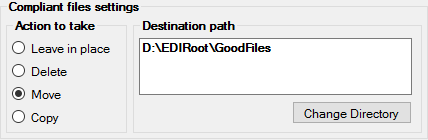
Compliant file sample settings.
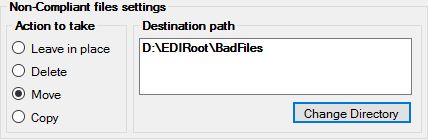
Non-compliant file sample settings.