Application Setup |
  
|
Application Setup |
|
The HIPAA Claim Master application allows users to configure the settings to personalize and streamline their processes. Follow the steps below to begin the general configurations:
1.Go to Setup > Options in the main menu window.
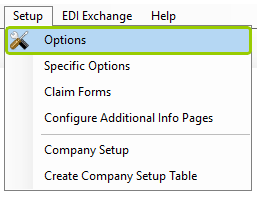
The "Options" item is under the "Setup" tab.
Alternatively, click the "Setup" icon on the “Taskbar.”
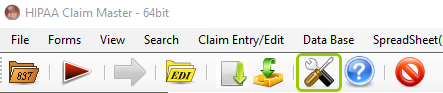
The "Setup" icon in the “Taskbar.”
2.The following window will open:
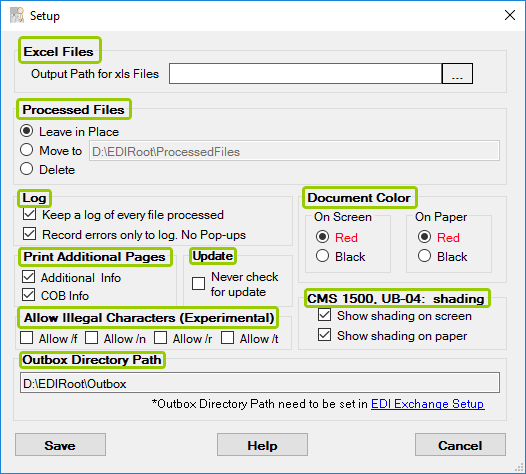
The "Setup" window.
3.Once you have finished the configuration, click "Save."
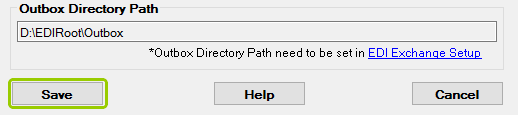
The "Save" button.
There are nine sections with settings you may configure to suit your needs. See more details on each setting below:
When creating Excel files, it is important to decide where they will be stored. The "Output Path for xls Files" defines the destination folder where the Excel files will be stored; see also Creating Spreadsheets.
HIPAA Claim Master can move or delete files after they have been processed to prevent the double processing of files, especially if a user launches the application through Windows Scheduler (see Running the Application via Scheduler). There are three options to automate this:
oLeave in Place — Select this option to do nothing with processed files (not recommended.)
oMove to — Select this option to move the processed files to a specified folder.
oDelete — Select this option to delete the processed files.
You have the option of keeping logs for each processed claim. There are two settings:
oKeep a log of every file processed — This determines if a log entry should be created for each processed file. By default, the log is only active in command line use (without human interaction). If you want a log entry created for all processing, except when viewing on screen, check this box. See also Accessing Daily File Log and Accessing Daily Statistics.
oRecord errors only to log. No pop-ups — If this setting is checked, an error message will not pop up on screen and the processing will continue; the error will be added to the log file. If left unchecked, processing will stopped when an error is detected.
There may be additional pages of data without representation on the standard forms. You can choose one of these printing options for any extra information:
oAdditional Info — Check this box to print extra information added to the regular form.
oCOB Info — Check this box to print any COB information added to the regular form.
If you only need the regular claim form without the additional pages, leave these boxes unchecked. See Displaying Additional Information and Displaying COB.
If the box is unchecked, the HIPAA Claim Master application will automatically look for the new version available. A pop-up message will prompt you to select the latest version. The update will then take place. The bottom right corner of the application window displays information including alerts on version updates.
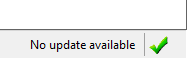
The bottom right corner of the main window indicates the update status.
This section of the setup window is concerned with the output colors. You have the choice to render the form in red or black. The form background can be set to red to make the form visually more appealing and to allow the use of a color filter for the Optical Character Recognition (OCR) software. The color can be selected for the following media:
oOn Screen — Choose a color for the form when displaying claims.
oOn Paper — Choose a color for the form when printing claims.
Note: The data is always displayed in black.
Some characters are usually excluded in incoming EDI files. There are four in particular:
oAllow /f
oAllow /n
oAllow /r
oAllow /t
Check the box to allow these characters to be included within the EDI files.
Paper claim forms have shading in some fields for added readability. You may choose to add or remove this shading from the following forms in both printing and on-screen formats:
oCMS-1500
oUB-04
Note: Shading is visible in printed claim forms; we recommend you do not check the "Show shading on paper" box if you want to save ink.
With this option, you may define in which directory the files are stored when you create EDI files. See About Creating EDI Files.