Creating Spreadsheets |
  
|
Creating Spreadsheets |
|
The HIPAA Claim Master application can export the enrollment data to a spreadsheet file in two formats:
oMicrosoft Excel .xls and .xlsx formats
oOpen Document (a non-proprietary) .ods format
You can create spreadsheet files manually or automatically using the command line arguments and Windows Scheduler. For a more detailed guide to automating this process, see Using the Command Line Arguments (CLI) and Running the Application via Windows Scheduler.
Before creating spreadsheet files, please ensure all settings are defined correctly. Please see Configuring Application Options to configure the directory where you will save the resulting files and Configuring Spreadsheet Options to configure the file format and columns.
To create spreadsheet files from EDI files manually, follow the steps below:
1.Open an EDI file or directory containing the EDI files in the HIPAA Claim Master application. See Processing an Electronic Claim, Working through an Entire Directory.
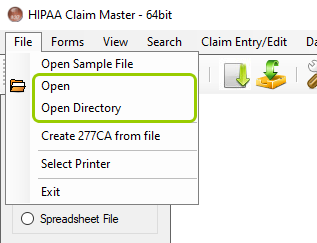
The "Open Directory" option is under the "Open tab" in the main menu window.
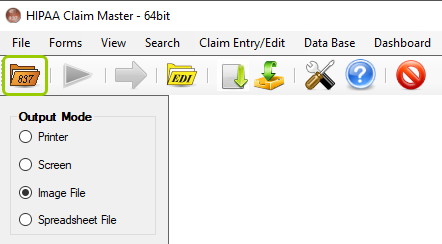
The "Open Document" icon is in the Taskbar.
2.Select the "Spreadsheet" option in the "Output Mode" block.
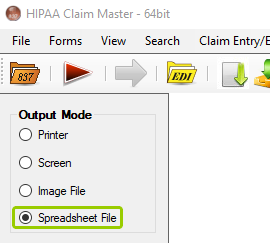
The "Spreadsheet File" option is in the "Output Mode" box.
3.Click on the "Run" button.
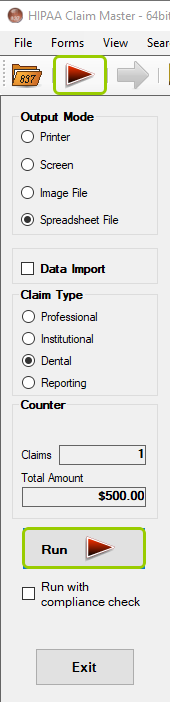
The “Run” button locations in the Taskbar and Info Bar.
Note: While the application is processing, the "Run" button will be replaced by a "Stop" button. To stop the process, click the "Stop" button at any point.
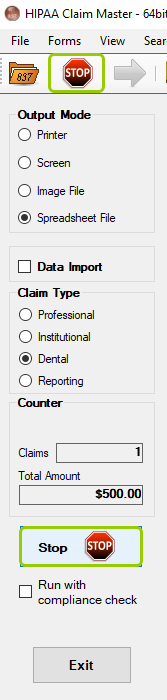
The "Run" button is replaced by a "Stop" button.
4.The "Processing Results" window displays the report. The XLS, XLSX, and ODS files will be in the specified folder.
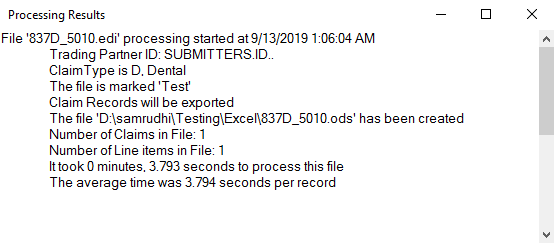
The "Processing Results" window.
5.You will be asked if you wish to open the resulting file. Click "Yes" to view the data or "No" to close the window and finish the process.
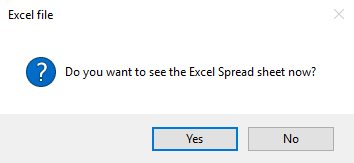
Confirmation pop up to open the Excel spreadsheet.
6.The resulting spreadsheet will look as the example shown below:
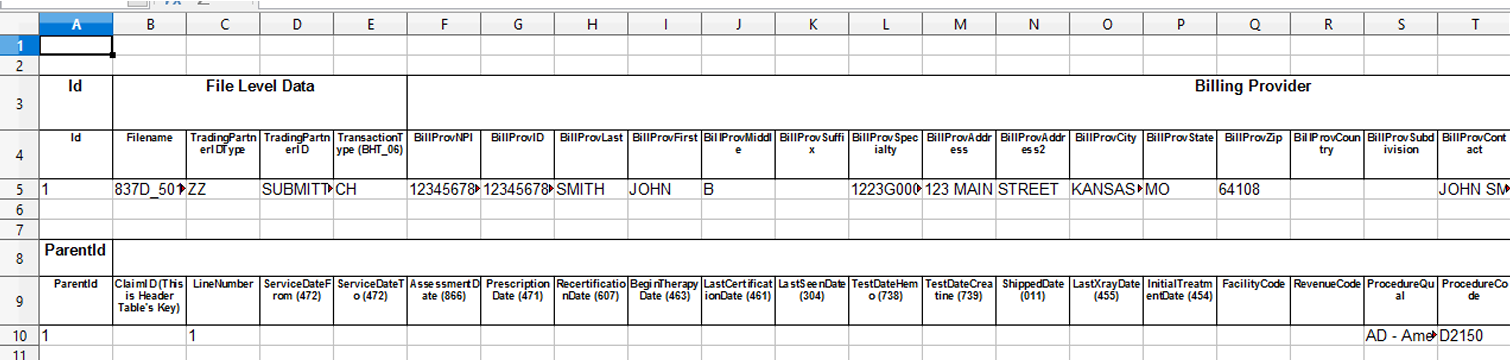
Excel exported spreadsheet sample.
The information is distributed as follows:
oRows 4 and 5 — These contain the claim header information; row 4 has the column or field names and row 5 has the data.
oRow 9 — This row contains the claim detail field names.
oRow 10 and beyond — The remaining rows contain the detail lines in the claim.