Accessing Daily File Logs |
  
|
Accessing Daily File Logs |
|
The HIPAA Claim Master application keeps a log entry for each file that gets processed. This feature is helpful when the application is run through automated processes, such as Microsoft Scheduler. The log is essential in tracking errors and documentation. For Log settings, see Configuring Application Options.
Follow the steps below to access the log files:
1.Go to Logs > Daily Logs in the main menu.
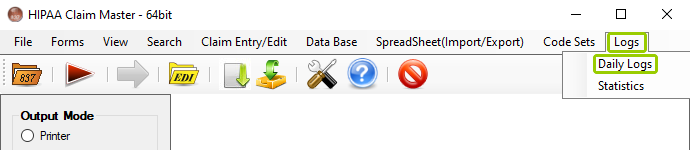
The "Daily Logs" option is in the "Logs" tab.
The following window will open:
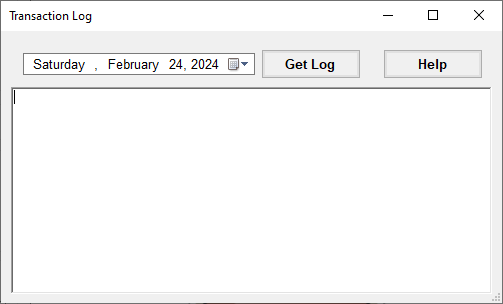
The "Transaction Log" window.
2.Select the date for the log you want to retrieve, then click "Get Log." If you have any transactions logged for the selected date, you will see the following:
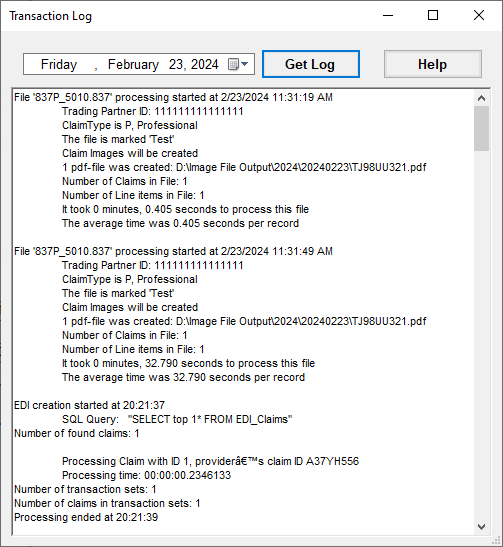
The "Transaction Log" window with results.
The sample log file above is a problem-free file. Out of this entry, you will get:
oProcess start time
oFile name
oTrading partner ID
oClaim type
oNumber of claims
oNumber of lines
oNumber of imports/image files/ prints
oProcessing time
oAverage time per claim
If there are no transactions logged under the selected date, the following pop-up window will open:
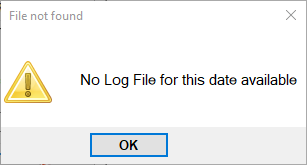
A pop-up window will indicate there are no logs.
Log files are simple text files that are stored in date-hashed folders. You can access the Logs folder following this directory:
oThis PC\Window (C:)\ProgramData\HIPAAsuite\HIPAA Claim Master\Logs
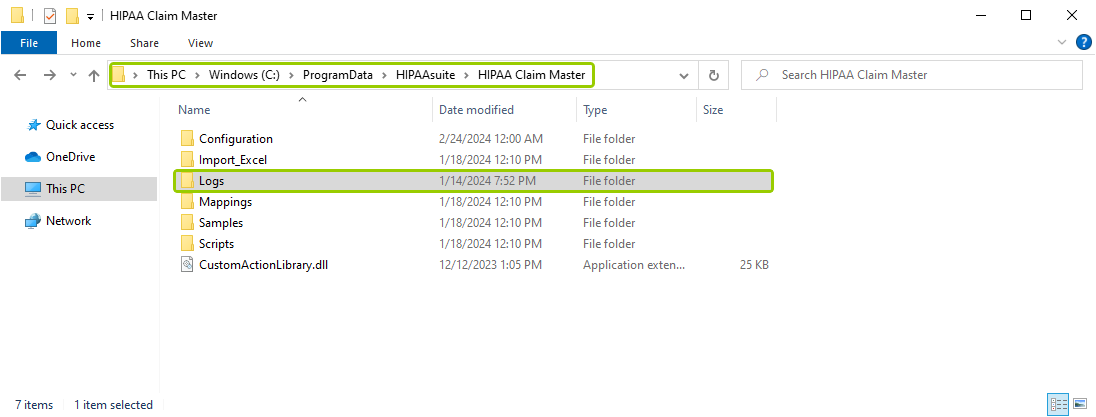
The directory pathway for the daily logs.
The folder is hidden by default. But if you type in the address in the top bar of the File Explorer window, you will find that it exists. Alternatively, you may change the explorer settings to show hidden files and directories.
For each time HIPAA Claim Master is used (if logs are enabled), there will be a log file. If you open the file, it will look like this:
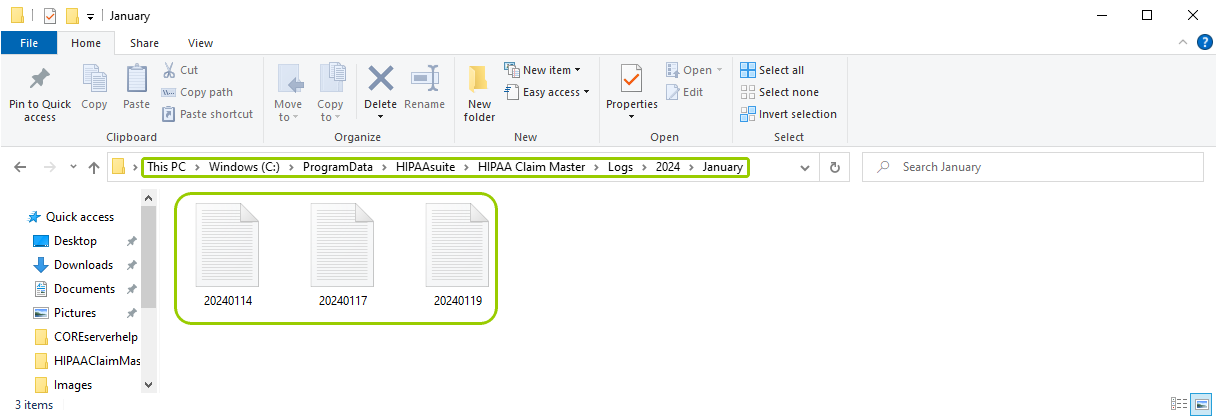
The log text files.
An entry with errors might look like the following:
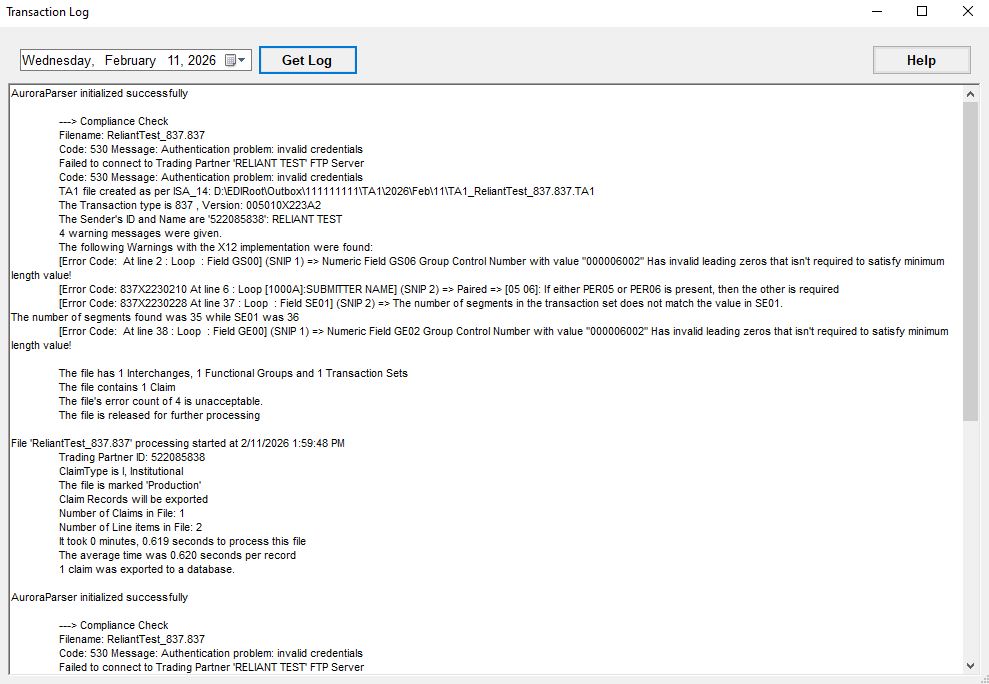
Sample entry with errors.
The second entry shows a database import problem with details that help users detect issues. If the file was created by an outside source, they may need to review the file and fix it. If your system created the file, you may need to look into your tables and set up. Follow the details of the log to find the error and fix it. In this case, a carriage return was in the file between the 2 and the 4.