Specific Options |
  
|
Specific Options |
|
Further configuration can be done to personalize how HIPAA Claim Master renders your forms and their data. This can help you adhere to your specific needs regarding the management and presentation of forms and data. Follow the instructions below to set these specific options:
1.Go to Setup > Specific Options in the main menu window.
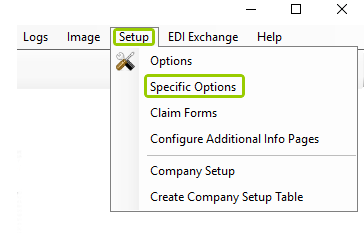
The "Specific Options" item is under the "Setup" tab.
The following window will open:
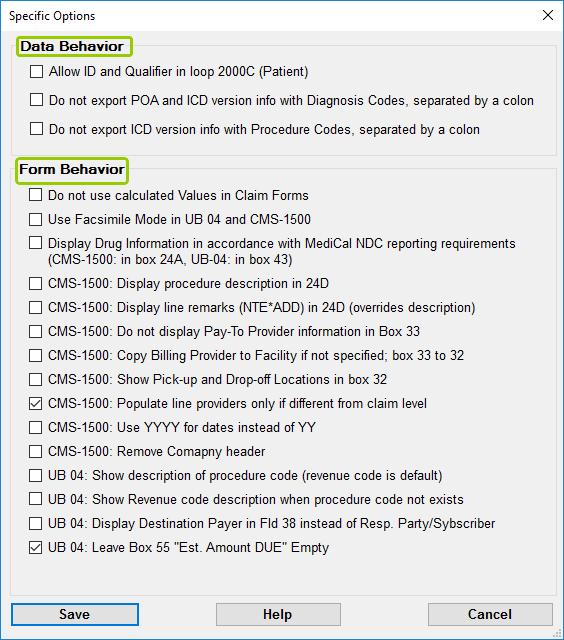
The "Specific Options" window.
2.Once you have configured the options, click "Save."
Checking an option will change the form behavior as described. Leaving them unchecked will keep the default function. See the details of each specific option below:

The "Data Behavior" box is in the "Specific Options" window.
This box contains specific options regarding how data is managed and processed. There are three settings:
·Allow ID and Qualifier in loop 2000C (Patient)
With the 5010 version of the EDI claim, a separate ID for patients and dependents was eliminated. While providers see patients and dependents simply as patients, insurance companies need the distinction. This option is for rare cases where this insured has no relation to the subscriber except by contract, such as workman's compensation claims, where a company is the insured and the employee is the patient. In this case, we do need a separate ID for the patient.
·Do not export POA and ICD version info with Diagnosis Codes, separated by a colon
Present on Admission (POA) information is now often required by insurers to exclude "hospital infections" from coverage. These are diseases acquired by the patient after admission to the hospital, which can cause high costs and even death.
In the database import, the POA codes are colon-separated from the diagnosis codes. Since the POA flag is intrinsically linked to the diagnosis code, we opted to concatenate the International Classification of Diseases (ICD) version qualifier and the POA indicator with the Diagnosis Code qualifier, separated by a colon (:).
With the introduction of ICD-10, it is important to save the version of ICD codes in the claim to the database because we need to differentiate between ICD 9, 10, and now 11. Usually, the default is to write this information to the database, since this is required to create valid claims.
You can opt out of importing POA and ICD version information to the database by checking this box. If this causes problems, you can deselect it. See the samples below:
oThe "Principal Diagnosis" code has POA and ICD versions. Example: Z77.22:Y:ABK. Here, the diagnosis code is in the first position, followed by the POA indicator and the ICD-10 qualifier. ABK denotes ICD-10 and BK denotes ICD-9.
o"Other Diagnosis" codes have POA and ICD versions, as above. Example: J151::ABF. Here, the POA code is committed.
o"E-codes" also have both POA and ICD versions, as above. Example: E8600:Y:ABN.
oThe "Admit Diagnosis" code has no POA information. By definition, it is the diagnosis code under which a patient was present at admission. For example: L01.03:ABJ where only the ICD version qualifier is added to the Diagnosis Code.
Note: "Reason for Visit" and "Admit Diagnosis" codes have no POA information.
Connecting diagnosis information with POA and ICD codes is bi-directional; that is, if you create 837 files from the database, then the above example is the way to do it. Internally, HIPAA Claim Master will parse the information and assemble the respective HI segment within all applicable rules when creating EDI files.
·Do not export ICD version info with Procedure Codes, separated by a colon
The current ICD version code can be exported together with the value, separated by colons. If you do not wish to export this information, check this box.
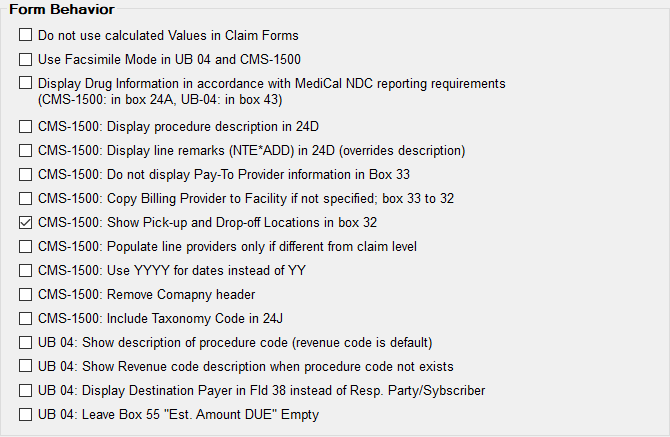
The "Form Behavior" box.
Similar to the previous settings, this box contains specific options regarding how the data is arranged and displayed in claim forms. See the descriptions below:
·Do not use calculated values in claim forms
The HIPAA Claim Master application calculates the open amount from charges minus previous payments and patient-paid amounts, as well as some other values. If you prefer not to do this, check this option.
·Use Facsimile Mode in UB-04 and CMS-1500
If checked, this mode makes the claim look like it has been filled with a Dot-Matrix printer (see Facsimile Mode).
·Display Drug Information in accordance with MediCal NDC reporting (this only applies to California) requirements (CMS-1500: in box 24A, UB-04: in box 43)
The MediCal NDC reporting requirement involves transmitting drug data that belongs to a specific procedure. In the 837 transaction set, this information is in the LIN and CPT segments of the 2400 loop. Here is the display of NDC in the CMS-1500:
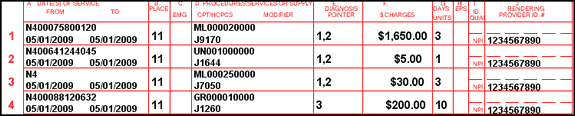
The NDC code is in the upper half of field 24 A; the quantity is in field 24 D.
The format for the quantity is a full 10-digit number. The 10 digits consist of seven digits for the whole number, followed by the three-digit decimal portion of the number. In the example above, line 1 indicates 20 milliliters, line 2 means 1000 units, line 3 means 250 milliliters, and line 4 means 10 grams.

The NDC information as shown in the UB-04 form.
In the UB-04, the NDC information goes in the "Description" field 43 as one string with quantities in the same format as in the CMS-1500.
·CMS-1500: Display procedure description in 24D
Since EDI is all about saving bytes, the description of a procedure or diagnosis is not included in the information exchange. If you need that information, you may buy the publications with the procedure and diagnosis codes, which include their descriptions. The Centers for Medicare & Medicaid Services (CMS) publishes them for free and you can import them into our database so they may be displayed in the forms.
·CMS-1500: Display line remarks (NTE*ADD) in 24D (overrides description)
·CMS-1500: Do not display Pay-To Provider information in Box 33
When a Pay-To provider is specified in loop 2010AB, the address information is usually displayed in box 33. Check this box to hide the address.
·CMS-1500: Copy Billing Provider to Facility if not specified; box 33 to 32
·CMS-1500: Show Pick-up and Drop-off Locations in box 32
Ambulance claims use box 32 to specify pick-up and drop-off locations. To display the pick-up and drop-off location, check this box.
·CMS-1500: Populate line providers only if different from claim level
Display cleaned up in EDI files where the rendering provider is repeated on every line.
·CMS-1500: Use YYYY for dates instead of YY
·CMS-1500: Remove Company header
·CMS-1500: Include Taxonomy Code in box 24J
·UB-04: Show description of Procedure Code (Revenue code is default)
If this box is checked, field locator 43 will be populated with the procedure code description if such code is in the SV2 segment.
·UB-04: Show Revenue Code description when procedure code does not exist
·UB-04: Display Destination Payer in Fld 38 instead of Resp. Party/Subscriber
·UB-04: Leave box 55 "Est. Amount DUE" empty