Using the Claim Entry/Edit Module |
  
|
Using the Claim Entry/Edit Module |
|
This module allows two functions:
oEntering claim data to the database manually
oSearching and editing claim data in the database
To create new claims manually, follow the steps detailed below. To edit existing claim data, see Searching and Editing Imported Data.
The claim entry code sets are stored in the file ClaimEntry.xml in the Configuration folder; see the default file path:
oC:\ProgramData\HIPAAsuite\HIPAA Claim Master\Configuration\
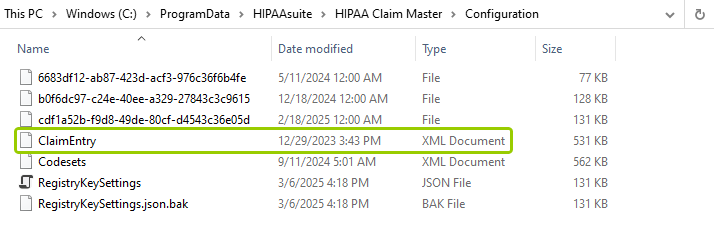
Path to the Configuration folder for theClaimEntry.xml file.
You can enter Professional, Institutional, or Dental claims using the "Claim Entry/Edit" module. Claim entry requires the use of transaction code sets. You can access and edit them as well as setup the component (see Selecting a Code Set). The following topics describe settings for the Claim Entry/Edit module:
·Defining Claim Entry Settings
Follow the steps below to enter claims:
1.Go to Claim Entry/Edit in the main window and select one from the Professional, Institutional, or Dental Claim options.
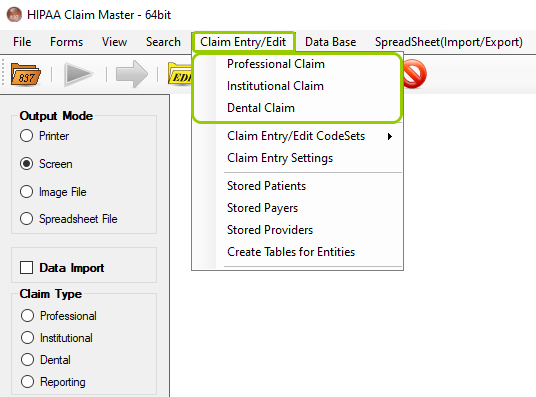
The "Claim Entry/Edit" tab is in the main menu window.
Depending on which claim type you choose you may see a different window. For this example, we will choose the "Professional Claim":
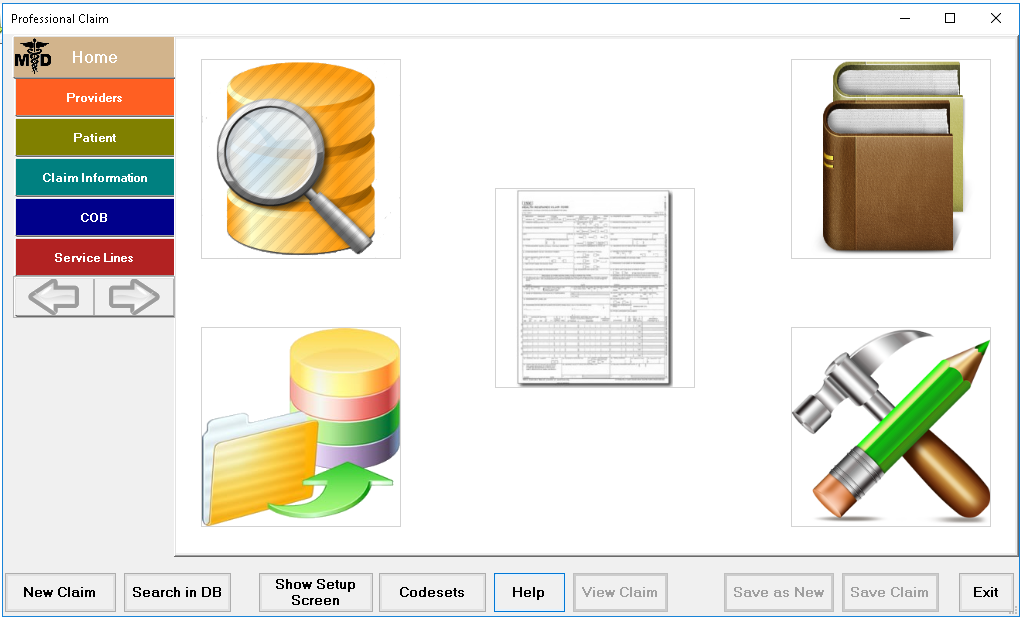
The "Professional Claim" window.
2.There are three areas of the "New Professional Claim" window:
oData Group Panel
oView Box
oAction Buttons
In the next section, you will see the details for each area, exemplified with the Professional Claim option.
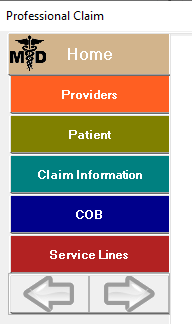
The five main data groups.
The Data Group Panel is on the left side of the window. Each segment or loop is color coded and has its own set of editing windows when clicked. The colors may be changed based on your preferences. The five (5) main data groups are:
oProviders
oPatient
oClaim Information
oCOB
oService Lines
Choose "New Claim" to enter a new claim. For example, we will select "New Claim," which will open the "Providers" data group button.
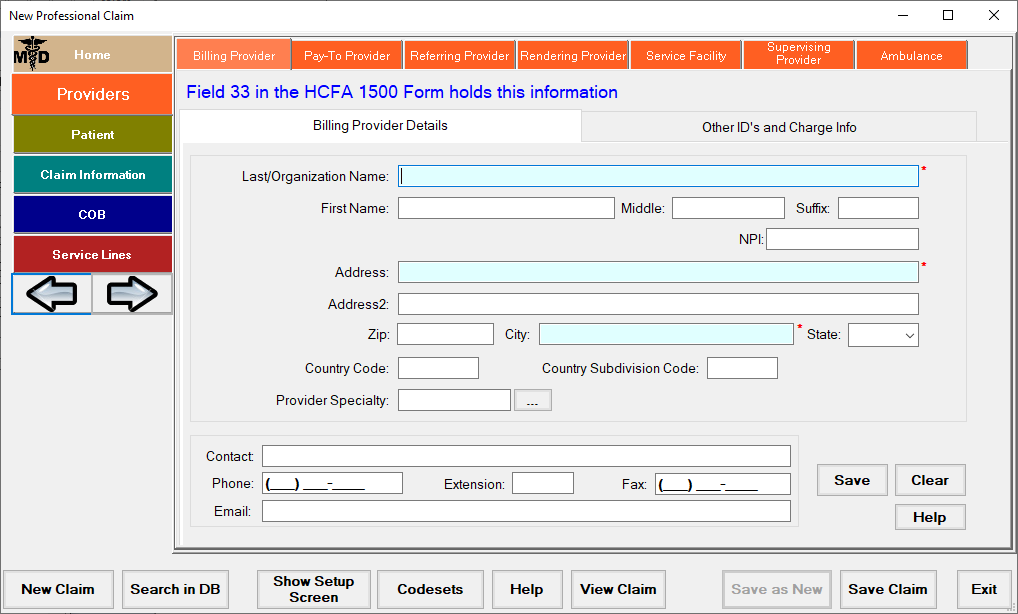
The "New Professional Claim" window after clicking on the "Providers" data group button.
When you click on any of the data group buttons, you will see a new window with a tab bar at the top and the information and relevant fields. Different sections may have a different range of tabs across the top.

The "Providers" button and tab bar are in the "Professional Claim" window.
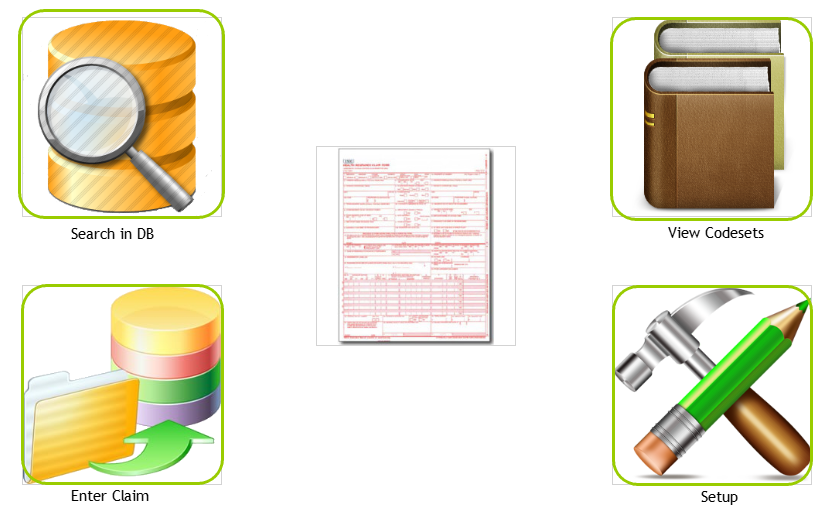
The "View Box" of the "Professional Claim" window.
The main window will display four (4) shortcut buttons (from top left to bottom right):
oSearch in DB — This shortcut will open the "Exported Claims" window which will allow you to look for claims saved within the database.
oView Code Sets — This shortcut will open the "Code Sets" window which will allow you to view and modify code sets (see Selecting a Code Set).
oEnter Claim — This shortcut will open the "Providers" data group button in the view box.
oSetup — This shortcut will open the "Claim Entry Setup" window (see Defining Claim Entry Settings).

The "Action Buttons" of the "Professional Claim" window.
The action buttons provide different actions you may take regarding the entry and/or editing of claims. Some are available within the view box when the main window is available, but they remain within the bottom area regardless of which data group or tab you are currently viewing. See what each action button does below:
oNew Claim — Also available in the view box main window as "Enter Claim"; this button will open the "Providers" data group button in the view box.
oSearch in DB — This button will open the "Exported Claims" window which will allow you to look for claims saved within the database.
oShow Setup Screen — Also available in the view box main window as "Setup"; this button will open the "Claim Entry Setup" window (see Defining Claim Entry Settings).
oCodesets — Also available in the view box main window as "View Codesets";This button will open the "Code Sets" window which will allow you to view and modify code sets (see Selecting a Code Set).
oHelp — This button will redirect you to the user's manual for more assistance.
oView Claim — This button will open a preview window of a claim you would like to view (see Displaying Claims).
oSave as New — This button allows you to save a record with a different ID to keep the same data.
oSave Claim — This button will save your claims after any modifications have been made. Please note that any unsaved changes will not take place.
oExit — This button will close the claim entry/edit function.