Displaying Claims |
  
|
Displaying Claims |
|
The HIPAA Claim Master application can display claims as an image file on screen through a new window or as a spreadsheet file.
Though there are multiple types of claims, HIPAA Claim Master is designed to display each claim in a way that makes it simpler to navigate. Follow the steps below to display a claim:
1.Go to File > Open on the main menu window. Browse for the file you want to view, then click "Open."
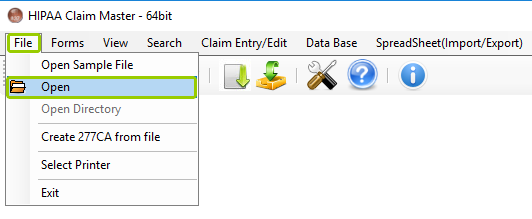
Click the "Open" option to search for an EDI file.
2.After opening the file, check that the output mode is on "Screen," then click the "Run" button.
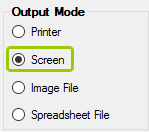
The "Output Mode" box is in the "Info Bar."
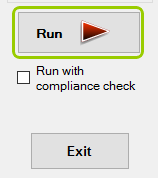
Click the "Run" button to begin processing.
The form type is on the left pane, under the "Claim Type" box.
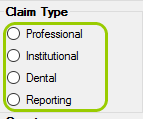
The "Claim Type" box.
3.Depending on the claim type (Institutional, Professional, or Dental), a preview window will display the claim in the latest standard format. See the examples below:
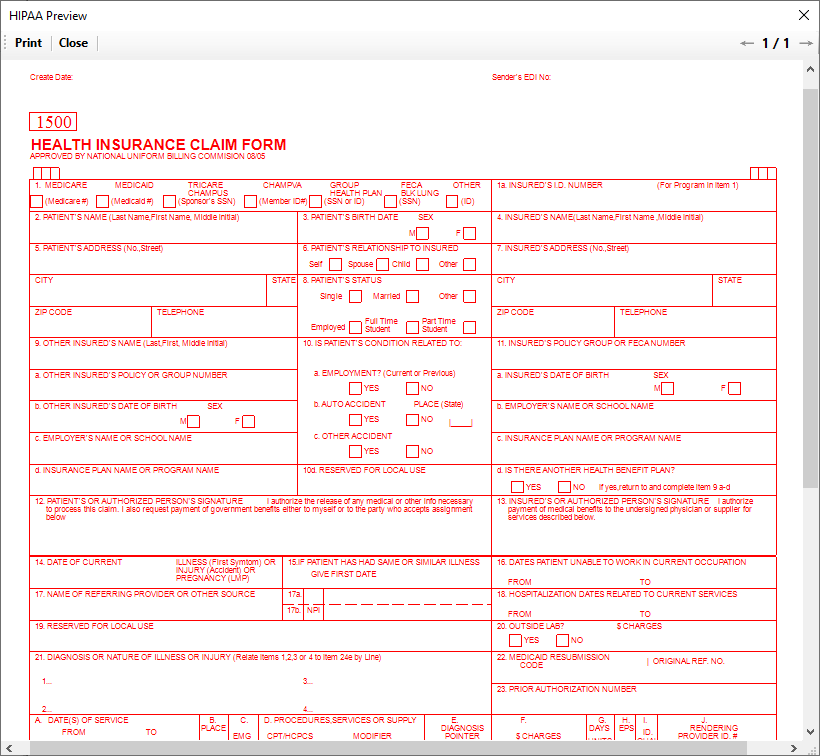
A Professional claim form CMS-1500.
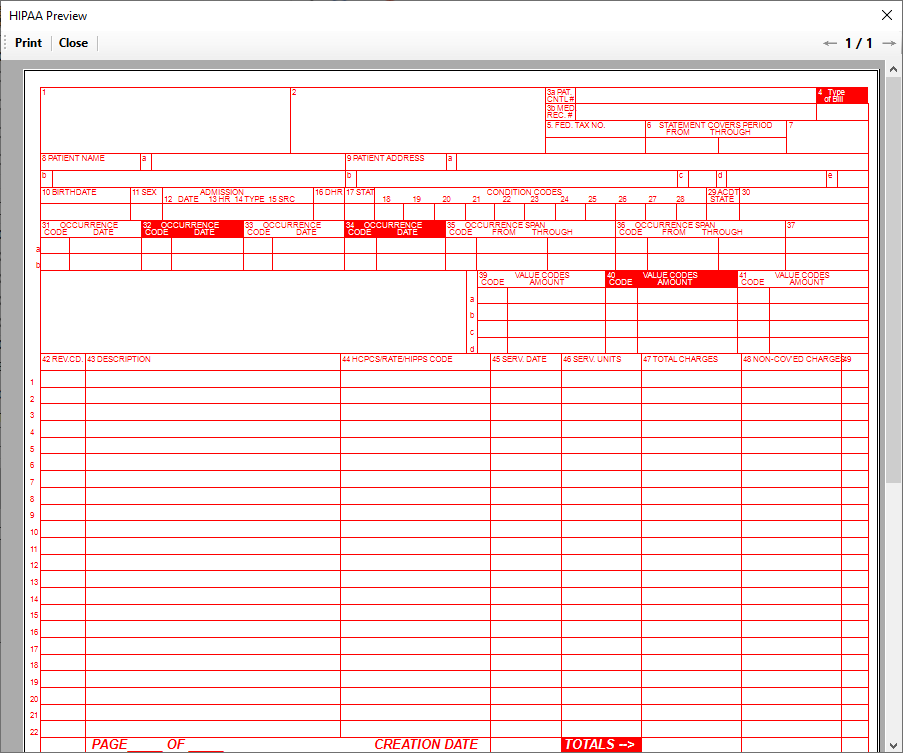
An Institutional claim form UB-04.
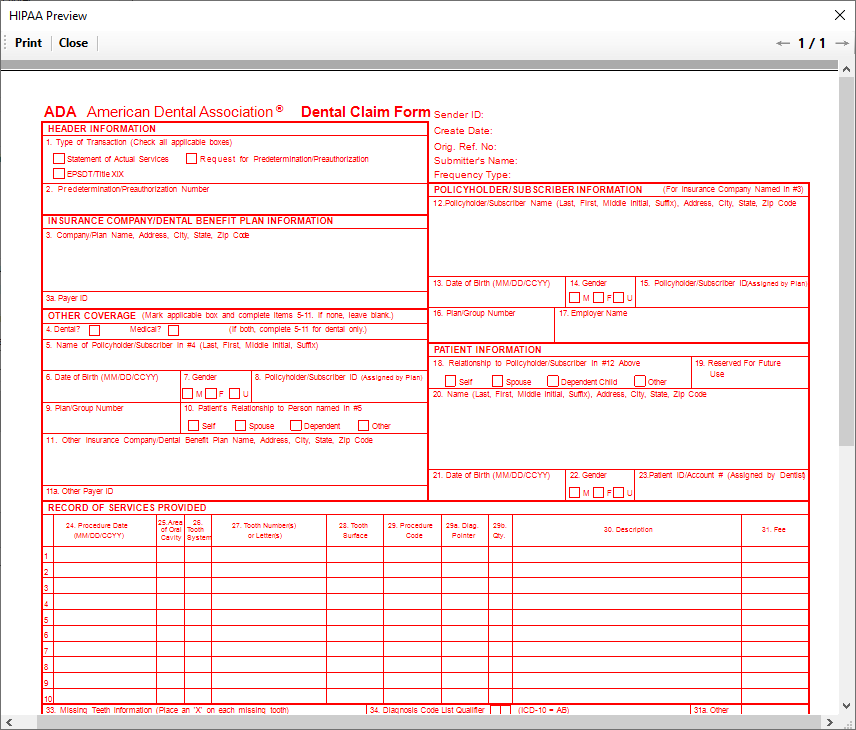
A Dental claim form 2024.
Professional claims with more than 6 lines and institutional claims with over 23 lines do not fit in one form. These claims will be displayed on multiple pages.
See the details of each navigation tool below:

The "Navigation Header Bar" has options for viewing multi-paged claims.
In the header bar of each multi-page form, you will find navigation buttons, each described below:
oPrint — This option sends the individual claim to the printer.
oClose — If you click "Close," you will be prompted to continue to the next claim or finish processing the current claim.
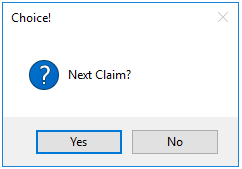
The choice between going to the next claim and stopping processing.
Choosing "Yes" will bring the next claim in line, if any, before clicking "Run"; selecting "No" will close the current claim, stop the parsing, and return to the main window.
oNext Claim — This option will move on to the next claim; you must click "Run" to view it.
oPages — This shows the number of pages and which is currently in view; if there are multiple pages, the arrows allow you to navigate them.
oClaim — This shows the main claim form; you may navigate the pages with the arrows.
oAddl info — Additional information; this option is available if there is more information about the claim that does not fit within the standard form; if there is none, this option will be grayed out.
oCOB info — Coordination of Benefits information; this option is available if there is more benefits information about the claim that does not fit within the standard form; if there is none, this option will be grayed out.
Note: Only the line information will differ on each form. The claim header information will be identical. HIPAAsuite does not show total charges for each page; this will be displayed only at the end of the claim.
When you click "Cancel," the parsing engine will continue processing the EDI file until it finishes. The processing time will depend on the size of the file.
You can access claim forms through the Forms tab in the Tab Menu Bar of the main menu window (see also Printing Blank Forms):
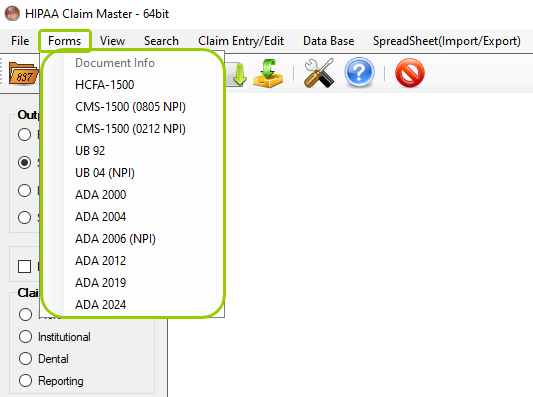
The "Forms" tab in the main window menu.