Selecting a Code Set |
  
|
Selecting a Code Set |
|
At the onset of EDI, one of the main design ideas was to make the EDI files as short as possible and to allow different languages to use the same descriptions, thus reducing long, verbose explanations to 2-3 byte-long codes. Computer storage was costly, and making any file larger than necessary was considered wasteful. For this reason, EDI relies on transaction code sets, which represent longer explanations and descriptions.
The code sets are stored in the file codesets.xml in the Configuration folder; see the default file path:
oC:\ProgramData\HIPAAsuite\HIPAA Claim Master\Configuration\
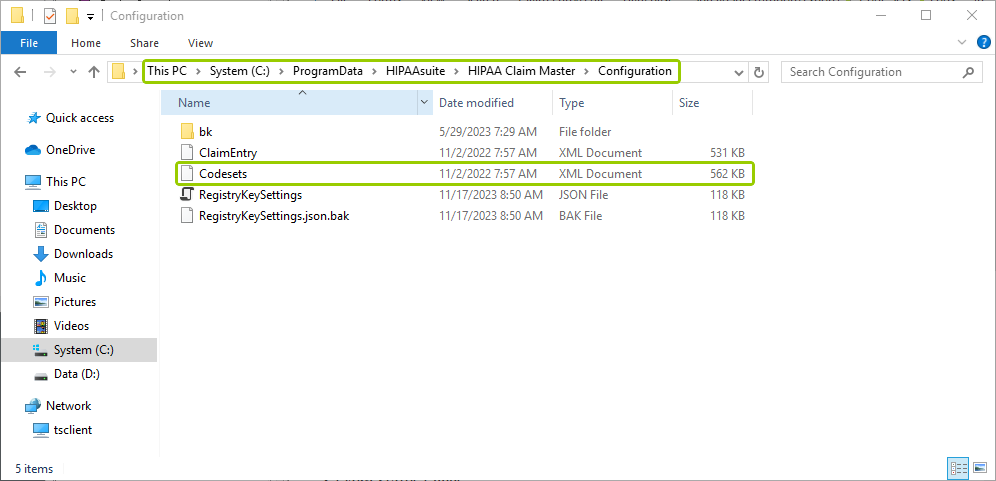
Path to the Configuration folder for the codesets.xml file.
Note: The folder may be hidden.
To view and/or edit transaction code sets in the HIPAA Claim Master application, follow the steps below:
1.Go to the "Code Sets" tab in the main menu window.
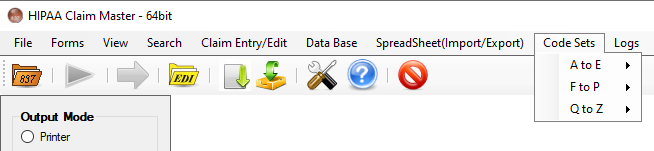
The "Code Sets" tab and its sub-menus.
2.Hover the pointer over one of the sub-menus, then select your desired code set name. The following items are available per sub-menu:
A to E |
|
Adjustment Reason |
Adjustment Reason Group |
Admission Source |
Admission Type |
Amount Qualifier Codes |
Attachment Report Type |
Certification Type |
Claim Status Categories |
Claim Status Codes |
Communication Codes |
DTP Codes |
Delay Reason Codes |
Diagnosis Codes |
Drug Qualifiers |
Entity Codes |
|
F to P |
|
Facility Type |
Filing Codes |
Filing Indicator Codes |
Gender |
ID Codes |
Info Release |
Marital Status |
Patient Location |
Pattern Codes |
Payment Method |
Pricing Codes |
Procedure Codes |
Prognosis Codes |
Provider Codes |
Provider Taxonomy |
|
Q to Z |
|
REF Codes |
Relationship |
Remark Codes |
Signature Source |
Subluxation Codes |
Tooth Numbering |
Unit Codes |
Yes/No Codes |
For illustration purposes, we selected the "Patient Location" code set.
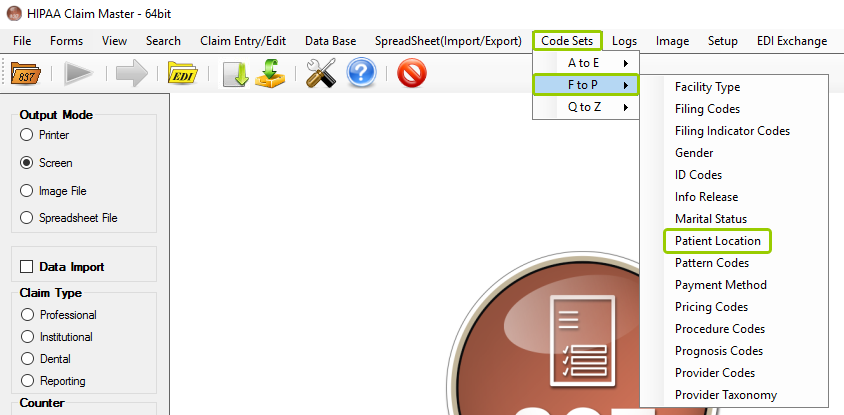
The "Patient Location" option is under the "F-P" sub-menu.
3.The code set configuration window will open.
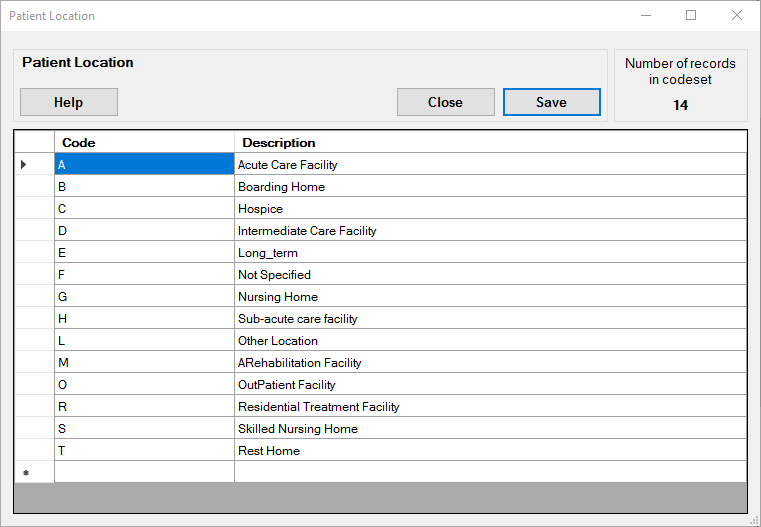
The "Patient Location" code set window.
4.Once done, click "Save" if you have made any changes or "Close" if you want to exit. If you need more information, click "Help."
See the descriptions of the tools and actions you can find and perform, respectively, in the transaction code set lists:
This shows the total number of codes; in this example, the "Patient Location" code set has 14 total codes.
The codes are indicated in the source EDI files. The descriptions are displayed instead of codes, making files easier to read. For example, for the "Patient Location" code set, these are the codes and corresponding descriptions:
oA — Acute Care Facility
oB — Boarding Home
oC — Hospice
And so on.
To add a row, click on the last row; you will see an indicator in the first gray field.
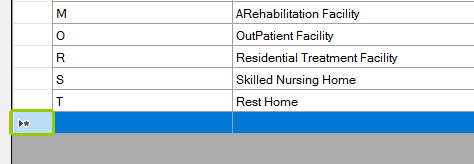
The indicator is shown in the left column.
To edit, double-click the cell you want to change. You may also start typing to enter Edit mode as well. Clicking or moving outside this cell overwrites the cell contents with the new value. To make these changes permanent, click the 'Save' button.
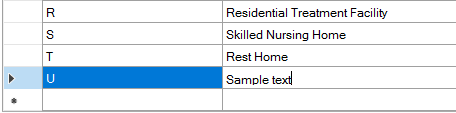
Click on the cell you want to write.
To delete a row, click the left margin. This action will highlight the whole row. Then, press the Delete key on your keyboard.
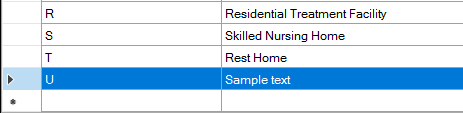
Now press the <DELETE> key on your keyboard.