Creating Code Set Tables |
  
|
Creating Code Set Tables |
|
Transaction code sets represent longer explanations and descriptions. These were created to make data lighter for processing. Some code sets, however, are so numerous that it does not make sense to store them in an XML file. There are more than 25,000 procedure and revenue codes and more than 15,000 diagnosis codes in ICD-9 alone. For that reason, HIPAA Claim Master stores Procedure, Revenue, Diagnosis Codes, and ZIP codes in the database.
Note: You need to configure the connection to the database first. See Setting up Database Connection.
To create code set tables from the database, follow the steps below in which a Diagnosis Code table will be created for illustration:
1.Go to DataBase > Code Look-up Tables in the main window.
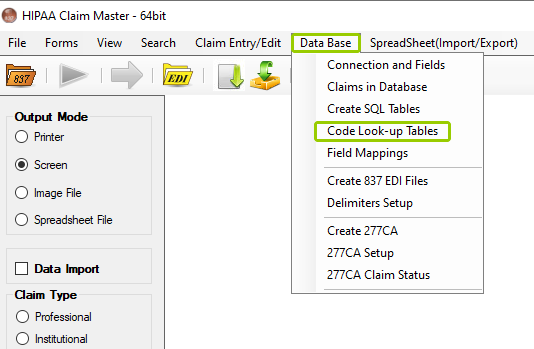
The "Code Look-up Tables" option from the "Data Base" tab.
Alternately, a specific code set's editor can be opened by clicking the respective Procedure, Diagnostic or Revenue Code option from either the "Code Sets" menu or by going to Claim Entry/Edit > Claim Entry/Edit CodeSets option.
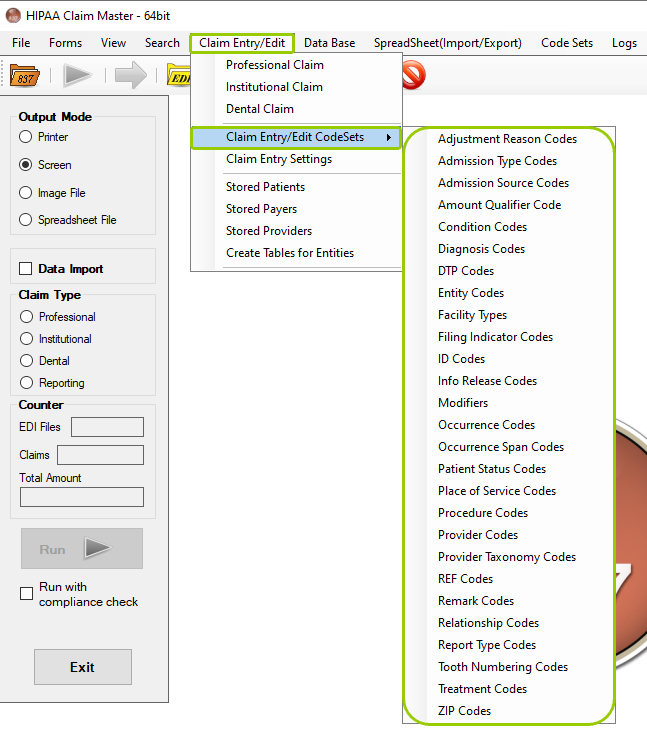
The different codesets from the "Claim Entry/Edit Codesets" option under the "Claim Entry/Edit" tab.
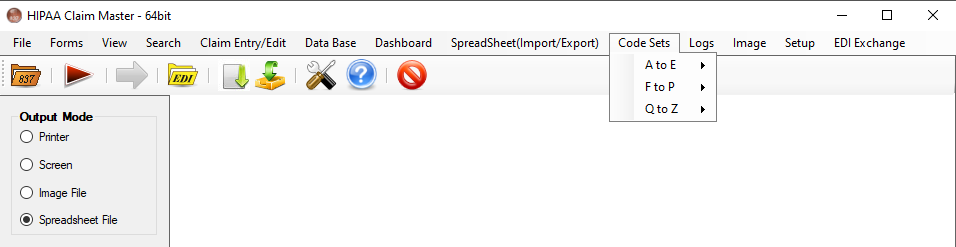
The different options under "Code Sets" in alphabetical order.
2.After accessing it from your preferred location, the "Diagnosis Codes" will open, as per our example.
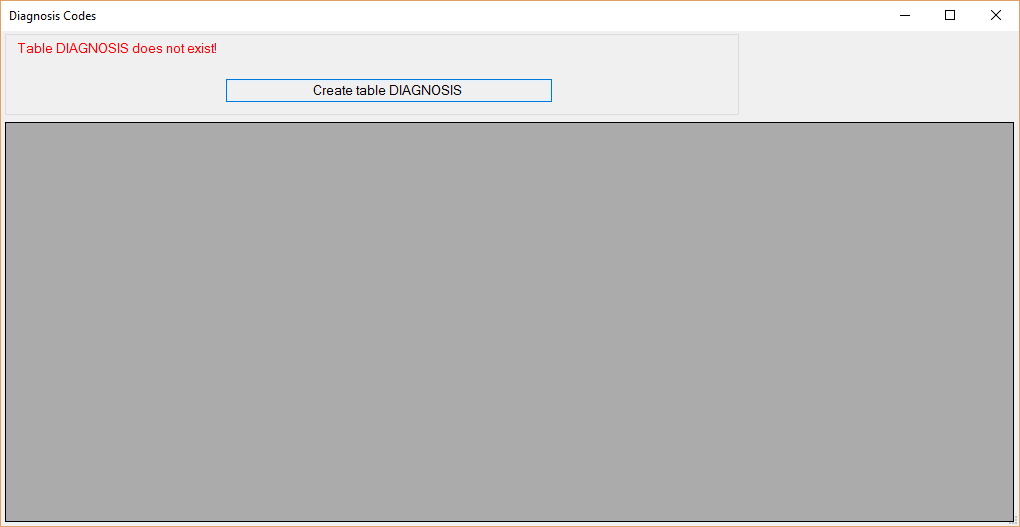
The "Diagnosis Codes" window.
3.There are no pre-existing tables within the database. To create a table, click the "Create table DIAGNOSIS" button.

The "Create table DIAGNOSIS" button.
4.The "Create DIAGNOSIS Table" window will open. You have various actions available to create the table (see details in the next section).
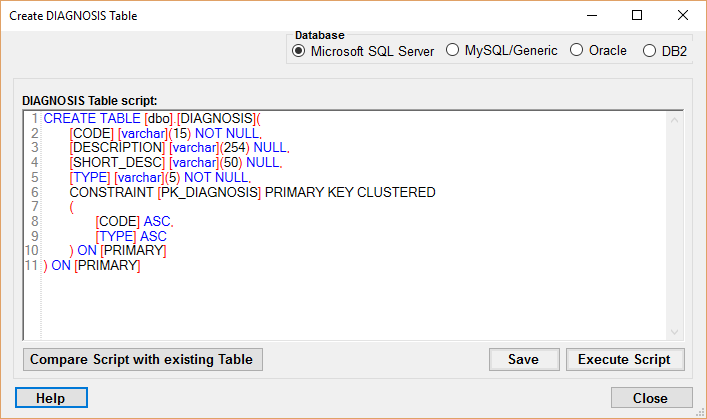
The "Create DIAGNOSIS Table" window.
5.Select the appropriate database and click the Execute script" button and the table will be created.

The "Execute Script" button.
6.Once the table is created, a pop-up window will confirm the creation of the table
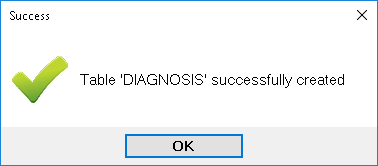
Pop-up window confirming table creation.
7.You will be redirected back to the "Diagnosis Codes" window where you can see the newly created table. Now, the options "Load from XLSX file" and "Load from TXT file" are available in case you wish to upload a code set via a spreadsheet or text file, respectively. You can also search for codes and see how many code sets are in the table with the counter on the top-right side of the window.
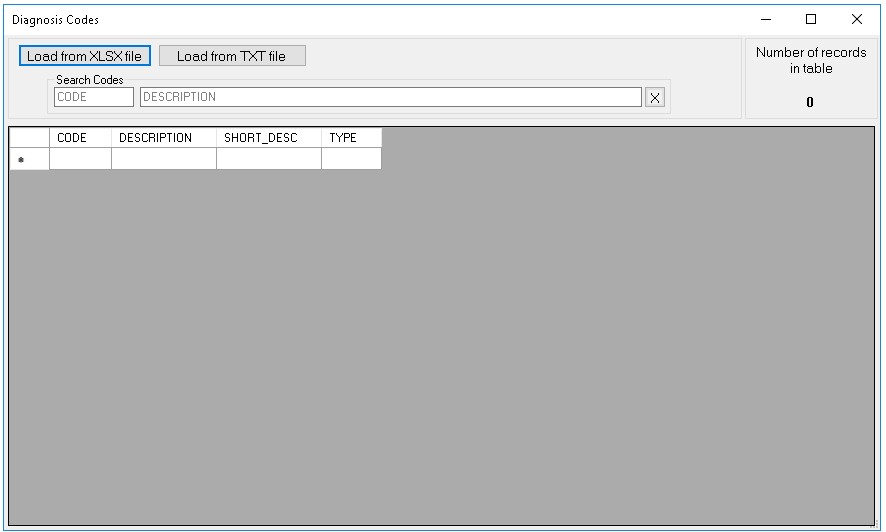
The "Diagnosis Codes" window now has an empty table.
In the next chapter, you will be able to learn how to fill out the code set tables.
See the details of what you can do to create code set tables below:

The "Database" type options.
Within the Database box, you may select you preferred database as established when you configured the database setup. There are four databases:
oMicrosoft SQL Server
oMYSQL/Generic
oOracle
oDB2
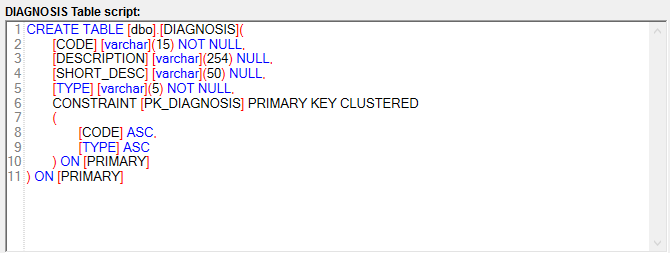
The "Table Script" text box.
Within this text box, you will be able to see and edit the table script, in this case being the Diagnosis table.

The "Action Buttons" for the creation of codeset tables.
There are five buttons that help create and save the code set tables:
oCompare Script with existing Table — If the table has been changed in a new release, clicking "Compare Script with existing Table" will create a script to adjust the table.
oSave — Once you make all the changes to the table, click "Save" to keep the changes. If the window is closed without saving, changes will not be kept and the table will keep its original state.
oExecute Script — After you save your table, clicking on "Execute Script" will create and put the table into effect.
oHelp — If you need more assistance, clicking "Help" will open the user's manual.
oClose — If you're done, clicking here will close the window.