Searching Through a Claim File |
  
|
Searching Through a Claim File |
|
There are two ways to search: through a claim or for a specific member. When you search through a claim, the application will parse through the file and display the claim that fulfills the criterion you establish. If there are many claims, it will display each claim that has this condition. Follow the instructions below to search through the claim file:
1.Select Search > Define Search in the main menu window.
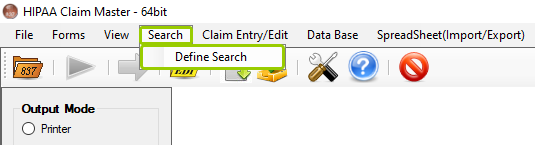
The "Define Search" option is under the "Search" tab.
The following window will open:
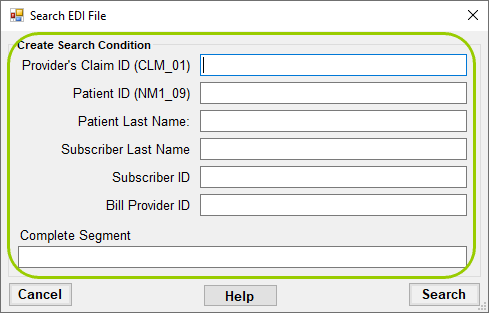
The "Search EDI File" window.
2.Under the "Create Search Condition" section, you can specify your search criteria and search for:
oThe Provider's Claim Number or Patient's Record number that is stored in CLM_01 segment
oThe Patient Control Number or Patient's ID
oPatient Last Name
oSubscriber ID
oSubscriber Last Name
oBilling Provider's ID
oA complete EDI segment
You can specify multiple conditions for a single search. If you want to search for a specific piece of information, you can type it under the "Complete Segment" box.
3.Once you have specified all the search conditions, click on the "Search" button. You can click on "Cancel" at any point to stop the search process and close the window. If you need further assistance, you can access the user's manual by clicking the "Help" button.

The "Cancel," "Help," and "Search" buttons.