Defining Claim Entry Settings |
  
|
Defining Claim Entry Settings |
|
Follow the steps below to configure claim entry settings:
1.Go to Claim Entry/Edit > Claim Entry Settings in the main menu window.
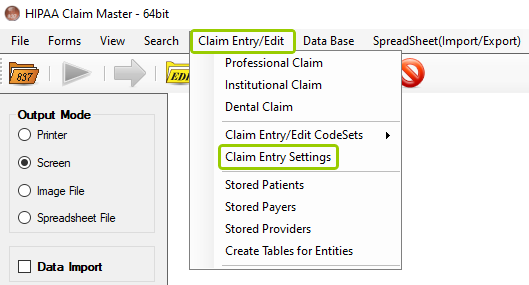
The "Claim Entry Settings" option is under the "Claim Entry/Edit" tab.
Alternatively, you can access the "Claim Entry Settings" window from the "Claim Entry/Edit" window by clicking the "Show Setup Screen" button (see Using the Claim Entry/Edit Function).
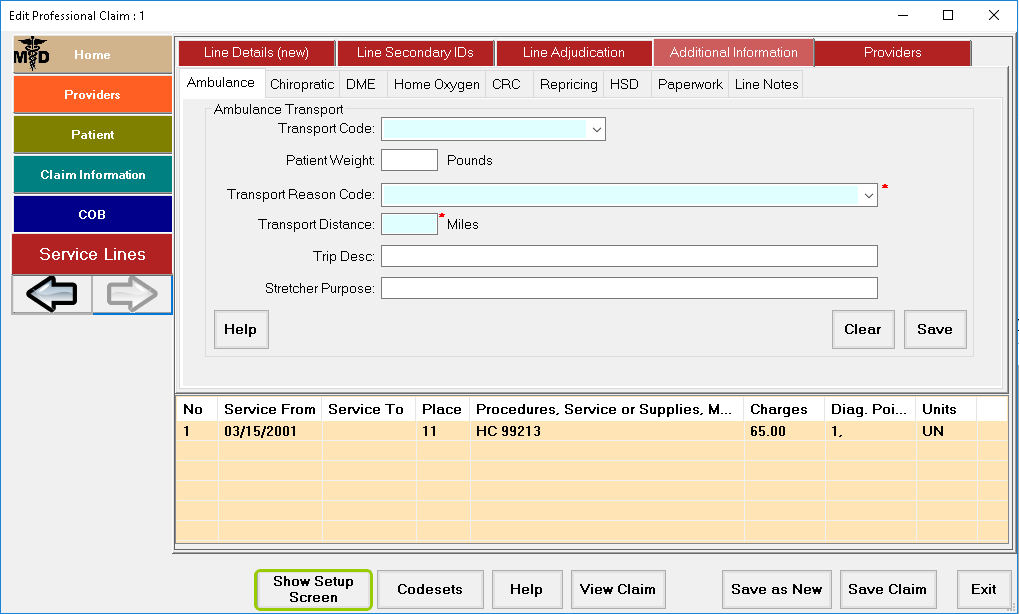
The "Show Setup Screen" button is in the "Professional Claim" window.
The following window will open:
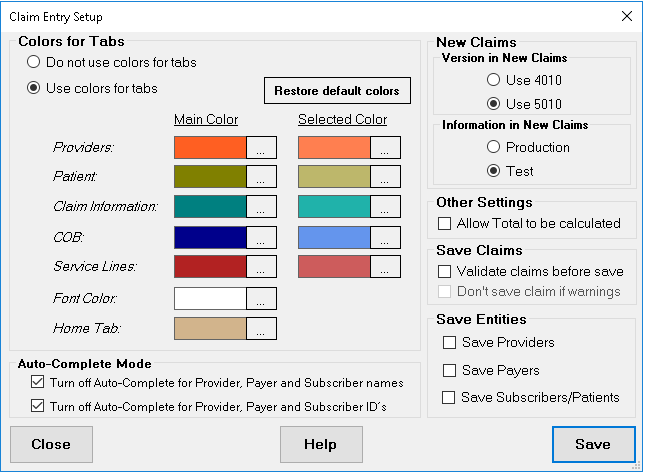
The "Claim Entry Setup" window.
2.The claim Entry Setup window is divided into the following sections:
oColors for Tabs
oAuto-Complete Mode
oNew Claims
oOther Settings
oSave Claims
oSave Entities
3.Once you have finished editing the options you want, click the "Save" button to save any changes or click the "Close" button do discard them. If you need more assistance, clicking "Help" will open the user's manual.
See the details of each setting below:
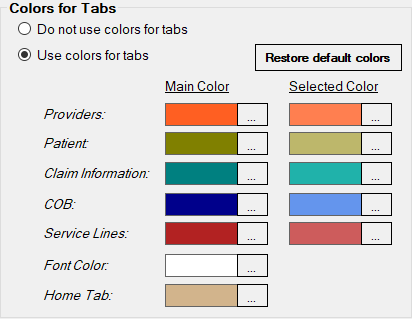
The "Colors for Tabs" box.
To develop a sense of intuition of where one is in the process and flow of the application, we decided to add colors to the Claim Entry/Edit window. This provides a clear distinction between the different groups of information for the data entry user. You can opt for colored tabs or all-gray tabs:
oDo not use colors for tabs
oUse colors for tabs
You are free to customize the colors by clicking on the "..." button, which will open the "Color" window where you may choose the color you want. This can be done for each data group tab.
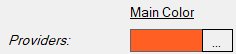
The "..." box to select colors.
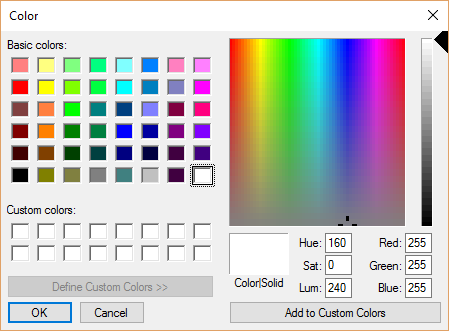
The color selection window.
If you want to restore the original tab colors, you may click on the "Restore default colors" button.

The "Restore default colors" button.

The "Auto-Complete Mode" box.
Entities saved to the database can be loaded into a provider, payer, or patient form by typing out the relevant entity's name or ID. The ID and Name text boxes will suggest an entity to enter into the form and accepting will auto complete the remaining details. To disable this capability for the ID or Name, check the appropriate box.
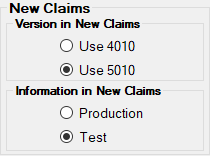
The "New Claims" box.
The Claim Entry/Edit window allows you to predefine the version of the claims that will be entered. This choice will influence the screens that you are presented with. Claims you create will be written to the database according to the implementation guide for the version that you choose.
Version in New Claims
This option allows you to set new claims to the X12 4010 or 5010 standards. A claim loaded into the claim editor will preserve the standard it was saved in originally. The two version options are below:
oUse 4010
oUse 5010
Information in New Claims
This option allows you to set new claims to use Production or Test data.
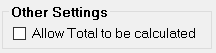
The "Other Settings" box.
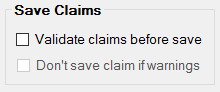
The "Save Claims" box.
Before saving a claim to the database, it can be validated against the X12 standard. The compliance engine will warn users of errors that would make the claim fail compliance, such as missing segments, incorrect data types, unrecognized qualifiers, or excessive characters in a particular field. There are two validation options:
Validate claims before save
Checking this box allows the application to run the compliance engine to check for potential errors in a claim file.
Don't save claim if warnings
Checking this box establishes that if a claim fails the compliance check, it is not saved to the database. This option will be available only if there are any validated claims that get a warning. Otherwise, this will remain grayed out.
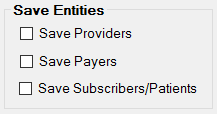
The "Save Entities" box.
Saving entities to the database is an option for facilitating data entry. Providers, patients and payers are saved into a database after being entered for later retrieval. Entering a last name or ID will automatically fill the entity's remaining fields in the claim editor or they can be individually selected. To view currently saved entities, see entity editing.
Checking an entity will allow a user to auto fill a provider, payer, patient or subscriber in the claim editor by filling in the entity's ID.