Export EDI to Spreadsheet |
  
|
Export EDI to Spreadsheet |
|
You can select a spreadsheet format and configure the columns that you want to have in your spreadsheet. To do this, follow the instructions below:
1.Select Spreadsheet(Import/Export) > Export EDI to SpreadSheet in the main menu window.
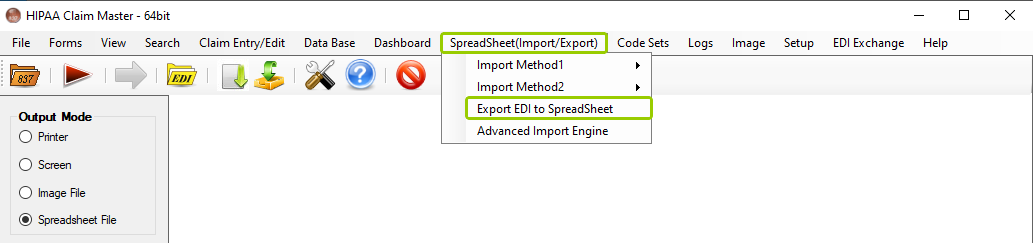
The "Export EDI to Spreadsheet" option is under the "Spreadsheet (Import/Export)" tab.
The following window will open:
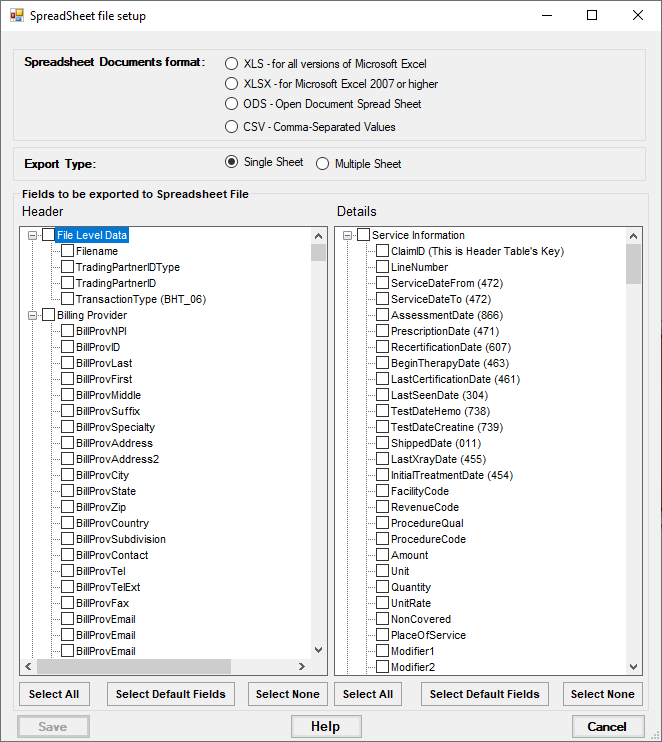
The "Spreadsheet File Setup" window.
2.Select all the fields you want to include. Then, click the "Select Default Fields" button to select the most common fields. You can also click "Select All" to check all the boxes or "Select None" to un-check all the boxes.

The options to select fields.
3.Once the options have been configured, click "Save." You can also click "Cancel" to stop the configuration and not keep any changes made. If you need help with this section, click the "Help" button to open the user manual.

The "Save," "Help," and "Cancel" buttons.
You can define the following spreadsheet options:

The four spreadsheet document formats.
There are four types of document formats to select to create spreadsheets:
oXLS — Suitable for all versions of Microsoft Excel
oXSLX — Suitable for Microsoft Excel 2007 or Higher
oODS — Open Document Spreadsheet
oCSV — Comma-Separated Values

Select between "Single Sheet" or "Multiple Sheet" export.
You can define if your spreadsheet will be created as a single or multiple sheet. Choose the option you prefer for your spreadsheets.
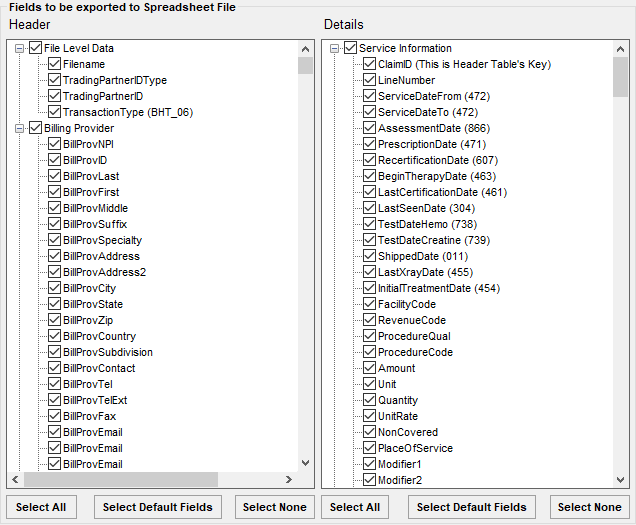
These are the fields available to select for your spreadsheets.
You can select the information you want in your spreadsheets, including the header and the details.
Note: Before creating spreadsheet files, define the directory in which you want to save the resulting files. See Configuring Application Options.