Processing an Entire Directory |
  
|
Processing an Entire Directory |
|
A directory or folder, as it is also known, is an address space that contains one or multiple files. You can process every file within a directory with the HIPAA Claim Master application. The files will be processed according to the user's settings. For example, you can load a group of EDI claim files, regardless of the number of files. This feature is useful when processing claims through Windows Scheduler. In addition, if you have years of historical data to import, this option makes it easier to process.
Note: There is a command-line option that can take a directory as input instead of a file name. The application decides whether the command-line argument is a file or a directory and processes accordingly.
To process a directory, follow the instructions below:
1.Go to File > Open Directory on the main menu window.
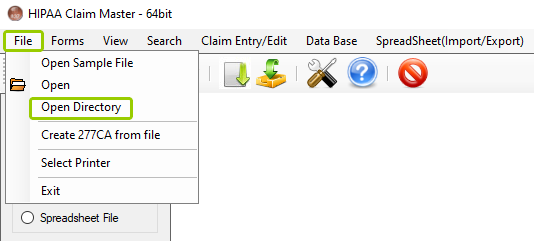
The "Open Directory" option is under the "File" tab.
Note: Check that the "Screen" mode is not selected in the "Output Mode" box or the "Open Directory" option will not be available.
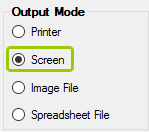
Check that the "Screen" mode is not selected.
2.Browse for the folder containing EDI claim files. Click on that folder, then click "OK."
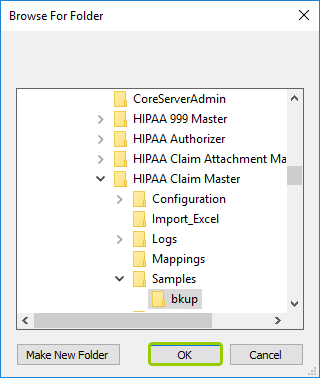
"Browse for Folder" pop-up window.
Note: Only claim files in "ANSI 837" format can be opened via the HIPAA Claim Master application. An error message will pop up if you select a file in a different format.
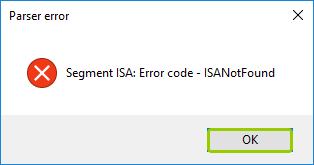
An error message will pop up if the file is not in .edi format.
3.Click the "Run" button to process all files within the directory.
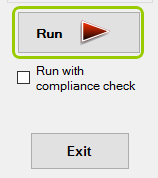
The "Run" button can be found in the "Info Bar" or the "Taskbar."
4.The "Counter" box in the Info Bar provides information about the number of claims being processed and the total amount of the claims.
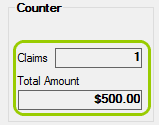
The "Counter Box" is at the bottom of the "Info Bar."
Note: The predefined settings will be applied. See Configuring Appliction Options.
You can see the current status in the status bar at the bottom of the window.
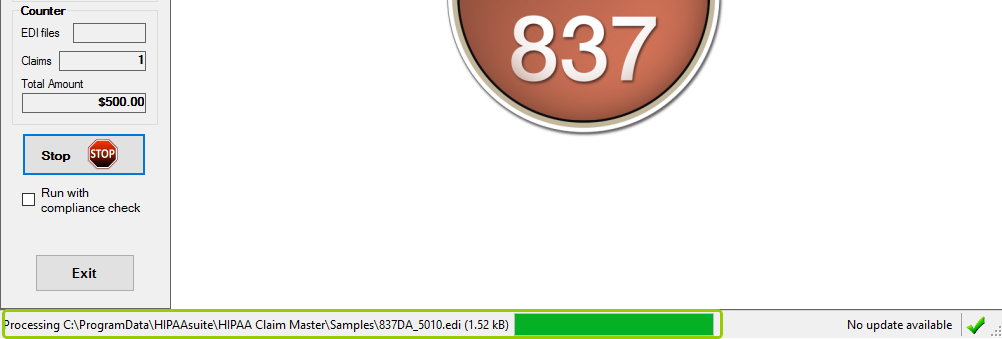
The status bar is in the main window menu.
5.Once all files have been processed, a "Processing Results" pop-up window will report the results.
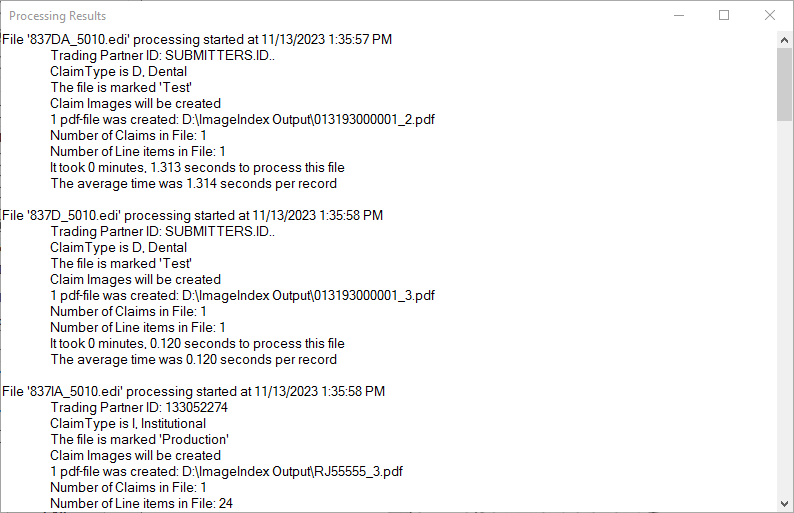
The "Processing Results" pop-up window.