Background |
  
|
Background |
|
Most entities that process HIPAA transactions have a database engine on their premises. Some of the most commonly used are Microsoft SQL Server, Oracle, IBM, and the open-source MySQL. Though the HIPAA Claim Master application does not come with a database, it can link to any Open Database Connectivity (ODBC) or Object Linking and Embedding Database (OleDB). This component is available as an add-on license.
HIPAA Claim Master uses two database tables for claim information:
oA claim header table.
oA claim detail table with the line item information.
Scripts are provided to create these tables for some database types. You might have to modify the scripts to suit your Structured Query Language (SQL) language.
Once these tables are created, claims from EDI files can be loaded into this database. Your application can take the claim information from there and you can run your business logic on these records. The HIPAA Claim Master application can, in turn, read the database records and re-create the claim images from the database. You can also create an 837 EDI file from those database records (see the Creating 837 EDI Files chapter).
The HIPAA Claim Master application allows the user to set up two connections: a Test or Production database. The deciding factor on which database is used is the ISA_15 data element of the 837 file. This indicator is either a "P" for production or "T" for test. If you need only one database, both connections should be set up identically as one or the other.
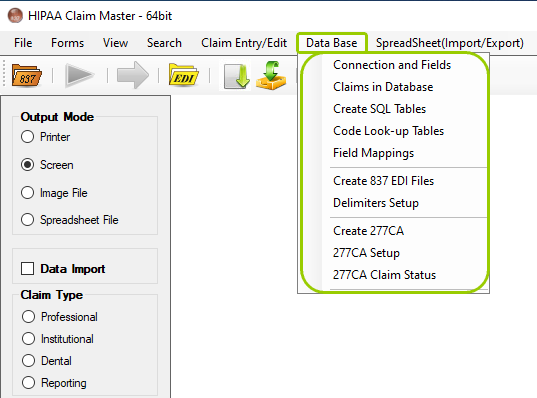
The "Data Base" tab and options in the main window.
The sequence of actions to configure the data import is the following:
oSetting up Database Connection
The HIPAA Claim Master application provides the "Data Import" option. This allows the user to import the claim data to a database while printing or imaging claims (see Processing an Electronic Claim and Printing Electronic Claims). Under "Screen" mode, data import does not work since this can interrupt the viewing of EDI claims at any time; this might lead to incomplete data import.
Note: The image file will be created based on the pre-defined settings. Read more in Doing Image Setup.
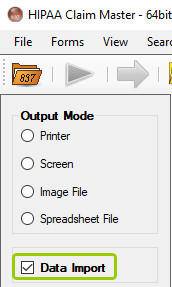
The "Data Import" check-box is in the main window.
The data is imported and written to the database once the user clicks on the "Run" button and only if the "Data Import" box is checked.
The "Processing Results" window will display a notification about the data import.
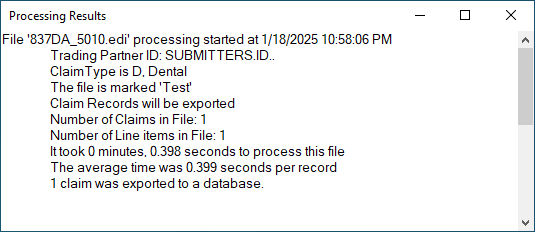
The "Processing Results" window after importing to the database.
After this message, the user can now browse imported data.