Reporting an Issue |
  
|
Reporting an Issue |
|
We at HIPAAsuite strive to fix bugs as quickly and transparently as possible to keep your applications functioning properly.
HIPAAsuite implemented Bugtracker.Net in all its products to track bugs and make enhancements, especially due to its screen-capture capabilities. We adapted and included this facility to make it easier to report any issues. There are two ways to report bugs:
You may submit a ticket to receive assistance from the HIPAAsuite support team. Go to Help > Report an Issue in the main menu window.
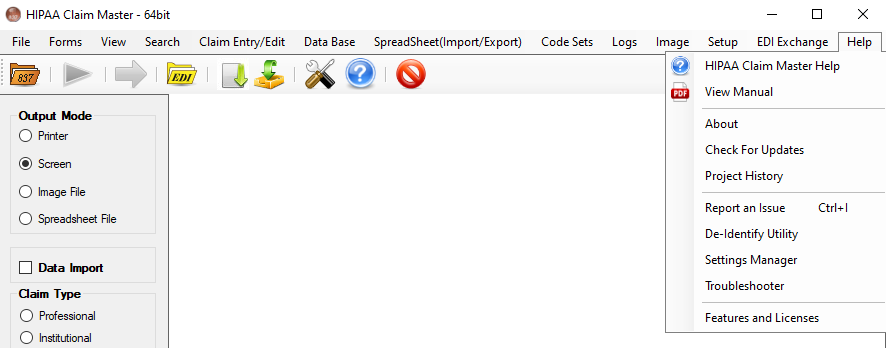
The "Report an Issue" item under the "Help" drop-down menu.
This will redirect you to the HIPAAsuite website where you may submit a ticket.
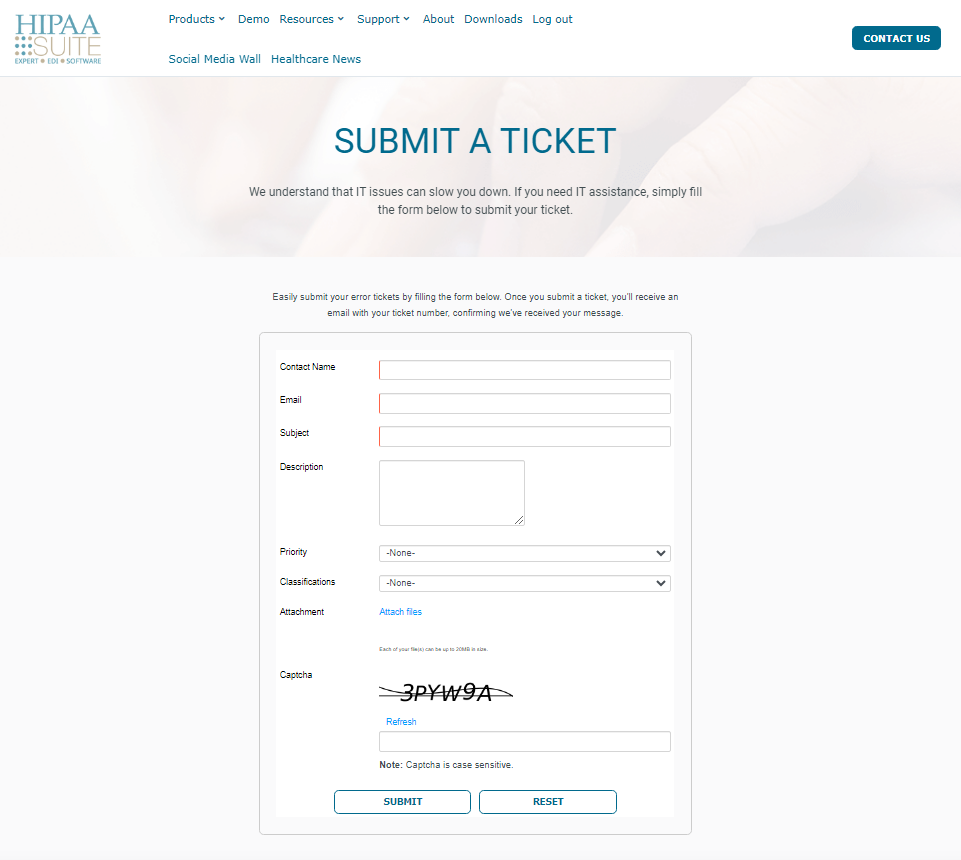
The "Submit a Ticket" page.
Alternatively, you can use the Ctrl + I shortcut on your keyboard to open the "BugTracker.Net Screen Capture" window. Please note that some screens do not give you access to the menu while they are open.
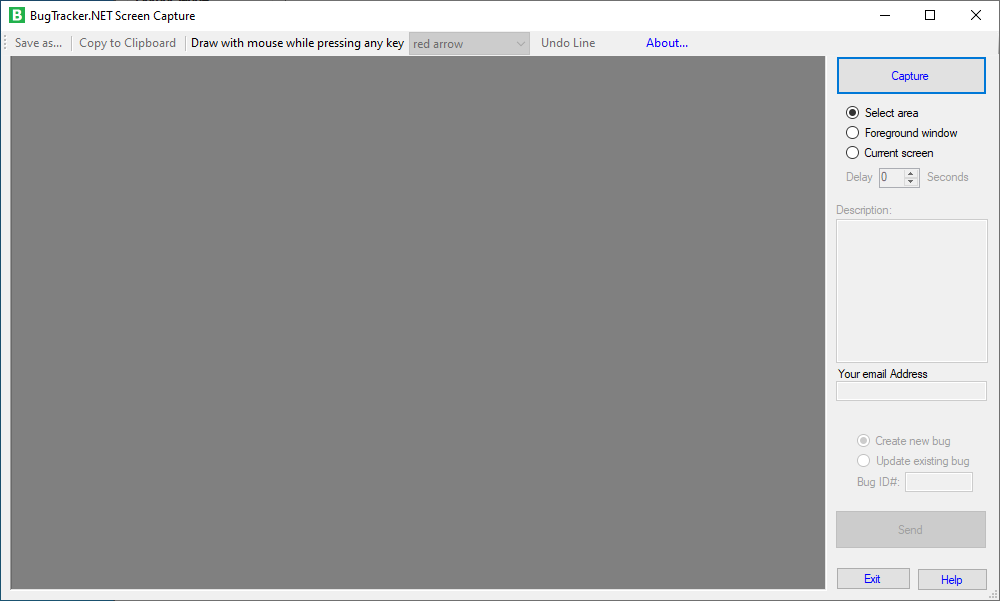
The "BugTracker.Net Screen Capture" window.
You may select one of three options to capture a screenshot:
To capture a specific area of the screen, you may select this option, which will allow you to choose the portion of the screen you want. Click the "Capture" button, which will gray out the entire screen. Then, click and drag over the area you want to screenshot. Once you release it, the image will appear within the "BugTracker.Net Screen Capture" window.
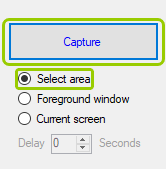
Click the "Capture" button with "Select area" selected to take a screenshot of a specific area.
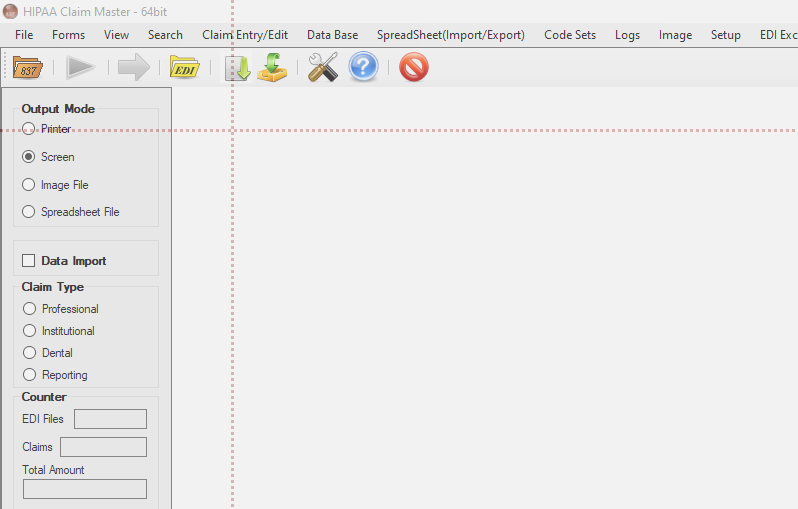
Grid lines will appear as you select the area you want to screenshot.
You may delay the capture by selecting the amount of seconds in the "Delay" box needed to prepare before the capture.
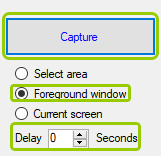
Click the "Capture" button with the "Foreground window" option selected to take a screenshot of whatever is open over everything else.
If you select this option, whatever window is open at the time of taking the screen shot will be captured entirely. You may delay the capture by selecting the amount of seconds in the "Delay" box needed to prepare before the capture.
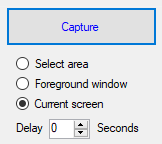
Click the "Capture" button with "Current window" selected to take a screenshot of the window that is open at the time of capture.
Yes, you may enhance screenshots with drawings by clicking on the drop-down menu with the edit options. There are three ways in which you can edit screenshots: Highlight, Free Draw, and Arrows.
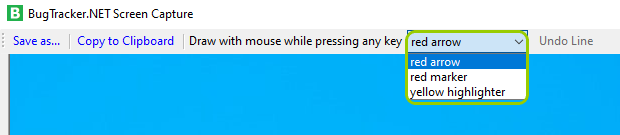
This drop-down menu will only be available if a capture is taken.
You can highlight sections in yellow as shown below:
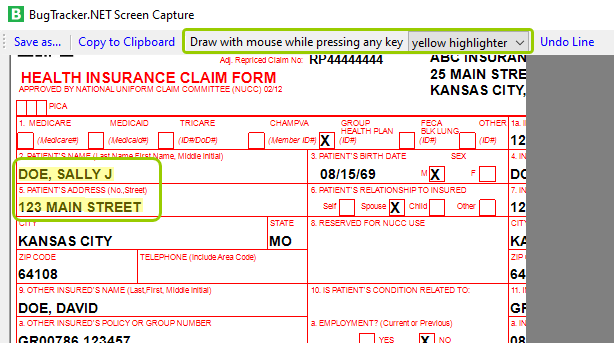
Sample of the "Yellow Highlighter" edit.
You can draw circles around specific details you want to emphasize as shown below:
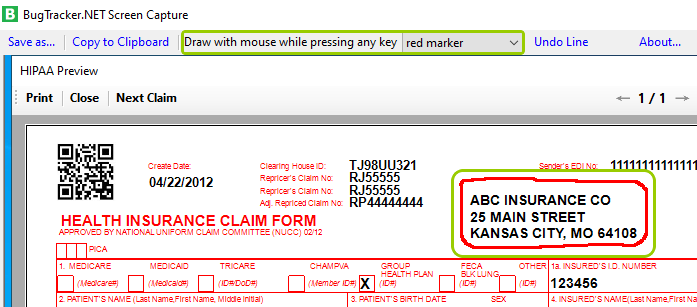
Sample of the "Free Draw" edit.
You can draw arrows to pinpoint any concerning area, as shown below:
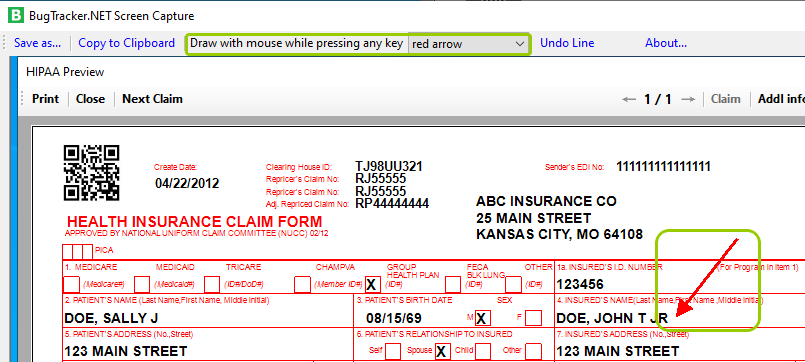
Sample of the "Red Arrow" edit.
Here are some pointers when filling out an issue report:
oEnter as much information and details about the issue into the "Description" field as possible.
The "Description" field.
oEnter your email address so that we may contact you regarding the report.
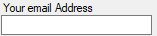
Write your email address within the field to receive updates.
oIndicate whether this is a new bug or a follow-up on an existing issue; if it is a follow-up, please include the bug ID.
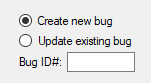
Enter the bug ID if it's an existing bug.
Then, click "Send." Once the bug information has been submitted successfully, you will receive a notification. Click "OK." You will receive further updates about the issue via the email address provided in the report.