Viewing and Editing Code Sets |
  
|
Viewing and Editing Code Sets |
|
To view/edit code sets in HIPAA Claim Master, follow the instructions below.
1.Go to Entry/Edit > Claim Entry/Edit CodeSets in the main menu window.
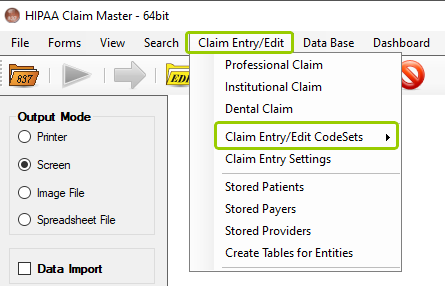
The "Claim Entry/Edit CodeSets" sub-menu option is under the "Claim Entry/Edit" tab.
Alternatively, you can access the code sets setup from the claim entry/edit window. Click the "Codesets" button (see Using the Claim Entry/Edit Function).
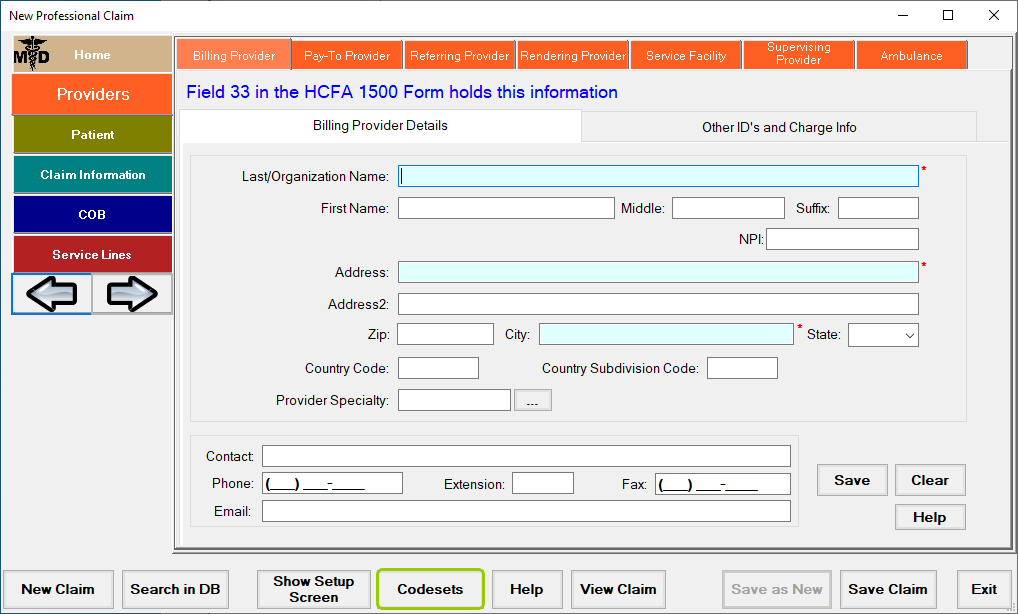
The "Codesets" button on the "Professional Claim" window.
2.The Code Sets - From the sub-menu, select a code set name. The following menu items are available via the "Code Sets" menu:
Adjustment Reason Codes |
Patient Status Codes |
Admission Type Codes |
Place of Service Codes |
Admission Source Codes |
Procedure Codes - See Creating Codeset Tables |
Amount Qualifier Code |
Provider Taxonomy Codes |
Condition Codes |
REF Codes |
Diagnosis Codes (See Creating Codeset Tables) |
Remark Codes |
DTP Codes |
Relationship Codes |
Facility Types |
Report Type Codes |
Filing Indicator Codes |
Revenue Codes - See Creating Codeset Tables |
Info Release Codes |
Tooth Numbering Codes |
Occurrence Codes |
Treatment Codes |
Occurrence Span Codes |
ZIP Codes - See Creating Codeset Tables |
Note: Diagnosis, Procedure, Revenue, and ZIP code sets are too large to store in memory. They can be edited like any other codeset but the database tables to store them are created separately.
3.Once you access the code set options through either path, select the code set you would like to modify. For illustration, we will choose the "Remark Codes" code set.
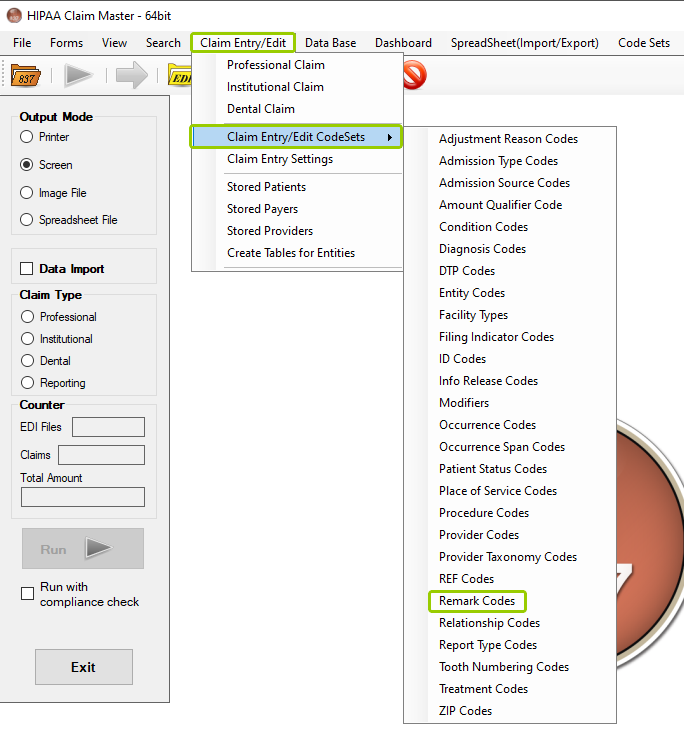
The "Remark Codes" option is in the "Claim Entry/Edit CodeSets" sub-menu.
4.The code set configuration window for the selected code set will be displayed (in this case, the "Remark Codes"). You can add additional codes by typing it into the blank row at the end of the list or edit the existing ones by double-clicking the field to edit it and type in the new value.
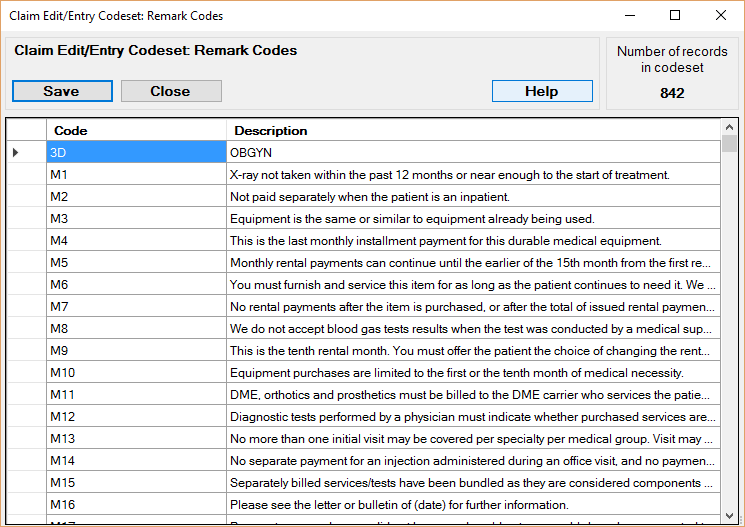
The "Remark Codes" code set configuration window.
As mentioned earlier, the procedure, diagnosis, revenue and ZIP codes are saved to a database. These four code sets have a slightly different editing window (shown below) but they behave in the same way. Since these code sets can grow very large, search boxes are provided to filter through codes or descriptions.
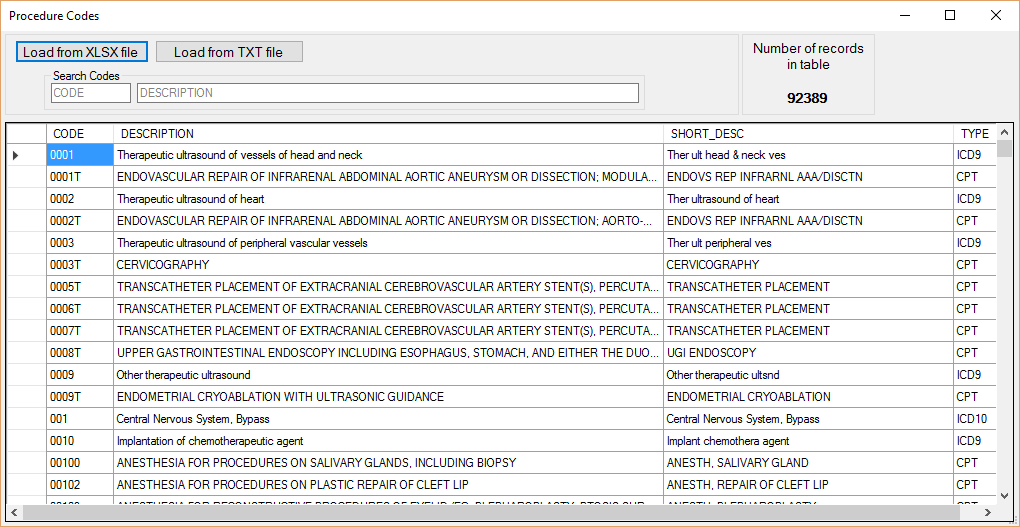
The Procedure, Diagnosis, Revenue, and ZIP code sets configuration window.
5.Click the "Save" button to save any changes made before closing the window. Changes to the procedure, diagnosis, revenue and ZIP codes are saved automatically to the database.
The code set windows provides the following information:
This box will show the total number of codes stored in the database.
A short description, standards version (ICD), city and state (ZIP) may also be included, depending on the loaded code table. The codes are indicated in the source EDI files. The descriptions are displayed instead of codes in the result easy-to-read files. For example, for Remark Codes there are the following codes and corresponding descriptions:
o3D — OBGYN
oM1 — X-Ray not taken within the past 12 months or near enough to the start of treatment.
oM2 — Not paid separately when the patient is an inpatient.
oM3 — Equipment is the same or similar to equipment already being used...
o... And so on
For more details on editing code sets, see Selecting a Code Set.