Filling Code Set Tables |
  
|
Filling Code Set Tables |
|
There are two ways to add code sets to a table: manually and loading a document with the code sets. For a manual input, see Selecting a Code Set for adding and editing code sets. Loading a code set table can be done using a .xlsx spreadsheet, comma separated value (CSV) text file, or space delimited text file. To learn how to upload files with code sets, follow the steps below. We will continue from the previous section (see Creating Code Set Tables), assuming a code set edit window is already open, in this case the "Diagnosis Codes" window.
With the "Diagnosis Codes" window open, you will see the buttons "Load from XLSX file" and "Load from TXT file." We will explore both ways to upload code set files.
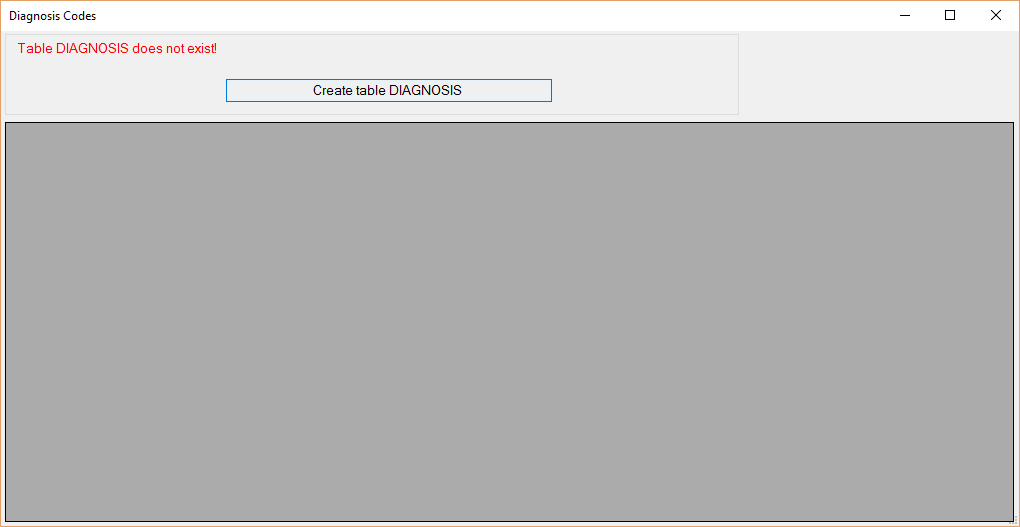
The "Diagnosis Codes" window.
Note: The diagnosis codes according to the International classification of Diseases (ICD) in all revision are published by Ingenix or the AMA, for example. You can also download them from the CDC-National Center for Health Statistics.
Follow the instructions below to upload an .xlsx file with code sets (we will continue using "Diagnosis Codes" as example):
1.In the "Diagnosis Codes" window, click the "Load from XLSX file" button.

The "Load from XLSX file" button.
2.A new search box will open. Select an .xlsx file to use by clicking the file selection button "...."
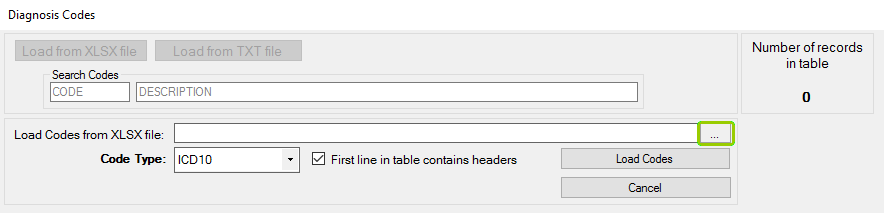
File "..." button to search for the .xlsx file.
3.Select a code type from the "Code Type" drop down, if applicable.
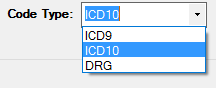
The "Code Type" drop-down menu.
4.If the first line contains headers, you can step over the headers by checking the box labeled "First line in file contains headers." Once you have configured your options, click the "Load Codes" button to fill the database table, while clicking "Try One Line" will open a message box with a single example row from the text file. If you want to finish the process without making any changes, click on "Cancel," which will close the window.

The "Load Codes" Button.
There are two ways to determine column position from a text file in order to build a table: with a delimiter, such as a comma or semicolon in a character delimited file, or knowing each column's position in a fixed width file. Follow the instructions below to upload a text file with code sets (we will continue using "Diagnosis Codes" as example):
1.Click the "Load from TXT file" button.

The "Load from TXT file" button.
2.A drop-down menu will show two options (see the details of each below). Select a file type to load the code sets.

The drop-down menu when clicking the "Load from TXT file" button.
a.File with positions — Select this option if the code set text file you have and want to save to the database has a fixed width. You can search for a text file you want to upload by clicking on the "..." button at the end of the "Load Codes from text files" bar.
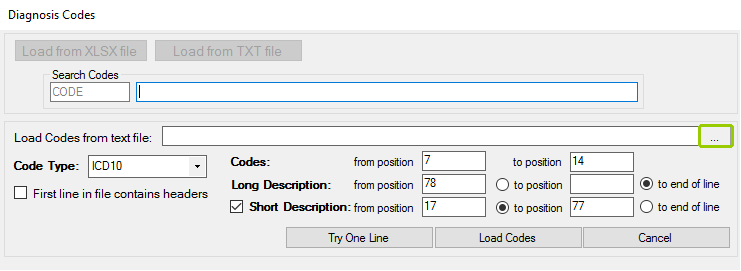
The "..." button to search for fixed width text files.
Usually, the layout of the text file has the code in positions 1 through 12, and the description in positions 13 through 44. You can determine the span of the positions filling in each text box with your preferred position.
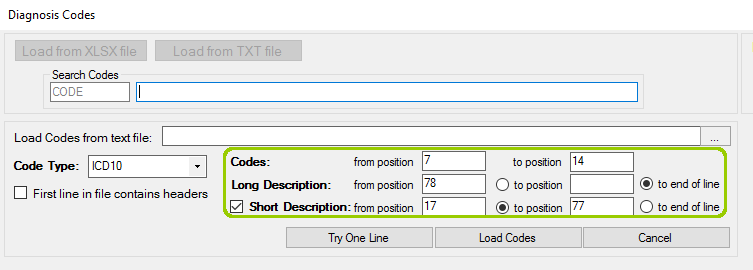
The codes position text boxes.
b.File with delimiters — Select this option if the code set file is character-delimited. The delimited text file is usually delimited by a comma.
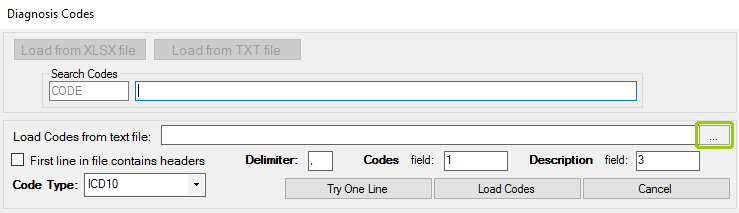
The "..." button to search for delimited text files.
The layout usually contains the codes in field 1 and full description in field 3. If the text file includes the column headers, check the box labeled First line in file contains headers.
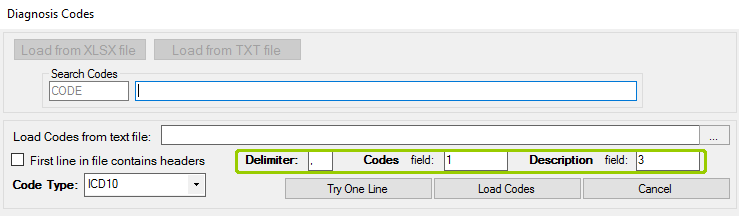
The delimiter boxes.
3.Clicking "Try One Line" will open a message box with a single example row from the text file, while clicking "Load Codes" fills the database table.