|
<< Click to Display Table of Contents >> Setting Up Trading Partners |
  
|
|
<< Click to Display Table of Contents >> Setting Up Trading Partners |
|
EDI Exchange allows you to keep track of your Trading Partners by setting up their identifiers to send them EDI files or 999 acknowledgments, email notifications and compliance check results, encryption keys, and file transport mechanisms, among other functions.
Before setting up your Trading Partners, please ensure you have created the Trading Partner table and initialized EDI Exchange (see Creating Database Tables and Initializing EDI Exchange).
Follow the steps below to begin setting up your Trading Partners:
1.Go to EDI Exchange > Trading Partners in the main menu window.
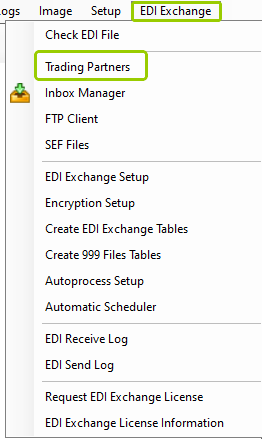
The "Trading Partners" option is under the "EDI Exchange" tab.
The following window will open:
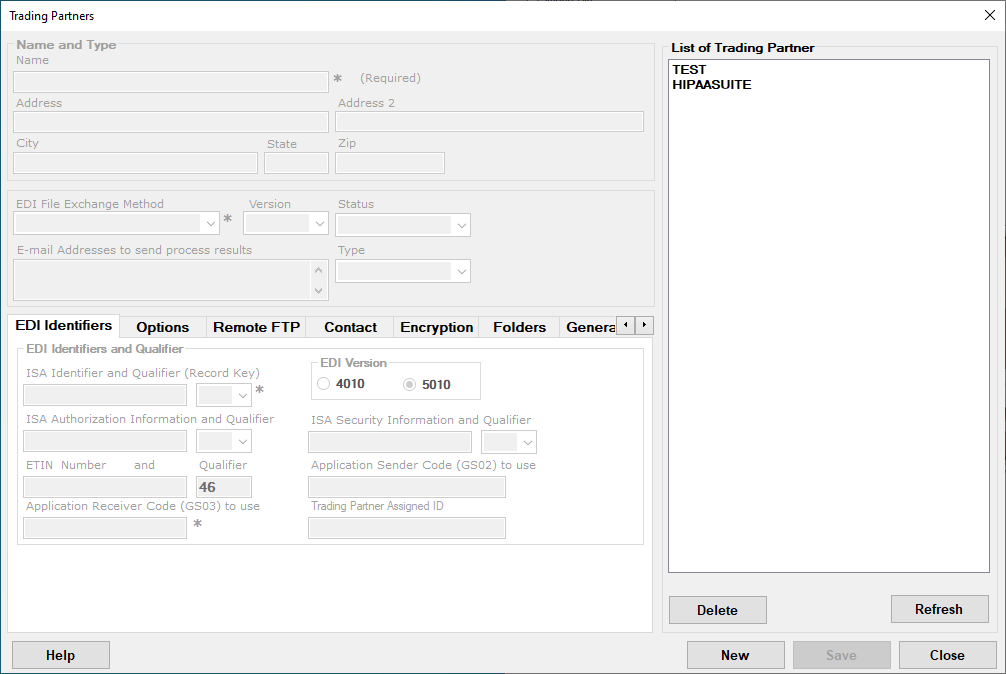
The "Trading Partners" window.
2.Click the "New" button to create a new Trading Partner.
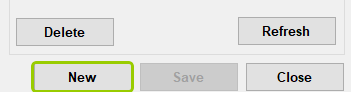
The "New" button will add a new Trading Partner.
3.Within the available fields, fill in your Trading Partner's information and make the selections that apply inside each setting tab. Each setting will be described in detail in the next section.
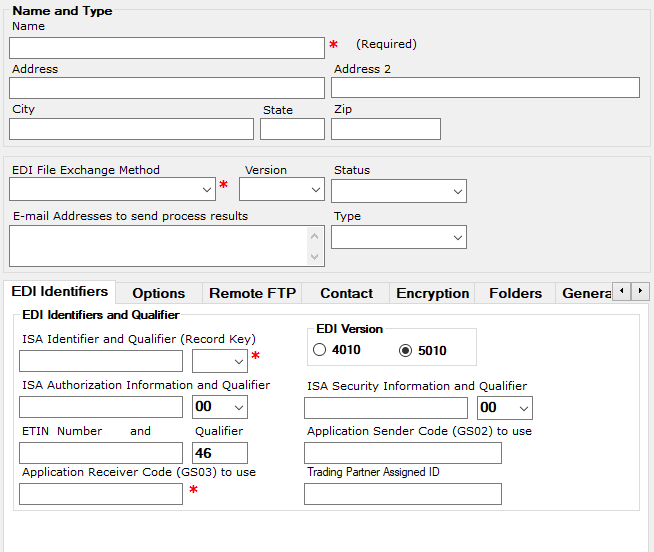
These fields and settings are available for Trading Partners.
4.Once you are done adding the information, click on "Save." The newly added Trading Partner's name will open in the right pane. You can also remove a Trading Partner by clicking on "Delete." To see the most recent list of Trading Partners, click on "Refresh."
The "Save," "Delete," and "Refresh" buttons.
See the details of each specific option below:
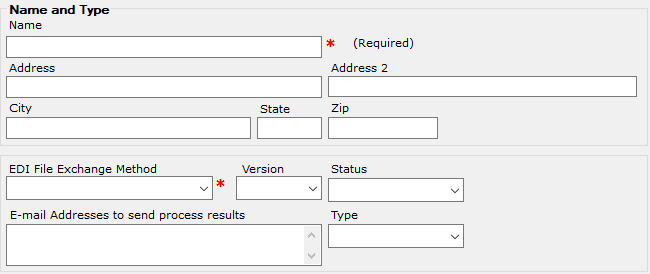
The "Name and Type' box with the fields for the Trading Partner information.
The company information of a Trading Partner can be specified within the "Name and Type" box. See the field descriptions below:
Name
Here you can fill in the Trading Partner's company name. This is a required field.
Address / City / State / Zip
In these fields, you can enter the Trading Partner's company address.
EDI File Exchange Method
HIPAAsuite supports three communication methods; you may choose your preferred mode of sending EDI communications to the Trading Partner:
oFTP — This allows transmitting files to the Trading Partner or their clearinghouse.
oOutbox — All files for Trading Partner are stored locally. The Trading Partner is responsible for picking up files in his special directory of the local FTP or HTTP server.
oSOAP — This allows transmitting files to the Trading Partner or his Clearinghouse using SOAP 1.2 (CORE) by default.
▪SOAP Version — Defaults to CAQH CORE "SOAP 1.2." "SOAP 1.1" is a compatibility option for Trading Partners who are not yet CORE-Certified, but use SOAP services.
oMIME — This allows transmitting files to the Trading Partner or his clearinghouse using MIME (CORE). This is one of two CORE options.
Status
Trading Partner's status. Choose one of the available options:
Inactive — No upload into a database system through ODBC will be done.
Test Only — All outgoing EDI messages will be stamped with "Test" (ISA_15). Records will only be exported to the test environment.
Approved — All outgoing EDI messages will be stamped with "Production" (ISA_15). Records will be exported to the Live system with ODBC.
Email Addresses to send process results
Here you can enter the email address(es) into the text field.
Type
There are five types of Trading Partners; select the option that matches the best:
oProviders — Hospitals, doctors, or other health care providers.
oVANs — Value Added Networks, such as clearing houses or EDI Networks.
oService bureaus — Third-party entities, such as repricing organizations.
oSponsors — Entities that sponsor the benefits of subscribers, such as Medicaid, government agencies, and large employers.
oPayers — Entities that pay for health care benefits, such as health insurers.
oHIX — Health Insurance Exchanges. Also known as the Affordable Care Act (ACA) Exchanges. Each State has its health insurance marketplace, though some states share the efforts, and join the federal system.
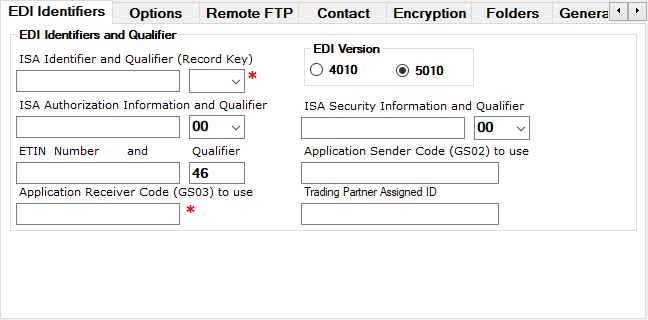
The preferences tabs.
These tabs help you establish communication methods and additional preferences for Trading Partners. See the details for each tab below.
EDI Identifiers Tab
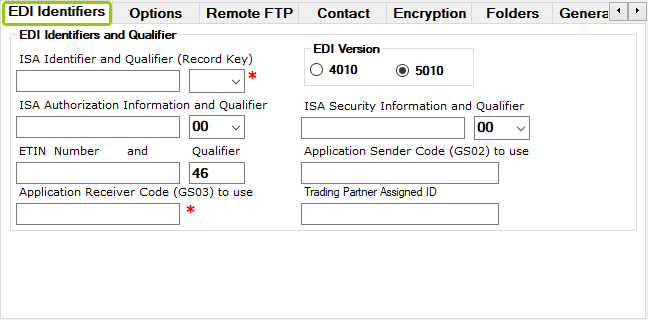
The "EDI Identifiers" tab.
This tab relates to the EDI identifiers and EDI Version. See the specific settings you can modify below:
oISA Identifier and Qualifier (Record Key) — The ISA Identifier and Qualifier are the unique keys to the Trading Partner database file. The ISA identifier can be up to 15 bytes long, the qualifier has to be 2 bytes. Approved qualifiers are:
▪01 — Duns (Dun and Bradstreet)
▪14 — Duns Plus Suffix
▪20 — Health Industry Number (HIN)
▪27 — Carrier Identification Number as assigned by HCFA
▪28 — Fiscal Intermediary Identification Number as assigned by HCFA
▪29 — Medicare Provider and Supplier Identification Number as assigned by HCFA
▪30 — U.S. Federal Tax Identification Number
▪33 — National Association of Insurance Commissioners Company Code (NAIC)
▪ZZ — Mutually Defined. Many organizations use the ZZ qualifier with their name as the ID, for example, "ZZ" and "HIPAAsuite."
oEDI Version — There are two standards for HIPAA:
▪4010 — This standard was introduced in the original transaction from 2003 to 2011.
▪5010 — From 2012 on, all HIPAA transactions must be conducted in the 5010 version.
oISA Authorization Information and Qualifier — This code determines the type of information in the Authorization Information element. This qualifier has a maximum length of two (2) positions. The default value for this field is 00, which indicates that no authorization information is present. Usually, these elements are blank with a 00 qualifier.
oISA Security Information and Qualifier — This code determines the type of information in the Security Information element. This qualifier has a maximum length of two (2) positions. The default value for this field is 00, which indicates that no security information is present.
oETIN number and Qualifier — The Electronic Transmitter Identification Number is established by a Trading Partner Agreement. This number occurs only in the 837 transactions. Often, the ETIN is the same as the ISA ID.
oApplication Sender Code (GS_02) to use — Sometimes, a Trading Partner expects a certain value in the Application Sender's Code. Usually, this value is defined in the company setup, but it can be overwritten for certain Trading Partners.
oApplication Receiver Code (GS_02) to use — A code identifying a part that sends a transmission or the specific application within the sender's organization. Codes are agreed upon by Trading Partners. Usually, this code is the same as the ISA ID. This code is placed in the GS_02 element in the Functional Group Header (GS). Some Trading Partners want to send a specific code in GS_03, the application receiver code. You can enter it into the corresponding field. Most of the time it is not necessary.
oTrading Partner Assigned ID — Some Trading Partners, like health insurance exchanges, will give a plan with an ID different from the ISA identifier defined in the Company Setup window of the application. This will add the assigned ID, which is important when creating EDI files.
Options Tab
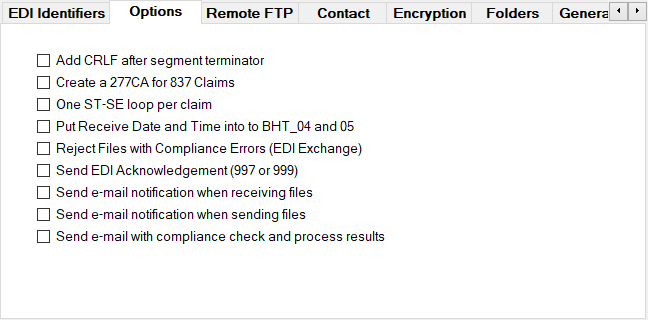
The "Options" Tab.
Within the "Options" tab, you can make general selections related to email notifications with Trading Partners. See the descriptions below:
oAdd CRLF after segment terminator — This option adds '\r\n' in EDI files after every segment terminator.
oCreate a 277CA for 837 claims — This option only applies to 837 Claims. Checking this option will produce a 277CA Claims Acknowledgment report for received 837 claim files.
oOne ST-SE loop per claim — This option separates all claims into individual transactions enclosed by their own ST and SE segments.
oSend EDI Acknowledgment (997 or 999) — This check-box allows sending Functional Acknowledgment transactions to the Trading Partner.
oSend e-mail notification when receiving files — This option allows sending an acknowledgment email of EDI files. This option is not necessary when you choose 997 or 999 acknowledgments.
oSend e-mail notification when sending files — This option allows sending a file to the Trading Partner notifying them that a file has been created for them.
oSend e-mail with compliance check and process results — This option allows sending the compliance check results back to your contact at the Trading Partner via email. No PMI will be transmitted. Adding an email address is important, even when the Communication method is not "Email."
For users with Enrollment Master:
oPut Receive Date and Time into BHT_04 and 05 — By default, when creating 834 files, the current time is placed into the BHT_04 and 05 segments. With this option, BHT_04 and 05 segments will have the file's receive date and time instead of the creation date.
Remote FTP Tab
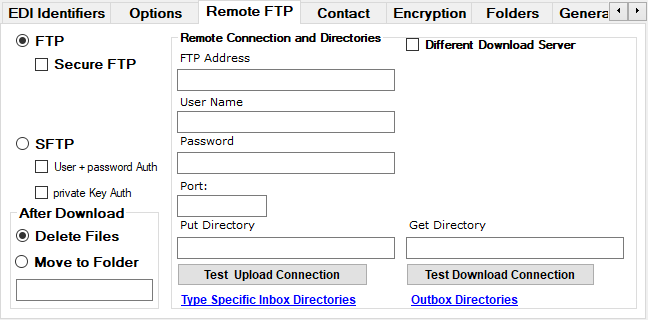
The "Remote FTP" tab.
If your Trading Partner has a file transfer protocol (FTP) server, this tab will have all the configurations necessary to set up your connection information (see Using Built-in FTP Client). There are three sections for configuration; see the descriptions below for each:
1.File Transport Type
You may choose between FTP and SFTP:
oFTP — For security reasons, EDI Exchange supports secure FTP or FTPS.
▪Explicit FTPS Connection — The explicit method is a legacy-compatible implementation. FTPS-aware clients can invoke security with an FTPS-aware server without breaking overall FTP functionality with non-FTPS-aware clients. In explicit mode, an FTPS client must "explicitly request" security from an FTPS server and then step up to a mutually agreed encryption method. If a client does not request security, the FTPS server can allow the client to continue with an insecure connection or refuse/limit the connection.
▪Implicit FTPS Connection — The implicit method requires that all clients of the FTPS server be aware that SSL is to be used on the session, and thus is incompatible with non-FTPS-aware clients. Negotiation is not allowed with implicit FTPS configurations. A client is immediately expected to challenge the FTPS server with a TLS/SSL ClientHello message. If such a message is not received by the FTPS server, the server should drop the connection. To maintain compatibility with existing non-TLS/SSL aware FTP clients, implicit FTPS was expected to listen on the IANA Well-Known Port 990/TCP for the FTPS control channel and 989/TCP for the FTPS data channel. This allowed administrators to retain legacy compatible services on the original 21/TCP FTP control channel.
oSFTP — Also known as FTP over SSH, SFTP is deemed the most secure form of FTP and uses encryption certificates. There are 3 different ways to authenticate an SFTP connection:
▪With a username and password, just like a regular FTP connection,
▪With a username and certificate, or
▪With a username, certificate, and password.
2.After Download
Files on the server will be either deleted or moved to another folder of your choice. You may select the folder in the box below the "Move to Folder" option.
3.Remote Connection and Directories
To establish remote connections and the directory information where files are picked up and dropped off, you will need the FTP address, the user name, and the password. See the fields to complete these settings below:
oFTP Address — This is usually the IP address of the server.
oUser Name / Password
oPort — The FTP normally uses a predefined Port (22). However, this can be overwritten, especially if using the SFTP, which uses SSH as protocol and so port assignments may vary between Trading Partners. The default Explicit FTPS port is 21 and the default Implicit port is 990 (after the handshake, it will switch automatically to 989 for data transmission unless configured differently).
oPut Directory — This is the directory where you drop off files.
oGet Directory — This is the directory from which you download files.
oDifferent Download Server — It is possible that a Trading Partner has two FTP servers, one to 'put' and another to 'get'. If so, check "Different Download Server" and additional fields will become visible so you can specify those connection parameters.
To test that your settings are correct, click the "Test Upload Connection" and "Test Download Connection" buttons, respectively. Also, you can create specific inbox and outbox directories by clicking the blue links.
Note: This tab will only be available when the "EDI File Exchange Method" FTP is selected.
Contact Tab
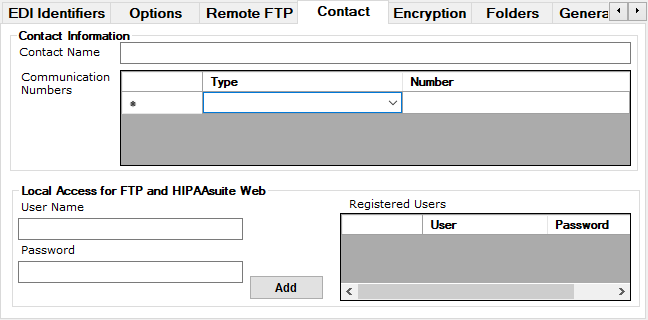
The "Contact" tab.
The Contact Tab stores contact information for your selected Trading Partner. There are two sections for configuration; see the descriptions below for each:
1.Contact Information
Within this section, you can enter the name and phone number into the corresponding fields and select the communication type from the drop-down list.
oContact Name — Enter your contact's name.
oCommunication Numbers — You can label what type of phone number you are adding. The valid communication number qualifiers are:
▪TE — Telephone
▪FX — Fax
▪EX — Extension
▪EM — Email
2.Local Access for FTP and HIPAAsuite Web
To register a user, they will need authorized credentials which you can fill out in the fields below. Enter the username and password into the corresponding fields and click the "Add" button. The user will then be listed in the "Registered Users" table.
oUsername / Password — Enter the desired credentials for the user's local access.
oRegistered Users — In this box, you will see the registered users with their usernames and passwords.
Once you have made all your changes, click the "Add" button and the contact will show in the "Communication Numbers" table, as well as the registered users.
Note: The information filled in is also included in the EDI files under the "PER" segment.
Encryption Tab
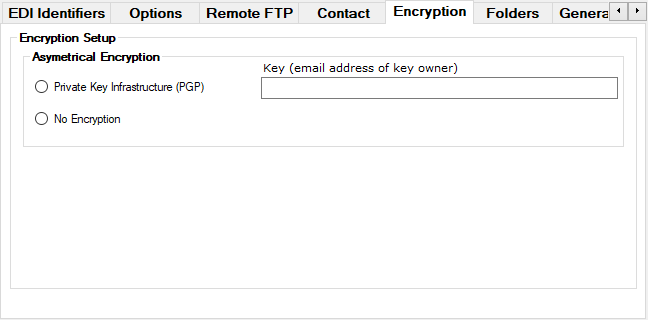
The "Encryption" tab.
EDI Exchange supports PKI encryption. Encryption keys are defined by the owner's email address. Both supported products, PGP and GnuPG, use this logic (see Using Encryption for more details.) You can set up the following encryption parameters for a Trading Partner:
Asymmetrical Encryption
With this type of encryption, a different key is used for the sender and the recipient.
oPrivate Key Infrastructure
▪Key (email address of key owner)
oNo Encryption — If you select this option, there will be no encryption method, decreasing the security of data transferring with Trading Partners (not recommended).
Folders Tab
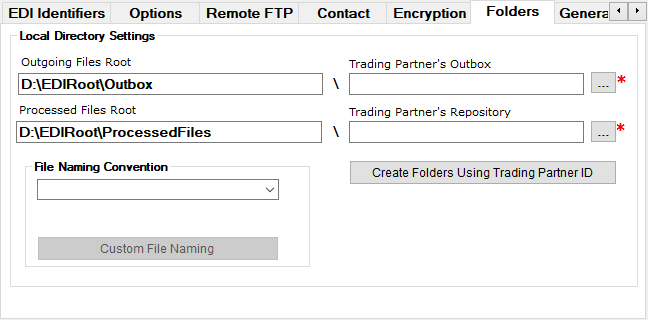
The "Folders" tab.
Within EDI Exchange, each Trading Partner has its own folder, keeping files separated and in order. There are four folder settings to configure; see their descriptions below:
oOutgoing Files Root / Processed Files Root — This field has a pre-generated path as configured in the EDI Exchange setup, but you can change this path by changing the EDI Root Directory by going to EDI Exchange > EDI Exchange Setup.
oTrading Partner's Outbox / Trading Partner's Repository — There are two options to create the outbox and repository; these are mandatory:
▪You can Click the "..." button to access the "Select Folder" window. There, choose an existing folder or create a new one, or
▪You can click the "Create Folders Using Trading Partner ID" button, which will create the folder and name it with the ID set in the EDI Identifiers tab.
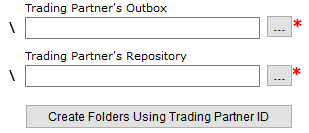
The "Create Folders Using Trading Partner ID" button.
You can also configure how you want your files to be named with the Files Naming Convention:
oFiles Naming Convention — Health Insurance Exchanges (HIX) demand that a carrier adheres to more or less complex file naming conventions. Since these conventions are often complicated, EDI Exchange hard-coded several schemes. You may select from the currently available schema. If you need a specific scheme, contact us to add it:
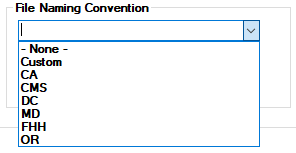
The "File Naming Convention" drop-down menu.
The Custom File Naming Convention option requires additional setup; see Custom File Naming Conventions.
Note: For more information on directories, see Defining the Communications Directory.
Generation Options (Applies only to HIPAA Claim Master)
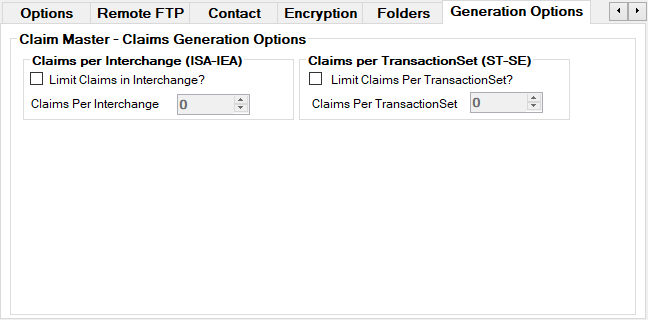
The "General Options" tab.
This tab provides options regarding the number of claims being created under two modes:
oInterchange (ISA-IEA)
oTransactionSet (ST-SE)
You can set the number of claims you want created by using the arrows. You can also limit the number of claims by checking the "Limit Claims in Interchange" or "Limit Claims Per TransactionSet."
CORE Tab
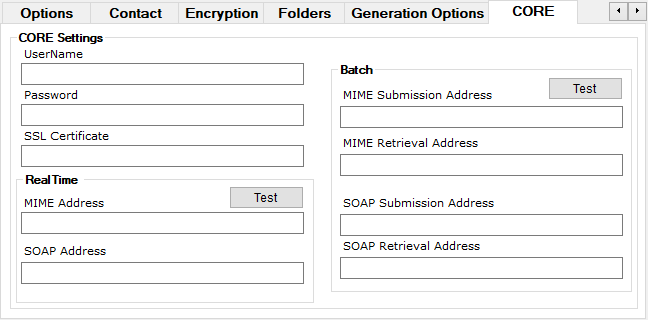
The "CORE" tab.
This tab stores settings for CORE-Compliant SOAP and MIME enveloped transactions. When using a requester or similar application, these settings are applied to the information source and the requester/receiver. SOAP 1.1 and 1.2 will use the same options. See the configurations below:
1.CORE Settings
oUsername / Password— These credentials are provided by your Trading Partner to authenticate yourself to their CORE-compliant service.
oSSL Certificate — Use an SSL certificate instead of a username to verify a Trading Partner's identity or access a Trading Partner's CORE-compliant service. This setting is currently not implemented.
2.RealTime
oMIME Address — Fill in the Trading Partner's web address for MIME RealTime transactions. You can check if it is set up correctly by clicking the "Test" button.
oSOAP Address — Fill in the Trading Partner's web address for SOAP RealTime transactions. You can check if it is set up correctly by clicking the "Test" button.
3.Batch
oMIME Submission Address — Fill in the Trading Partner's web address for MIME Batch transactions.
oMIME Retrieval Address — Some Trading Partners may use a different address to submit or retrieve batch transactions. Use this field for a retrieval-specific address.
oSOAP Submission Address — Fill in the Trading Partner's web address for SOAP Batch transactions.
oSOAP Retrieval Address — Some Trading Partners may use a different address to submit or retrieve batch transactions. Use this field for a retrieval-specific address.
Note: This tab will only be available when the "EDI File Exchange Method" are MIME or SOAP.