|
<< Click to Display Table of Contents >> Creating Database Tables |
  
|
|
<< Click to Display Table of Contents >> Creating Database Tables |
|
Before you can begin using EDI Exchange, your must have a database connection setup. To setup this connection, open the "Data Base" tab in your HIPAAsuite application, then select "Connection and Data Fields." See the example below:
The "Connection and Fields" option is under the "Database" tab.
Once you have configured the database connection for your hosting HIPAAsuite application (see the user's manual of your application), follow the steps below.
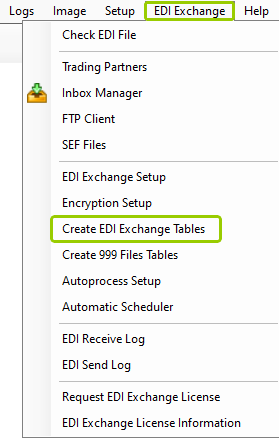
1.Go to EDI Exchange > Create EDI Exchange Tables in the main menu window.
The "Create EDI Exchange Tables" option is under the "EDI Exchange" tab.
2.The "Create Tables for EDI_Exchange" window will open. Here, you can manage the creation and modification of your tables in the database.
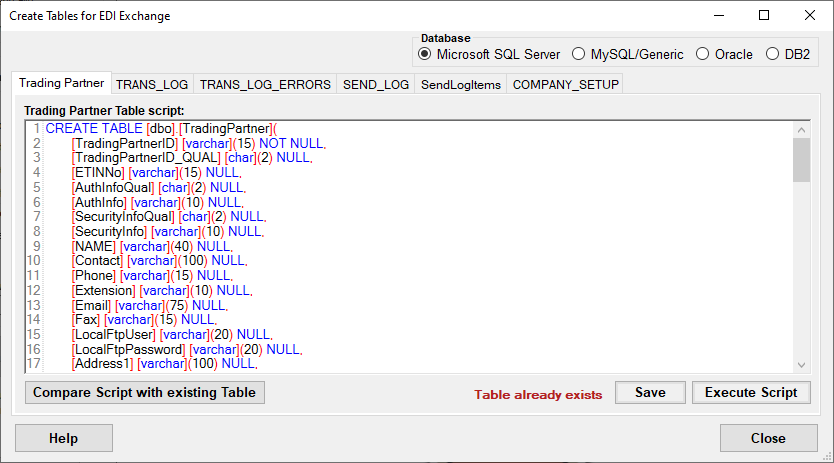
The "Create Tables for EDI Exchange" window.
3.Select the database type you use for your host HIPAAsuite application. There are four database options:
oMicrosoft SQL Server
oMySQL
oOracle
oDB2
Note: If your database is not listed, you may modify the scripts as needed or ask your database administrator to make the necessary modifications.
4.Below the database options are six tabs with the different table script categories. See the details for each below:
This table contains information about trading partners in SQL statements to create the "TradingPartner" table in your database.
This table contains incoming file information in SQL statements to create the "TRANS_LOG" table in your database. It also keeps track of all EDI files that you receive and the compliance check report.
This table collects the results of the compliance check in SQL statements to create the "TRANS_LOG_ERRORS" table in your database. It also keeps track of all sent files.
This table contains information about EDI files created and sent to Trading Partners in SQL statements to generate the "SEND_LOG" table in your database.
This table contains information on the individual items in the "SEND_LOG" table.
This table collects information about you, the sender of EDI information, in SQL statements to create the "COMPANY_SETUP" table in your database.
5.Click on the tab with the script you wish to create. You can modify the scripts so that they run on your specific database. Once you have modified the script, click "Save."
Note: Every database system has syntax idiosyncrasies, thus the scripts might require tweaking. You may edit the table scripts and save your modified scripts. For example, if "date," "time," or "money" data types do not exist in the SQL Server, you can rename those types to '"datetime" and save your script to run it.
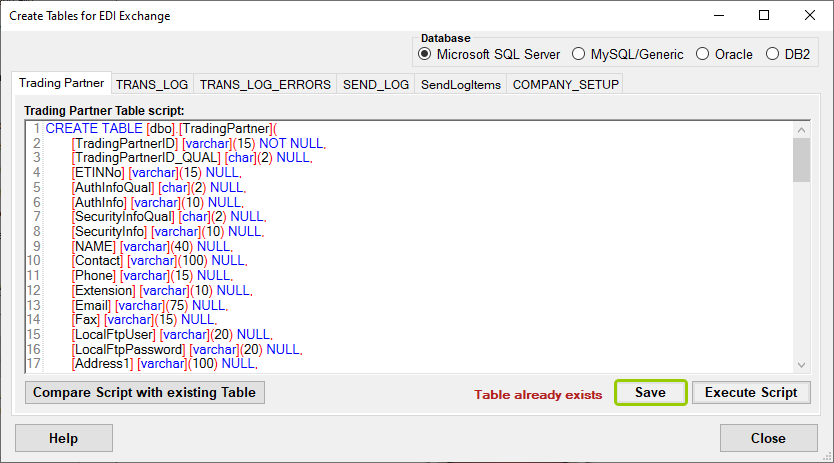
The "Save" button.
6.If you are ready to apply the script you just saved, click "Execute Script." Please ensure that you both save and then click "Execute Script" before changing or closing any tab. Otherwise, any changes you make will not take effect and will not be stored in the database.
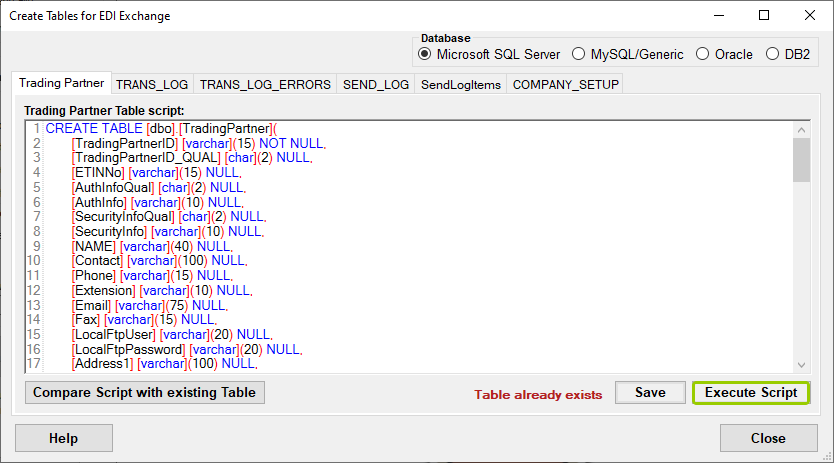
The "Execute Script" button.
7.HIPAAsuite products go through continual development and improvements. Often these changes lead to new fields in the database. While it is easy to drop a table and regenerate it with the new fields, you will lose all existing data in the table. To avoid this, click "Compare Script with existing Table." Doing so will compare the table structure in your database with the current script. This will also prevent any double-execution, which could wipe out any previous existing data. Remove the script files once you have created the tables so nobody can destroy them accidentally.
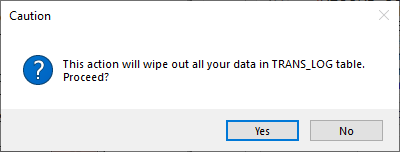
The "Caution" window warning about a possible double-execution.
8.If the table is up to date, you will see this message:
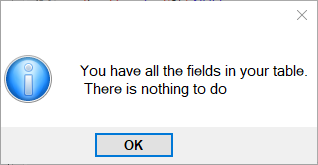
A notification will pop up if the table is up to date.
If your table is missing recently added fields, you will see a window showing an "Alter Table" script with which you can add those fields to the table without interfering with existing data:
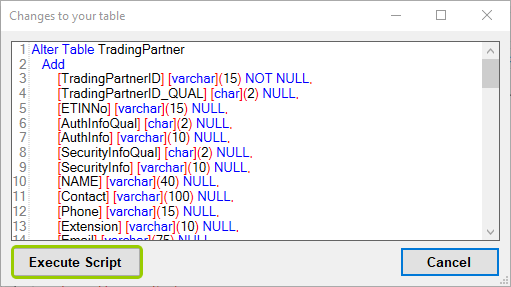
The "Changes to your table" window will show if there are missing or altered fields.
After you make the changes, click the "Execute Script" button and the field will be added and a message will confirm your changes:
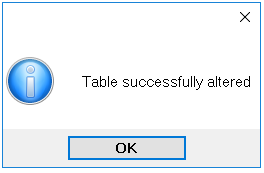
The message window if a table was modified successfully.
9.Once the table has been created successfully without any errors, you will see the following message:
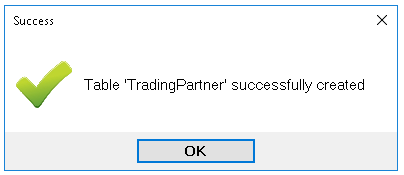
The success message window if a table was created.