|
<< Click to Display Table of Contents >> Using Built-in FTP Client |
  
|
|
<< Click to Display Table of Contents >> Using Built-in FTP Client |
|
A File Transfer Protocol (FTP) is a standard protocol that transports files from a server to a computer client within a network. With EDI Exchange, you have a built-in FTP client where you can drop off and pick up files from your defined Trading Partners (see Setting Up Trading Partners.)
Follow the instructions below to exchange EDI files with your Trading Partners.
1.Go to EDI Exchange > FTP Client in the main menu window.
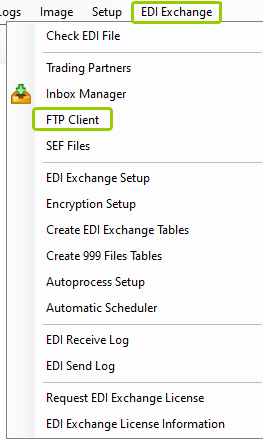
The "FTP Client" option is under the "EDI Exchange" tab.
The following window will open:
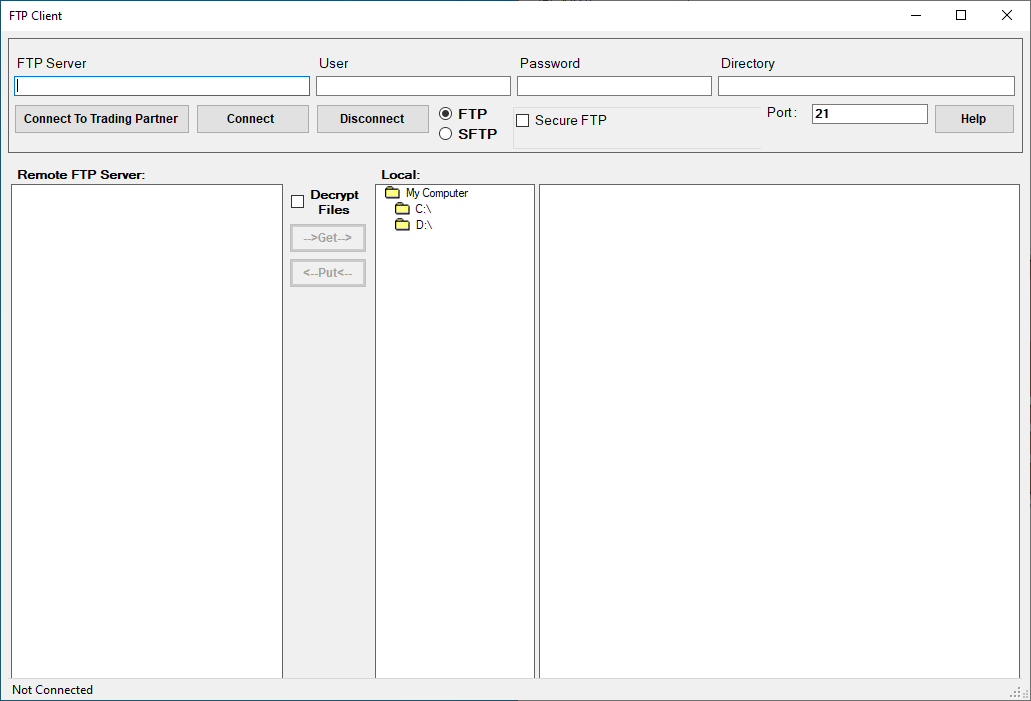
The "FTP Client" window.
2.To begin the connection, click "Connect to Trading Partner."
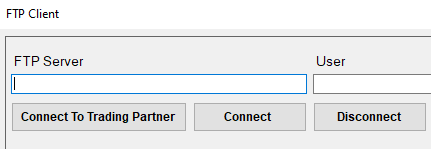
The "Connect to Trading Partner" button.
The following window will open:
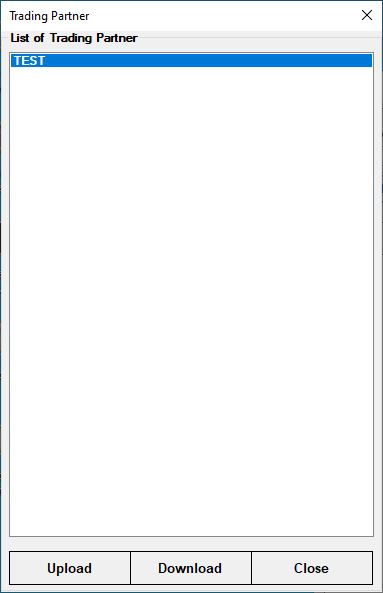
This window will open after clicking "Connect to Trading Partner."
3.Within the "List of Trading Partners" box, you will see the list of all the Trading Partners you have set up. Select the Trading Partner you wish to connect with and click on one of the following three options:
oUpload — Click this button to connect the selected Trading Partner to the "Put" directory.
oDownload — Click this button to connect the selected Trading Partner to the "Get" directory.
oClose — Click this button to cancel any changes and close the window.
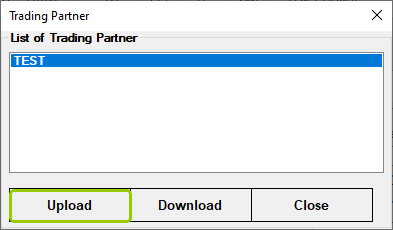
After selecting the Trading Partner, click "Upload."
4.Once you have chosen a Trading Partner, click "Connect" to establish a connection to the FTP server. The following fields will contain values derived from the Trading Partner's properties. You can change them manually if needed.
oFTP server — Fill in the IP Address or URL of the FTP server.
oUsername / Password — Select a username and password for access.
oDirectory — If left blank, the FTP root directory will open.
oSecure FTP — If this option is enabled, you may select between implicit and explicit FTPs (see Setting up Trading Partners for more details on each secure method.)
Note: You can also fill in the connection information manually. However, this information will not be saved once you close the FTP client window.

The fields for each Trading Partner.
5.The content of the folder(s) in the server will be displayed once a connection is successful. You can browse your local PC under the "Local:" box on the right-side panel. You have two options:
oGet —> — To download a file from the server, select a file on the left side, then click the "Get" button. The file will show in the remote folder. You will receive the "File <filename> successfully uploaded" message at the bottom status bar of the FTP client.
oPut —> — To upload a file to the server, select the file on your local PC, then click the "Put" button. The file will show in the local folder. You will receive the "File <filename> successfully downloaded" message at the bottom status bar of the FTP client.
oDecrypt Files — If you check this box, downloaded files will be decrypted.
oEncrypt Files — If you check this box, outgoing files will be encrypted.
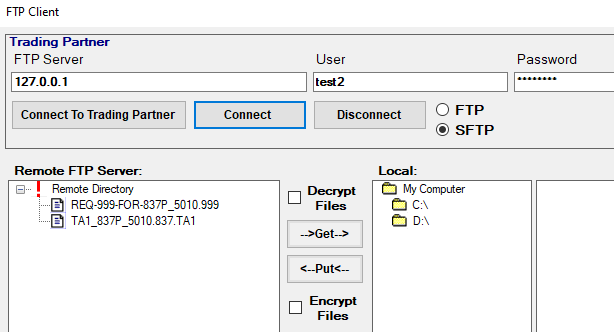
These are the "Remote FTP Server" options.