Familiarizing with the Interface |
  
|
Familiarizing with the Interface |
|
The HIPAA Premium Payment Master application is designed to be as user-friendly and intuitive as possible. Please take a moment to review the basic commands in the main menu before processing anything:

The Tab Menu Bar may contain different tabs depending on the licensed modules.
The Tab Menu Bar at the top shows different options and sub-menus for the various features of the application. See the description of each tab below:
oFile — This tab contains all file-related activities such as opening a file or directory, printer selection, and exiting the application.
oView — This provides access to the built-in EDI Editor and allows you to show or hide the Info Bar.
oCode Sets — This tab allows you to view a variety of alphabetized codesets. See Selecting a Code Set.
oData Base — This provides access to the database setup and the Payment Records database; see Background for details.
oImage — This tab allows you to view the images of files and to configure the image file options. Configuring Image Setup, Viewing Image Files.
oSetup — This provides access to the different setup windows; see Application Setup, Company Setup.
oLog — This tab allows you to view the logs of files that have been processed. See Accessing Daily File Logs.
oEDI Exchange — This tab allows you participate in a variety of EDI tasks such as checking files and creating tables. See EDI Exchange.
oHelp — This shows the documentation and context-sensitive help topics.

The Taskbar allows quick access to the most important functions.
The Taskbar sits below the Tab Menu Bar and it has the most important functions accessible through quick launch icons. The Taskbar shows the following icons: Open Document, Run, Next, EDI Editor, Get Files, Process Inbox, Setup, Help, Close/Show Info Bar, View Manual.
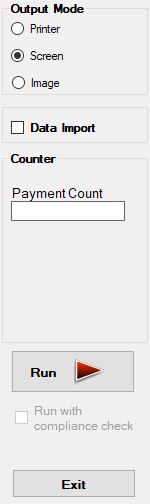
The Info Bar.
The Info Bar is located on the left side of the main menu window. This panel displays the settings to start processing files. If you do not see the Info Bar, you can access it through the “View” tab or by clicking the no symbol icon in the Taskbar. When you work with files, the Info Bar is indispensable, but when working with a database, it is optional. See the details of each box within the Info Bar below:
oOutput Mode Box — This defines how the result file(s) will be managed. See below the details of each option:
§Printer — This mode allows you to print the opened EDI Payment file; see also Selecting a Printer.
§Screen — This is the default mode; select this option to display the EDI Payment Record file on the screen in a preview window.
§Image — This mode creates a TIFF or PDF file; see Creating Image Files from EDI.
oData Import — This takes the information from the EDI file and stores it in the database.
oCounter Box — Displays the number of Payment Records processing in real-time:
§Payment Count — This displays the number of payments.
§Saved Records — This displays the number of saved records; this option will not show if the "Printer," "Screen," and "Image" output modes are selected.
§Processed Files — This displays the number of EDI files processed; this option will not show if the "Screen" output modes is selected.
oRun — Click this button to begin processing Payment Records; once you click it, the icon will change to "Stop."
oRun with compliance check — This check box applies to users who have the EDI Exchange license and want to ensure the file is compliant.
oExit — This closes the application.