Spreadsheet Import Through Command Line |
  
|
Spreadsheet Import Through Command Line |
|
The HIPAA Claim Master application does provide import facility through command line interface. Import configuration can only be done through UI (see Export EDI to Spreadsheet.) Follow the steps below to complete an import though command lines:
1.Search for the "Command Prompt" in the Start menu of your computer and open it.
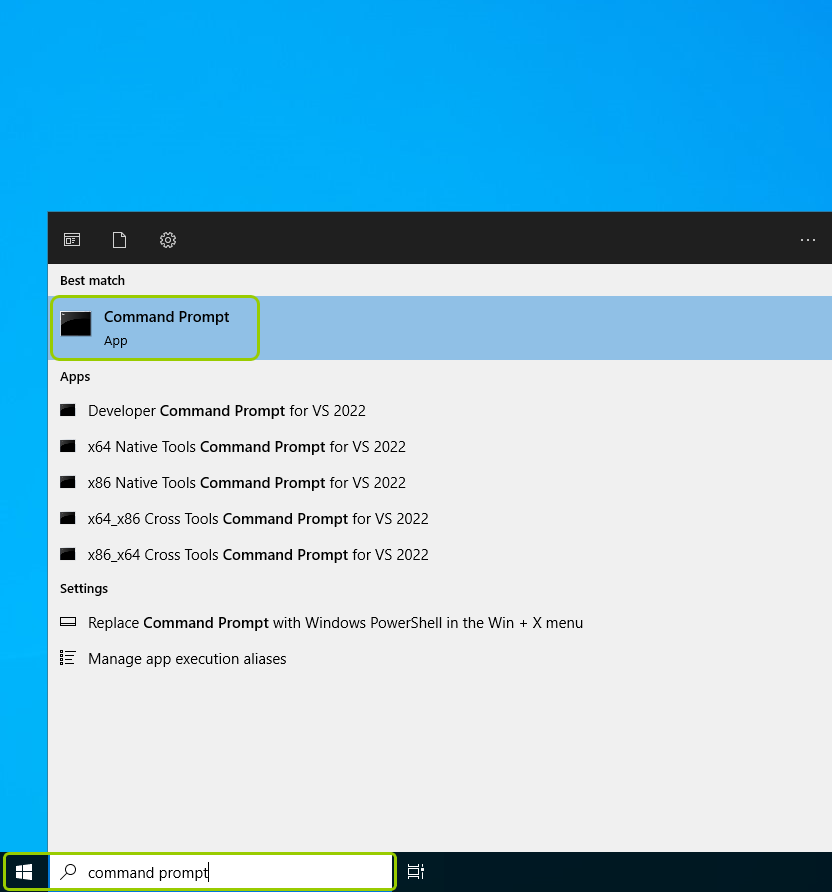
Search for "Command Prompt" in the Start menu of your PC.
2.Copy the following command then paste it into the command window and press "Enter":
C:\>cmd.exe D:\Keyur\Import\Import2.xlsx,I,T,false,false,false

The command within the application.
3.Once the import is complete, you may check the logs of the operation.
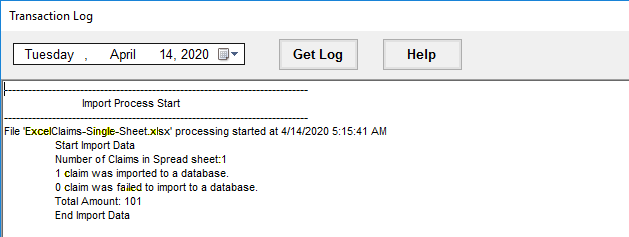
The log data after the import operation is completed.
This will set the spreadsheet import settings. See the arguments of the command below:
File Path (D:\Keyur\Import\Import2.xlsx)
This portion signifies the file path from where you want to import the data.
Import (I)
This argument provides the detail of the import operation.
Test (T)
This argument represents test database and P for Production (Prod) database. Based on this parameter value, imported claim data would be inserted either on a Test or Live Database.
Excel Format (IsSingleSheet — true/false)
This parameter accepts a boolean value for whether the imported file is SingleSheet or MultiSheet. In the above example, it is being passed as 'false,' meaning that imported spreadsheets are multi-sheet format.
IsValidateDataBeforeSave
This parameter value has the same effect as 'Validate Data Before Save' and like import screen; it validates the data before the import operation.
IsComplianceCheck
This parameter checks for whether to perform compliance checks before import operation or not.
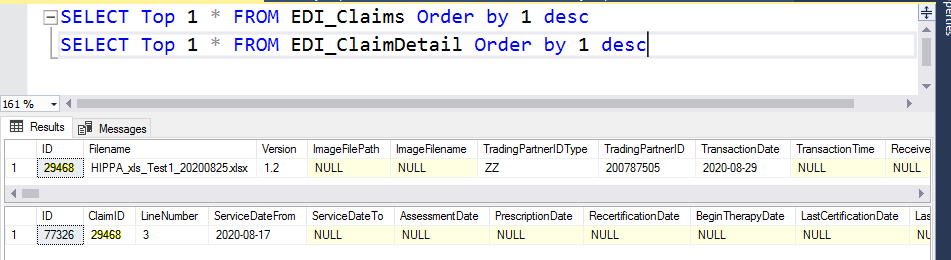
Database entries samples of imported data through command lines.
In the example above, EDI_CLAIMS and EDI_CLAIMDETAIL are the tables which are being populated with imported claim data.