Claim Forms |
  
|
Claim Forms |
|
The introduction of the National Provider ID (NPI) brought new claim forms. All three types of claims now have a form that contains the NPI. The HCFA-1500 became the CMS-1500, the UB-92 became the UB-04, and the ADA 2024 replaced the earlier versions. See Displaying Claims.
The HIPAA Claim Master application allows you to decide how to configure the forms you want to use, how to print them, and any other setting related to claim forms management. Follow the steps below to configure claim form options:
1.Go to Setup > Claim Forms in the main menu window.
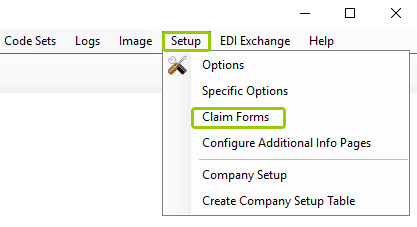
The "Claim Forms" option is in the "Setup" tab.
The following window will open:
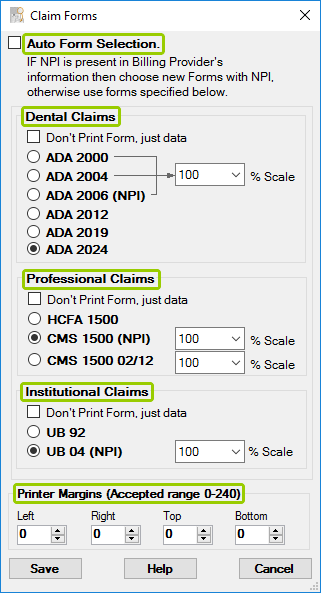
The "Claim Forms" window.
2. After configuring your form options, click "Save."
See the details of each specific option below:
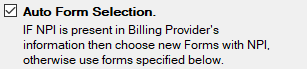
The "Auto Form Selection" box.
Check this option to select the forms automatically. The system chooses the forms based on the following logic:
oIf the NPI is present in the billing provider's information, then a new form with the NPI will be chosen.
oIf the NPI is missing, the forms will be selected manually and used instead.
This feature is obsolete since it's been more than 10 years since the NPI was introduced and mandated.
Note: This setting is recommended. Otherwise, claim files before the NPI was implemented will be displayed in the old forms and newer files with the NPI will be rendered in the updated forms.
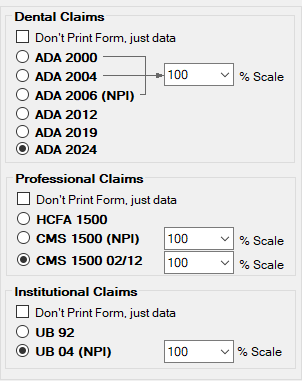
The "Dental, Professional, and Institutional Claims" box.
You may choose your preferred form for Dental, Professional, and Institutional claims. Each type of claim form has two configuration options:
oScaling — The UB-04 form is bigger than the other claim forms. It is 12" x 9" instead of the customary 8 1/2" x 11", and due to the margins, it usually does not print in its entirety. Therefore, it is possible to scale the form down to a printable size. Also, to align the print image with a pre-printed form, you may have to use scaling, a setting available to all forms.
oDon't print form, just data — You have the option to print just the data and suppress the form. This feature comes in handy when you want to use pre-printed forms or if you have OCR software that does not need the forms.
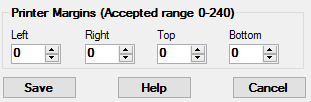
The "Printer Margins" box.
This feature is useful for users who want to print onto pre-made forms by aligning the tractor-feed of the printer. Alignment is handled by the Printer Control Language (PCL) and not accessible to the user. If needed, you can manipulate the printer margins until you have the desired alignment.