Creating Image Files from EDI Files |
  
|
Creating Image Files from EDI Files |
|
The greatest disadvantage of Electronic Claims is that they are almost impossible to understand in raw form. Storing an image associated with a claim makes sense for most HIPAA Claim Master users. You can create images from EDI files and view them just like scanned images from paper claims. Having an image file makes it possible for caseworkers to call up an image of the claim in seconds.
HIPAA Claim Master displays EDI files in a form that makes it easy to read. The following formats are supported:
oTag Image File Format (TIFF)
oPortable Document Format (PDF)
Note: Image file creation is a module that is licensed separately.
Before creating image files, all settings must be defined. See Configuring Image Setup, Configuring Image Index, and Creating Image Index Table.
You can create image files manually or automatically using the command line arguments and Windows Scheduler. See more in Using Command Line Arguments (CLI) and Running the Application via Windows Scheduler. Follow the steps below to create image files from EDI files manually:
1.Go to File > Open for a single file or to File > Open Directory for multiple files as seen below (see Processing an Electronic Claim and Processing an Entire Directory.)
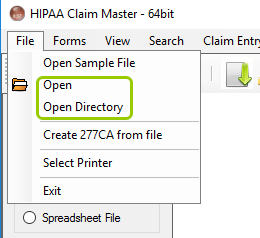
The "Open" and "Open Directory" options are under the "File" tab on the main menu.
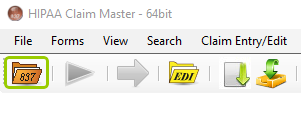
The "Open File" icon is in the Task Bar.
2.Select the "Image File" option as the "Output Mode."
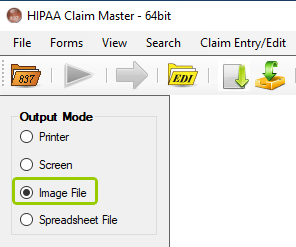
The "Image File" mode.
3.Click the "Run" button.
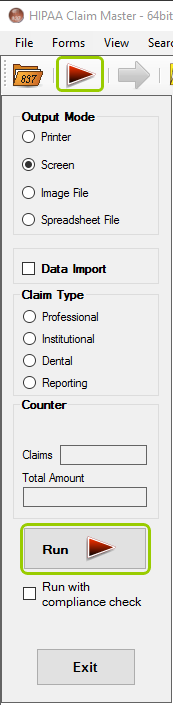
The "Run" button options in the main window.
4.The "Processing Results" window will pop up and display the report. You can find the TIFF or PDF files in the specified folder.
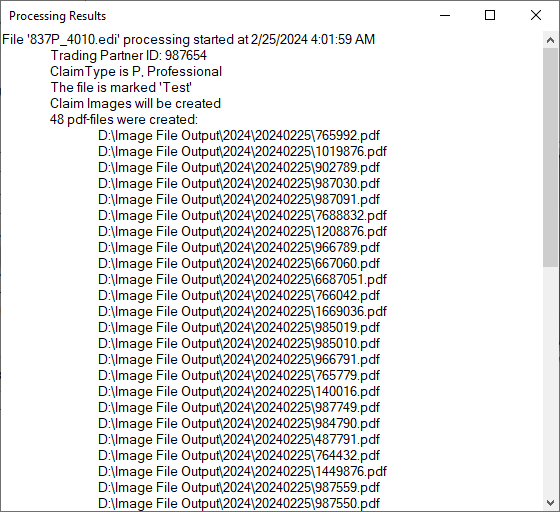
The "Processing Results" window.
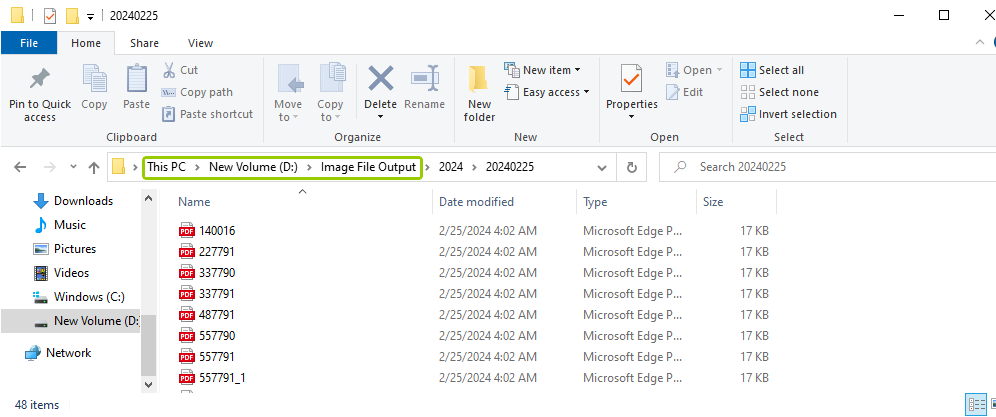
The "Image Index Output" folder is where claim images can be found.