Creating an Image Index Table |
  
|
Creating an Image Index Table |
|
To create the table for the image index, follow the instructions below:
1.Select Image > Create Image Index Table in the main menu.
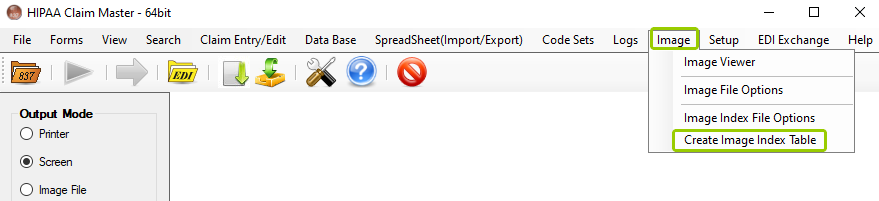
The "Create Image Index Table" option is on the main menu window.
Note: If you have not yet set up an image index, please see Configuring an Image Index. Otherwise, an error window will pop up:
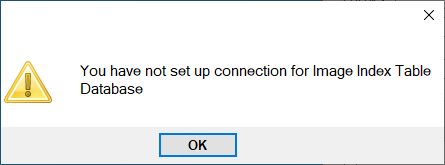
A pop-up message will show if no image index file has been configured.
The following window will open:
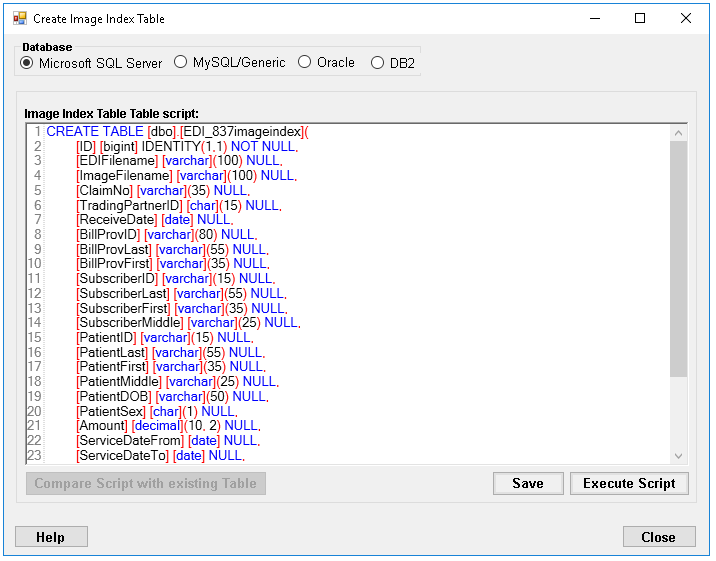
The "Create Image Index Table" window.
2.Depending on what type of database you configured, select the respective option. There are four:
oMicrosoft SQL Server
oMySQL/Genetic
oOracle
oDB2
3.Then, check that the correct database type is selected. In this example, we selected the Microsoft SQL Server:
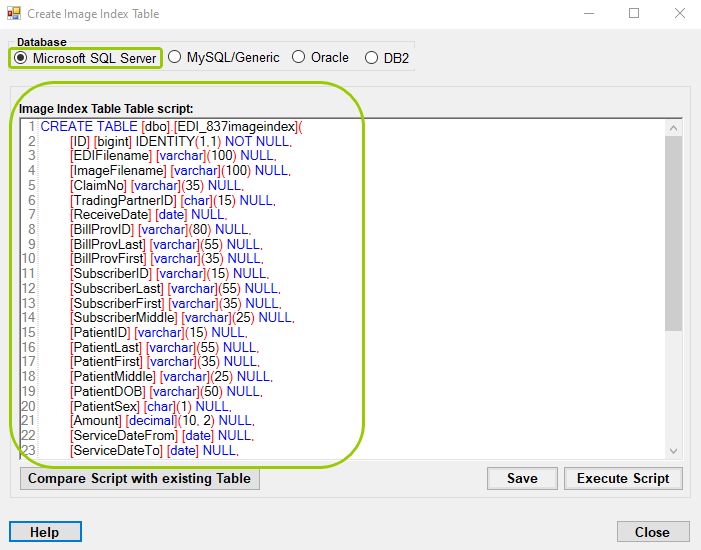
The "Create Image Index Table" window with the "Microsoft SQL Server" script displayed.
4.Click the "Execute Script" button.

The "Execute Script" button.
5.If the script is created successfully, you will receive a notification like this:
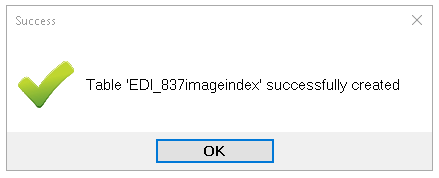
The success notification pop up.
6.Then click "Save."

The "Save" button.