Configuring an Image Index |
  
|
Configuring an Image Index |
|
To begin the image index configuration, follow the steps below:
1.Select Image > Image Index File Options in the main menu window to access the "Image Index Configuration" window.
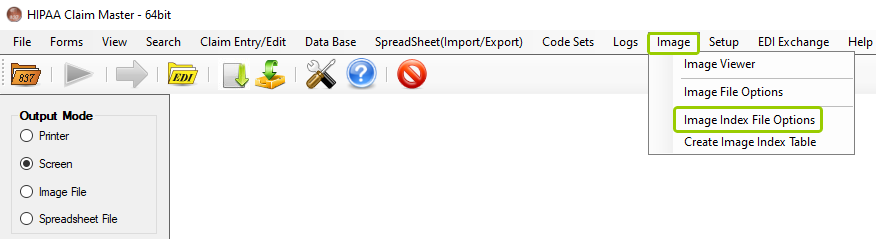
The "Image Index File Options" menu.
The following window will open:
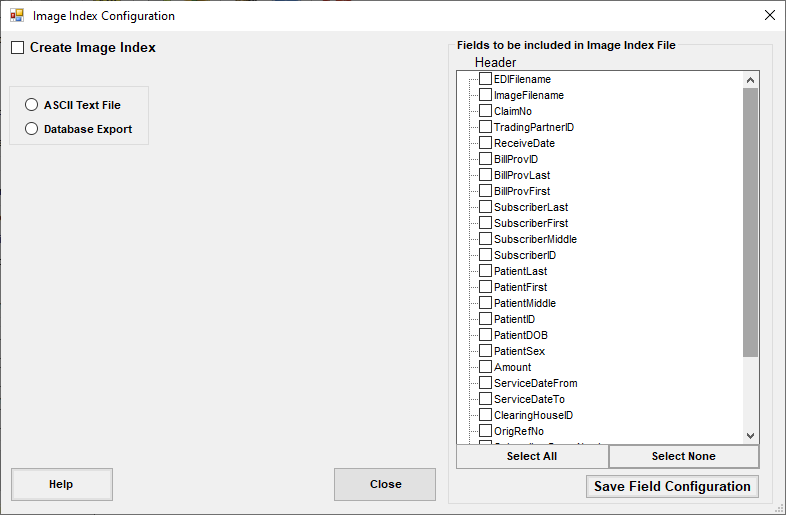
The "Image Index Configuration" window.
2.Select the option that applies to you, either ASCII Text File or Database Export.
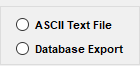
The two index-type options.
3.Once you have made your changes, click "Save Field Configuration."
The settings required will depend on the type of index to be created. See the details of each specific image index setting below:
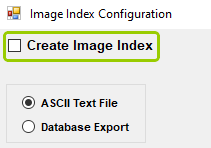
The "Create Image Index" checkbox.
Regardless of the type of format to read images, checking this box will create its image index. You can also define which fields to include and configure your database settings.
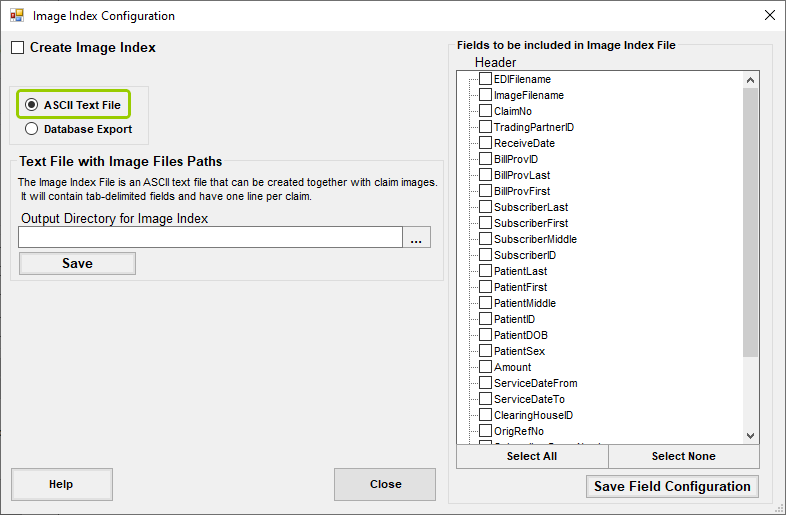
The "ASCII Text File" option.
Selecting this index type will reveal a single option described below and the fields to be included in the image index file.
Text File with Image Files Paths
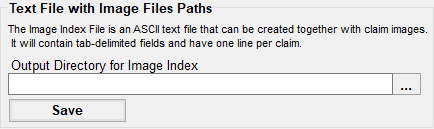
The "..." box will allow you to browse for an image index location.
This box specifies the output directory for the image index. To select a destination place, click the "...," which will open a browsing window. Once you find the folder where you want to set the output directory for the image index, click "OK." Alternatively, you may create a new folder where you wish by clicking the "Make New Folder" button.
Note: The image index ASCII file only works when you save individual images for each claim.
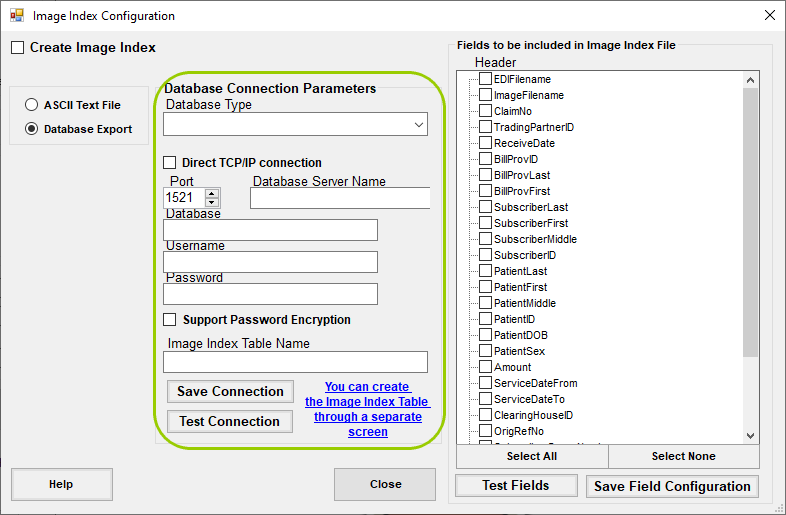
The "Database Connection Parameters" box will appear if you choose "Database Import."
Select this option to save the image index through ODBC into any database, independent of the database used for file downloads. The database setup is similar to that of the claim data import.
Database Connection Parameters
The following database connection parameters can be configured:
oDatabase Type — This section provides a drop-down menu to select the type of database you would like to use, as shown below:
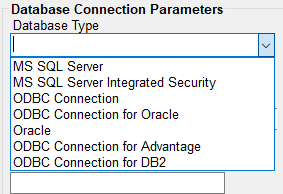
The drop-down menu of database types.
§Direct TCP/IP connection
oPort
oDatabase Server Name (DSN)
oDatabase
oUsername
oPassword
§Support Password Encryption
oImage Index Table Name
oYou can create the Image Index Table through a separate screen — If you wish to create an image index table through a separate window, you may click this option, which will bring the window shown below (see Creating Image Index Table):
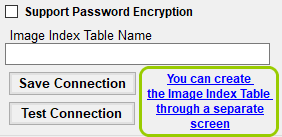
Click the blue link if you would like to create an image index table in a separate window.
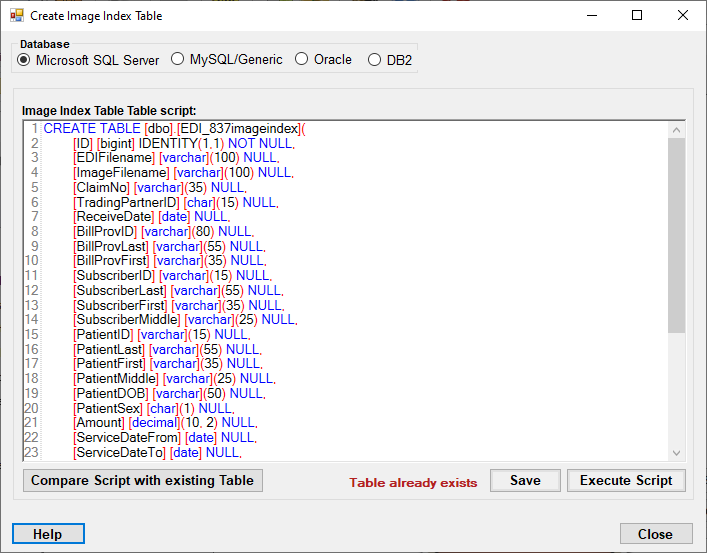
This window will open if you click the blue link.
Once you have filled out all the required fields, click "Save Database Connection." After all database connection parameters are set, click "Test Connection" to verify the connection.
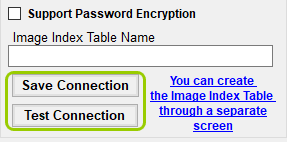
The "Save Connection" and "Test Connection" buttons.
If the configuration is correct, a pop-up message will open confirming this, as shown below:
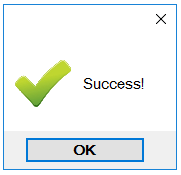
This pop-up confirms the successful connection.
You can select the fields to be imported into the image index by selecting the checkboxes next to the field names. You can click the "Select All" or "Select None" buttons if you want all or none of the fields included in the Image Index File.
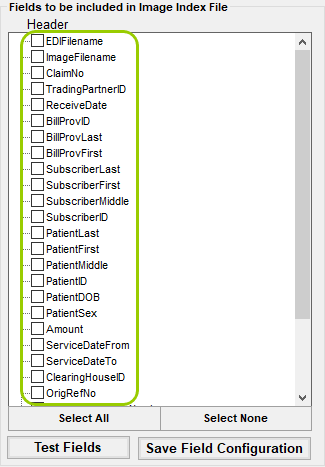
The fields to be included in the image index file.

The "Select All" and "Select None" buttons for the "Image Index File" fields.
Note: As with the other field selectors, you can change the names by clicking slowly twice on them. This is helpful if you have an existing database that you want to access with different names.
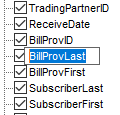
Changing the field names.
For Database export, you can test the field configuration by clicking the "Test Field Configuration" button.
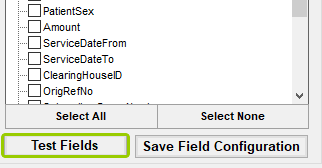
The "Test Field Configuration" button.
If the settings are correct, a pop-up window will open confirming this, as shown below:
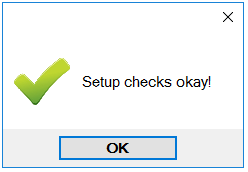
Pop-up confirming that the settings are correct.
When you finish the configurations, click the "Save Field Configuration" button.
The "Save Field Configuration" button.
Once all image index options have been defined and saved, click "Close."
The "Close" button.