Creating Code Look-up Tables |
  
|
Creating Code Look-up Tables |
|
EDI is about saving space and using code sets to represent extensive information. Since the codes are available commercially or from the Centers for Medicare & Medicaid Services (CMS), you can link tables with those codes in your database application and have HIPAA Claim Master look them up.
However, it would be more convenient to have the descriptions of a revenue or procedure code visible instead of looking them up or memorizing thousands of the descriptions. The HIPAA Claim Master application provides a database schema to create cross-reference tables for those codes.
Note: These tables must be defined in the database (see Setting up Database Connection.)
Some of the most important codes are:
oProcedure Codes (HCPCS, CPT, Dental, and ICD procedure codes)
oRevenue Codes
oDiagnosis Codes (ICD-9 and ICD-10)
oZIP Codes
In this chapter, you will learn how to create the code look-up tables.
Follow the instructions below to link and show code descriptions:
1.Go to Data Base > Code Look-up Table in the main menu window.
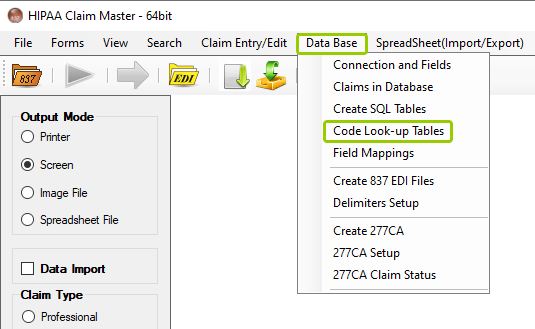
The "Code Look-up Table" option from the "Data Base" tab.
The following window will open:
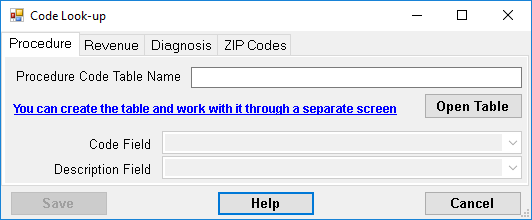
The "Code Look-up" window.
You will see four tabs: Procedure, Revenue, Diagnosis, and ZIP Codes. Click on the appropriate tab for the type of codes you would like to load and/or modify.
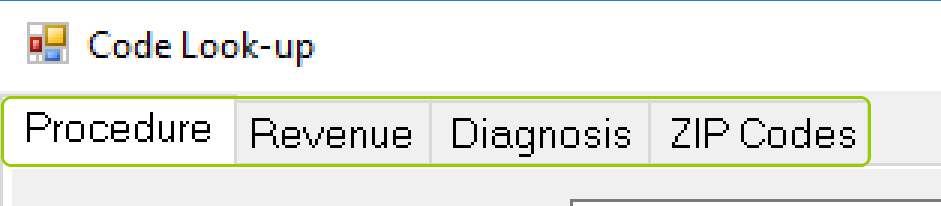
The tabs within the "Code Look-Up" window.
2.Type in the table name and click the "Open Table" button. In this example, we will choose "ProcedureCodes."
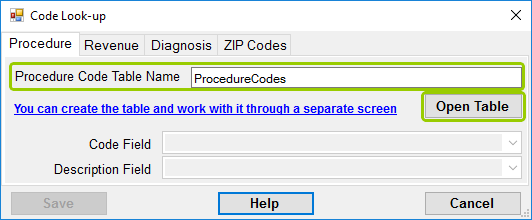
The "Procedure Code Table Name" text box and the "Open Table" button.
3.If the table is found, the drop-down boxes for "Code Field" and "Description Field" will be populated with all the available fields in your table. You can then choose the field that will carry the code and description.
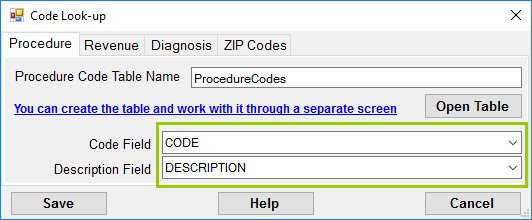
The "Code Field" and "Description Field" drop-down boxes are populated.
If you do not have a table with the procedure codes, you can create it by clicking the blue link. This will open a new window where you can work on the procedure codes.
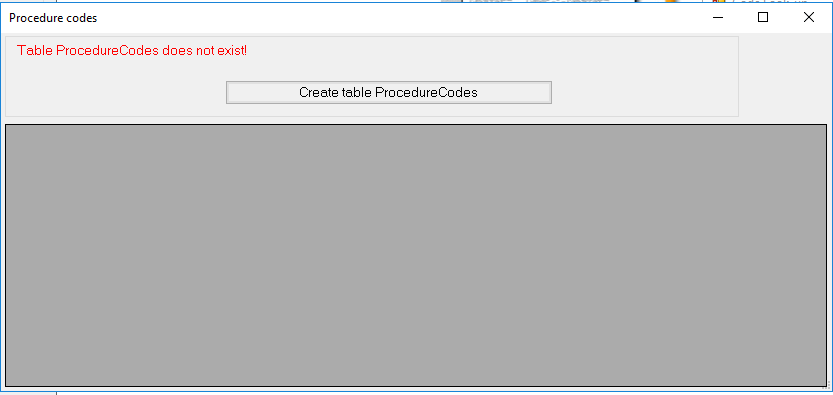
The form to create and fill the look-up table.
Since the table does not exist, click "Create table ProcedureCodes," which will open a new script window.
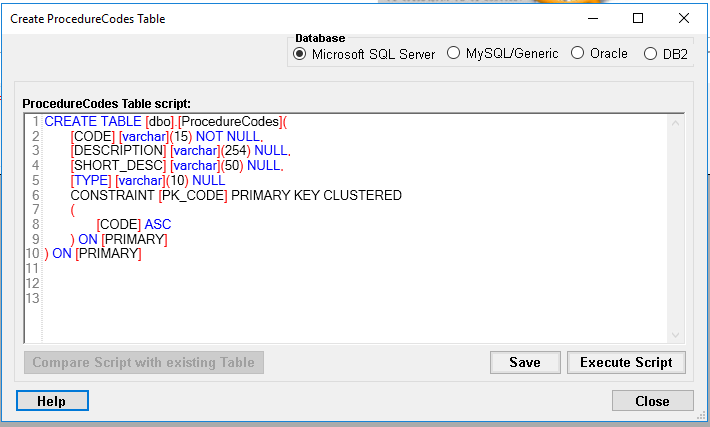
The form with the script to create the look-up table.
4.Select your database according to your settings (see Setting up Database Connection). Then, click "Save" and "Execute Script" to create the table and close the window.
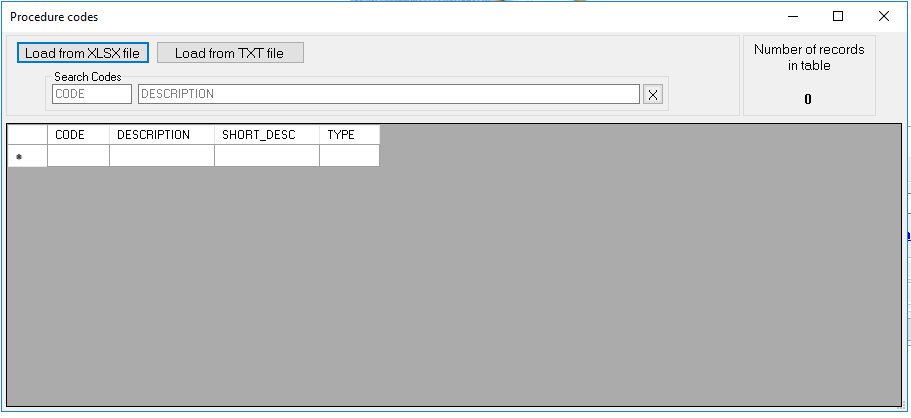
The form to manage procedure codes.
5.The table is now created but empty. Now, you can load the codes, which you can obtain separately. HIPAA Claim Master allows two formats to upload codes: XLSX or TXT. Click on the appropriate file type and navigate to the file. The file should have the following layout:
oFirst — Codes
oSecond — Descriptions
oThird — Short description
oFourth — Type
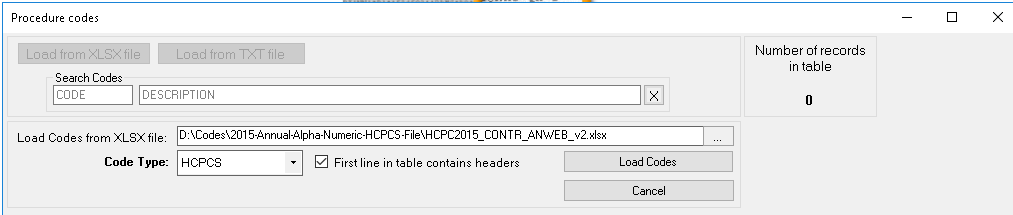
Loading a previously prepared spreadsheet with the HCPCS codes.
6.Select the correct code type, HCPCS in our example, then click "Load Codes." Within a few seconds, the file's codes are loaded into the database and now the values will be visible.
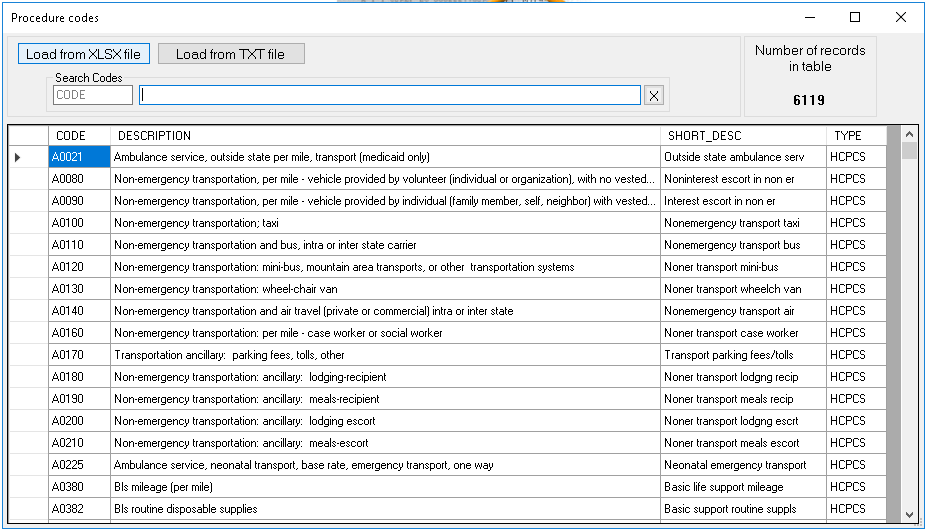
The screen after the codes have been loaded.
The procedure codes are now loaded and stored in the database. You can add other codes, such as CPT and Dental codes. If you have duplicate codes in future files that you load, you will see a message that the code is already in the table and will not be loaded again.
Revenue Codes and Diagnosis Codes work similarly. You may access them by going to the "Code Sets" tab in the main menu. Then, point at the appropriate letter range in the drop-down menu. Repeat the steps for each tab to finish configuring your code set tables.
7.Once you have found the table or created it, click "Save."
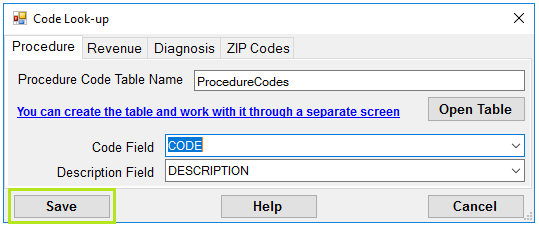
The "Save" button.
Now, the application will fill in the code description fields using the tables you loaded.
Note: The code look-up might slow down your application. You can undo the code look-up by deleting the table name and clicking the "Save" button.
The UB-92, UB-04, and the dental forms have the "Description" field for the line item revenue or procedure codes. For the CMS-1500 form, one can put the description in the upper half of the field locator 24D.

A part of a UB-04 with "Revenue Code" descriptions.

"Dental Procedure" code descriptions.

A part of the CMS-1500 with the description filled in from the database.
The CMS-1500 option is separate and can be selected in the Specific Options (the "CMS-1500: Display procedure description in 24D" check-box); see Configuring Specific Options for more information.