Company Setup |
  
|
Company Setup |
|
Creating EDI files will include a lot of information on your company and your Trading Partners. For this reason, the Company Setup window is designed to enter all the necessary information to create an EDI file. When you create EDI files, there are a few elements needed to identify your company as the sender or the producer.
Note: If you have the EDI Exchange component licensed then all this information is stored in the data file "COMPANY_SETUP." If you don't have this component, this information will be stored in the Windows registry. See Enabling Application Components and Licensing.
1.Before starting, you need to configure the database first. See Setting up Database Connection.
2.Once your database is configured, go to Setup > Company Setup in the main window.
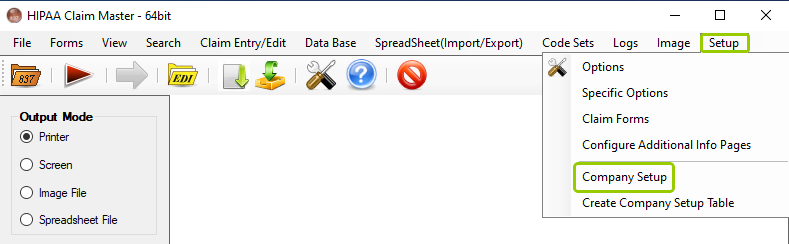
The "Company Setup" option is under the "Setup" tab.
The following window will open:
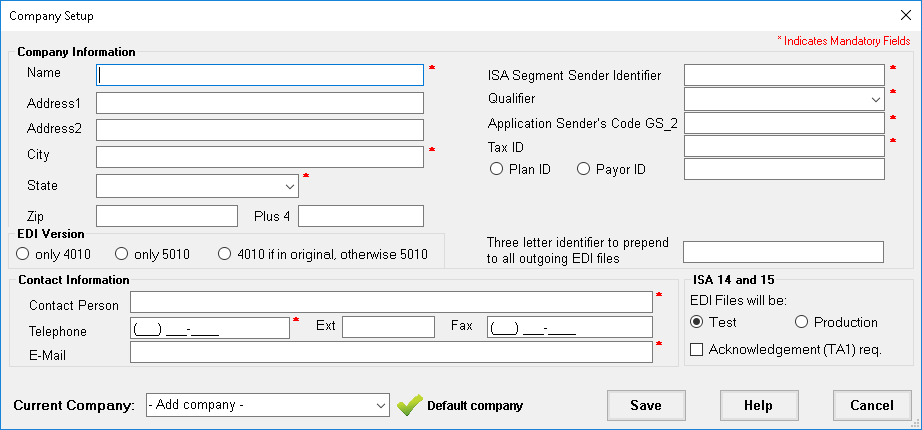
The "Company Setup" window.
3.You can configure the following options:
oCompany Information
oEDI Version
oContact Information
oISA 14 and 15
The fields with a red asterisk (*) at the end are mandatory.
4.Once you have finished editing the options, click "Save."
See the details of each option below:
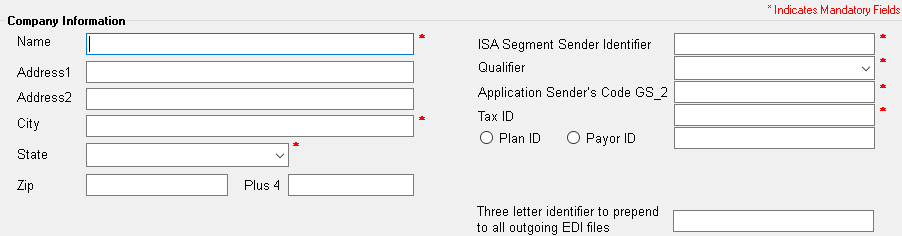
The "Company Information" box.
Within the Company Information" box, you can fill in the details of your company. Below are the fields you have available:
oName — Enter your company's name.
oAddress 1/2 — Enter your company's address, including any building number, street, or other address detail.
oCity — Enter your company's city.
oState — Enter your company's state.
oZIP / Plus 4— Enter the ZIP code of your company's address and the additional figures.
oISA Segment Sender Identifier — This field identifies your organization for all EDI transactions. The ISA identifier can be up to 15 bytes long. This can be a self-defined identifier; other options include your tax ID and the Dun & Bradstreet(DUNS) ID.
oQualifier — The qualifier has to be 2 bytes. The ISA Identifier and qualifier are the unique key to the Trading Partner database file. Approved qualifiers are:
·01 — DUNS (Dun & Bradstreet)
·14 — DUNS Plus Suffix
·20 — Health Industry Number (HIN)
·27 — Carrier ID Number (Identification Number as assigned by HCFA)
·28 — Fiscal Intermediary ID Number (Identification Number as assigned by HCFA)
·29 — Medicare Provider and Supplier ID Number (Identification Number as assigned by HCFA)
·30 — U.S. Federal Tax ID Number (Identification Number)
·33 — NAIC Company Code (National Association of Insurance Commissioners Company Code)
·ZZ — Mutually Defined
Note: Usually, the Qualifier "ZZ" and a self-defined ID up to 15 character in length is chosen.
oApplication Sender's Code GS_2 — This field represents the program or machine that created the file. Usually, this is the same as the ISA Segment Sender Identification, but you can select other IDs if needed.
oTax ID — Enter your Tax ID, also called the Employer Identification Number (EIN).
oPlan ID / Payor ID — Enter your Plan and Payor ID, respectively, if you have one; this is only important for 271 and 277 transactions.
oThree letter identifier to prepend to all outgoing EDI files — Enter three identifying letters of your choice to make your files easily identifiable.

The "EDI Version" box.
Sometimes, you may need to process EDI files in a previous version, such as the 4010, but eventually transition to the 5010 entirely. You have the options to specify which version you will be accepting:
oonly 4010 — You will only accept 4010 forms.
oonly 5010 — You will only accept 5010 forms.
o4010 if in original otherwise 5010 — You will accept 4010 forms if the claim was originally made this way; otherwise, you will only accept 5010 forms.

The "Contact Information" box.
The contact information goes into the PER segment of outgoing transactions. See the contact fields below:
oContact Person
oTelephone
oExt
oFax
oE-mail
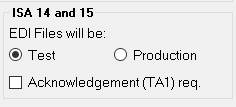
The "ISA 14 and 15" box.
oEDI Files will be: — ISA element 14 determines what kind of data the resultant file contains. The two options are “Test” or “Production.”
oAcknowledgement (TA1) req. — ISA element 15 determines whether you want a TA1 acknowledgment for files that you send out or not.

The "Current Company" box.