Creating Company Setup Table |
  
|
Creating Company Setup Table |
|
You can create the company setup tables to stage the data for the database. Follow the steps below:
1.Go to Setup > Create Company Setup Table in the main window.
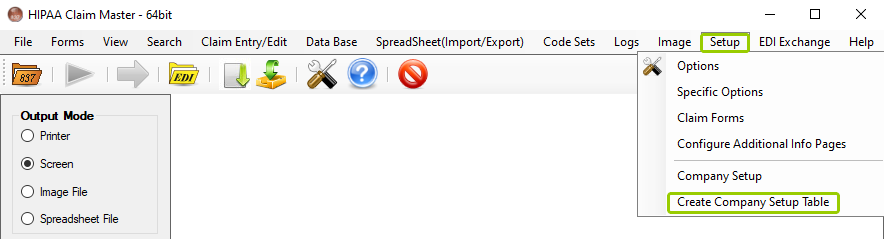
The "Create Company Setup Table" option is under the "Setup" tab.
The following window will open:
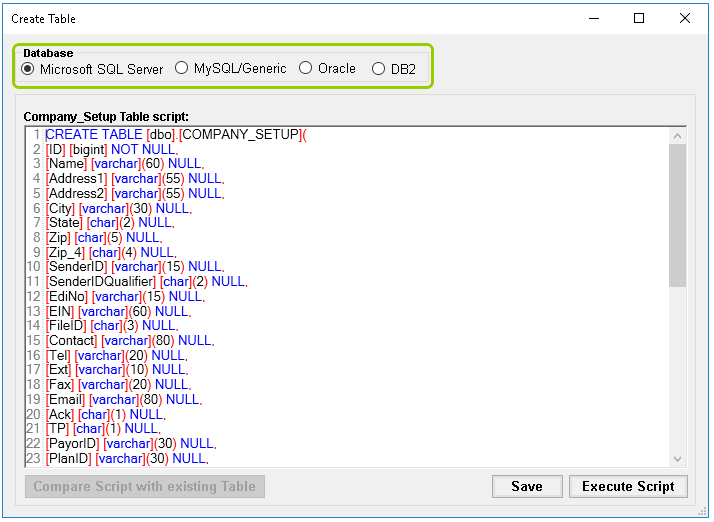
The "Create Table" window.
2.You may define which database will store your company setup table:
oMicrosoft SQL Server
oMySQL/Genetic
oOracle
oDB2
3.Within the "Company_Setup Table script" box, you will find the provided SQL statements to create the company table in your database. You can modify the scripts so that they run on your specific database. Once you have you modified the script, click "Save."
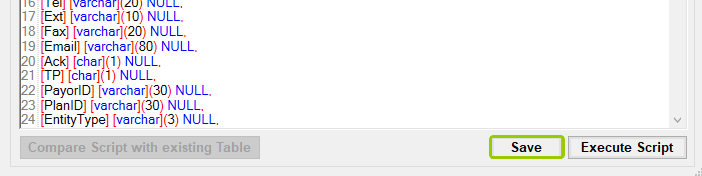
The "Save" button.
3.After saving your changes, click "Execute Script" to create the table in the database.
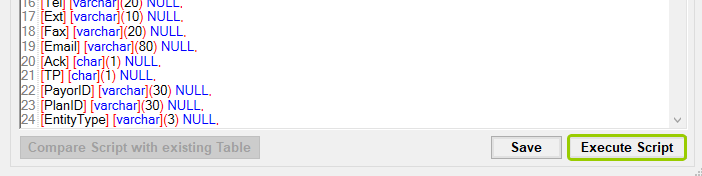
The "Execute script" button.
Note: Executing the script will wipe out any previous table you have created. As a safety measure, you may remove the script files once you are satisfied to prevent the database table from being accidentally altered or destroyed.
4.Once the table has been created successfully, you will see the following notification:
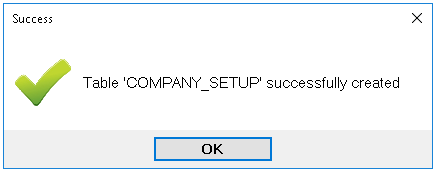
This message will pop up if the table was created successfully.
Make sure there are no any error messages for successful table creation. Should you encounter any error messages, please contact our support team for assistance.