|
<< Click to Display Table of Contents >> Downloading EDI Files From FTP Server |
  
|
|
<< Click to Display Table of Contents >> Downloading EDI Files From FTP Server |
|
EDI Exchange Inbox Manager allows you to load EDI files into the "Inbox" folder from an FTP server to process these files.
Note: Please ensure you have set up FTP settings in the "Remote FTP" tab of the Trading Partner window before attempting to download EDI files this way (see Setting Up Trading Partners.)
To load EDI files into the "Inbox" folder, follow the instructions below:
1.Go to EDI Exchange > Inbox Manager in the main menu window.
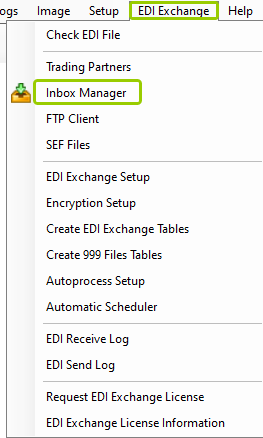
The "Inbox Manager" option is under the "EDI Exchange" tab.
Alternatively, click the "Process Inbox" icon in the Taskbar.
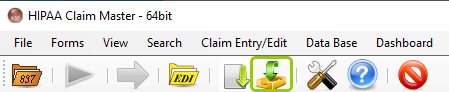
The "Process Inbox" icon is in the Taskbar.
With either option, the following window will open:
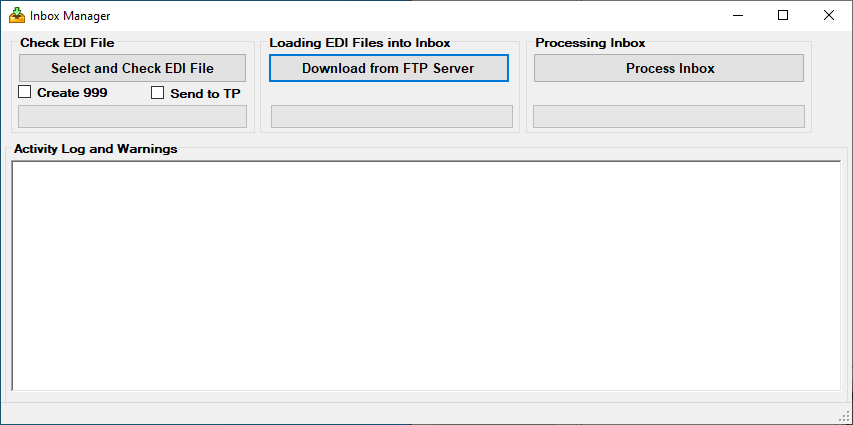
The"Inbox Manager" window.
2.Once the “Inbox Manager” window opens, click "Download from FTP Server." This will begin the download process.
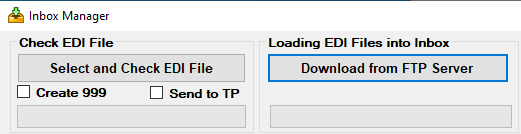
The "Download from FTP Server" button.
3.When the process is complete, the "Activity Log and Warnings" area will display the processing report.
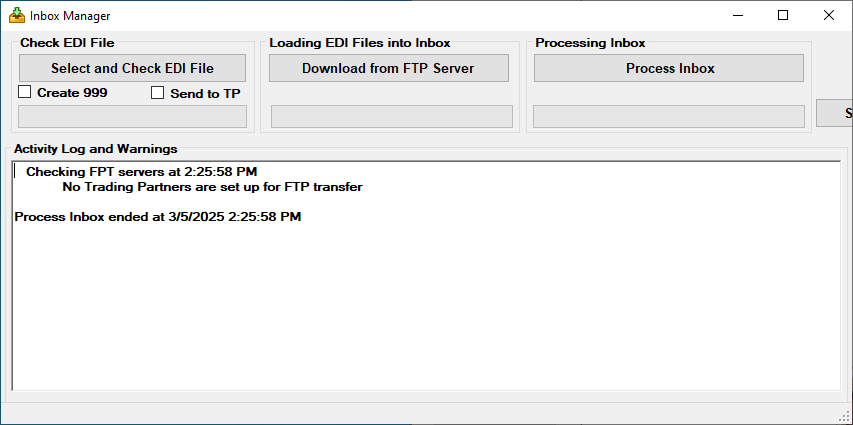
The processing details will be displayed in the "Activity Log and Warnings" box.