|
<< Click to Display Table of Contents >> Selecting and Checking EDI Files |
  
|
|
<< Click to Display Table of Contents >> Selecting and Checking EDI Files |
|
Compliance with HIPAA EDI rules is an essential part of the exchange of EDI documents. The standards are the only agreed-upon rules senders and receivers use to exchange data from completely different back-end systems. Strict adherence is necessary to guarantee frictionless
operation, therefore all EDI analysis is based on HIPAA standards.
HIPAA compliance is difficult due to the many possible errors EDI files may contain, such as syntax errors, omitted loops, missing elements, and poorly formatted elements, among many others. Without a true analysis, it is difficult to say what data enters your system.
EDI Exchange has a built-in compliance analysis engine, revising each incoming and outgoing EDI transaction to check for the issues mentioned earlier. Line by line, element by element, error reporting provides a powerful tool to determine the quality of EDI files. The compliance check creates a detailed report that lists every compliance issue. Also, outgoing files can be checked and individual transactions violating HIPAA rules can be withheld.
Note: You can enable automatic compliance checks on outgoing and incoming EDI files. See Setting up Incoming and Outgoing Files Options.
To ensure a thorough compliance check for your EDI files, follow the steps below:
1.Go to EDI Exchange > Check EDI File in the main menu window or the Inbox Manager option.
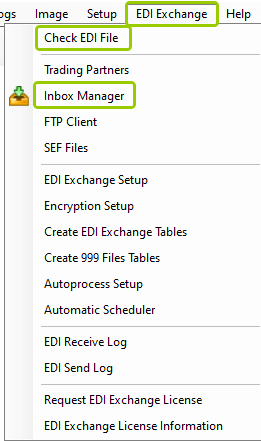
The "Check EDI File" option is under the "EDI Exchange" tab.
Alternatively, click the "Process Inbox" icon in the Taskbar. Then, click the "Select and Check EDI File" button in the Inbox Manager window.

The "Process Inbox" icon is in the Taskbar.
With either option, the following window will open:
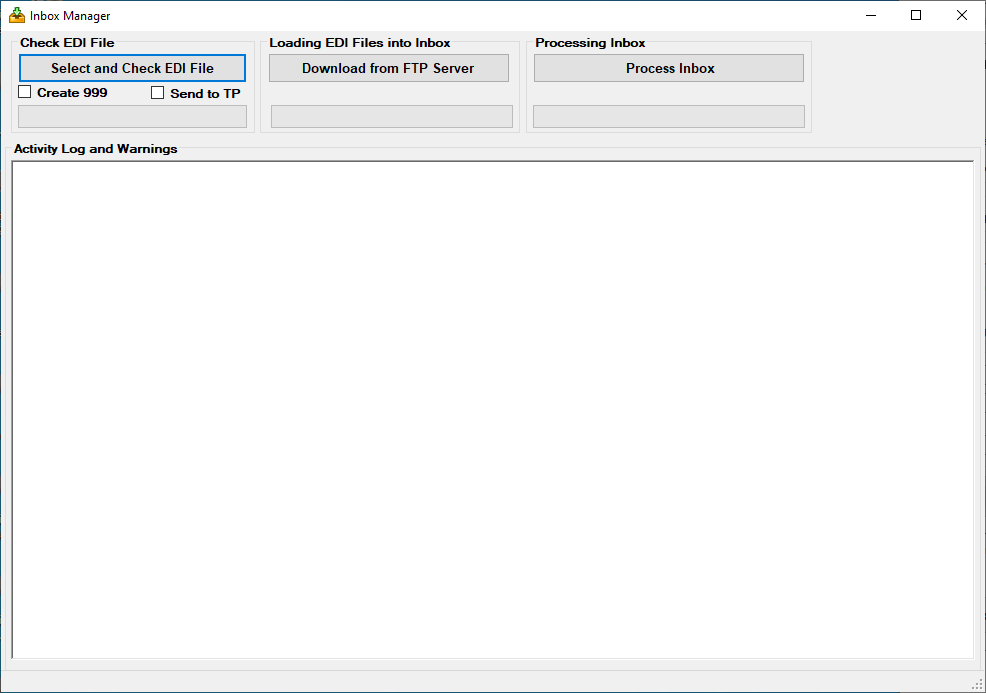
The "Inbox Manager" window.
2.When you click the “Select and Check EDI File” button, a drop-down menu will open and allow you to select a file or a folder.
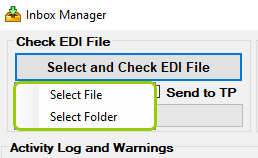
The drop-down menu under the "Select and Check EDI File" button.
3.For either option, a window will open where you can browse for your EDI file or folder. Locate it and click "Open."
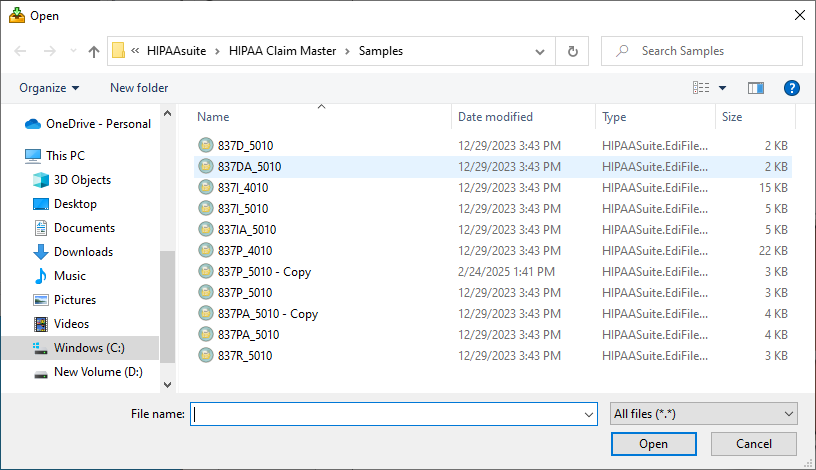
The search window.
4.The application will perform a check-up of the selected file or folder. Once the file or folder is processed, you can see the result messages for the operation in the "Activity Log and Warnings" box.
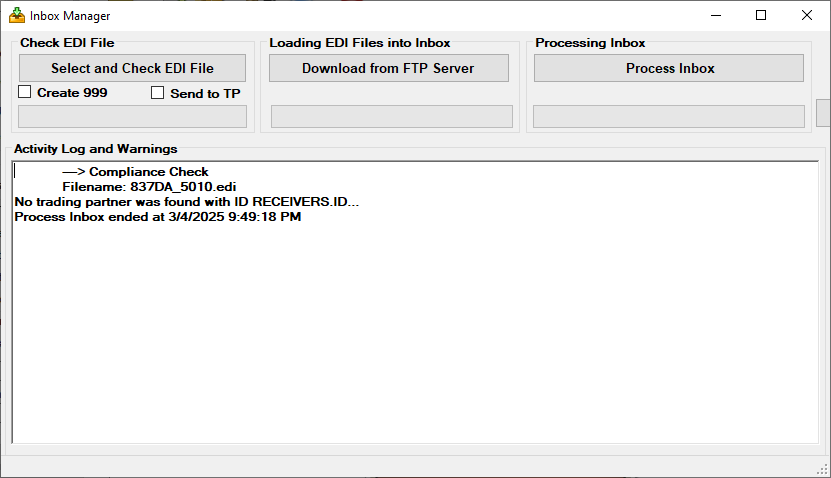
The "Activity Log and Warnings" area displays log messages about the processed EDI files.