|
<< Click to Display Table of Contents >> Processing EDI Files |
  
|
|
<< Click to Display Table of Contents >> Processing EDI Files |
|
The EDI Exchange Inbox Manager allows you to process EDI files downloaded to the "Inbox" folder. This is a pre-processing step for compliance before running them through the actual application.
1.To begin processing the files in your Inbox, follow the steps below after opening the “Inbox Manager” window:
2.Once you have downloaded your files from the FTP server and no errors are displayed, click the "Process Inbox" button.

The "Process Inbox" button.
3.When the process is completed, the "Activity Log and Warnings" area will display the processing report.
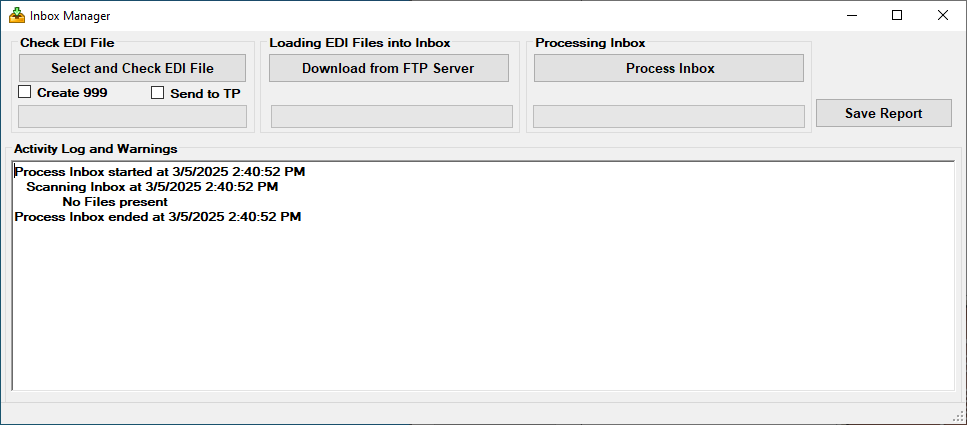
The processing results will show in the “Activity Log and Warnings information” box.
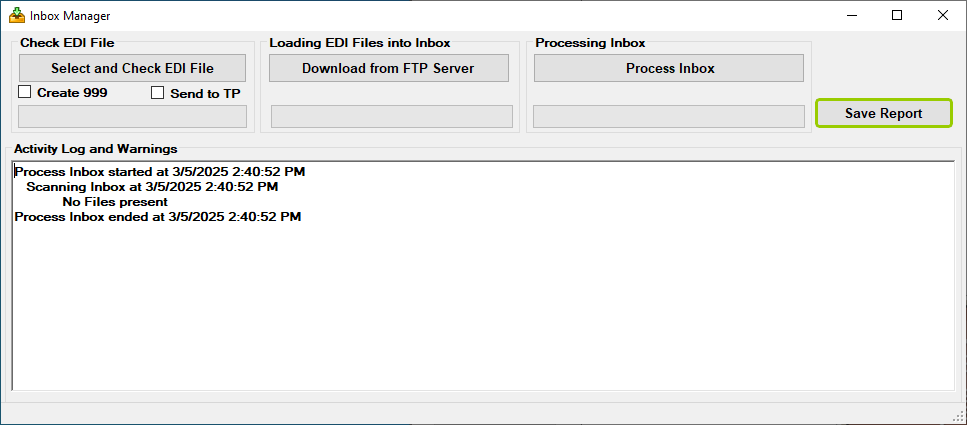
4.A "Save Report" button will become available after processing the inbox. Clicking it will store the report from the process.
Note: Once you have saved the auto-processing options (see Defining Auto-Processing Options), the files will not only be analyzed but also processed according to the defined settings. Auto processing enables you to combine and run multiple fulfillment steps, such as export, saving, and printing.