Checking Compliance |
  
|
Checking Compliance |
|
When you open a file, the HIPAA Compliance Checker automatically checks it for compliance. If the file is compliant without and error free, you will see a green check mark at the bottom of the main menu window.
If the file is not compliant and there are errors, they will be highlighted in the EDI view box. If the error involves elements or sub-elements, only that part of the line will be highlighted. If the error involves syntax, the entire line will be highlighted. Clicking on any highlighted portion will show a pop-up bubble showing the description of the error.
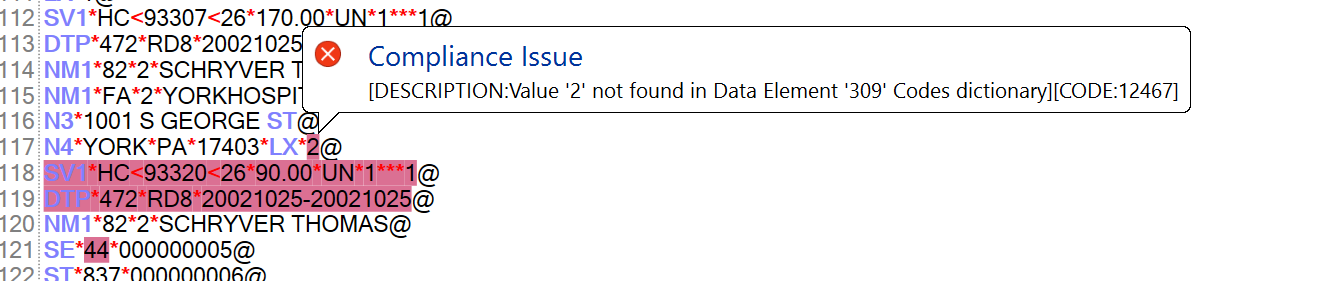
Sample of highlighted portions with errors and a pop-up bubble with details of an error.
The overall structure of the open EDI file will show in the Tree View panel. If there are errors, you will see them here as well.
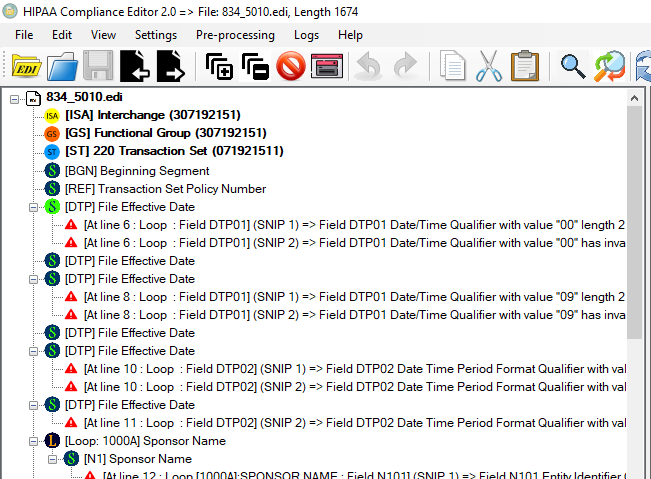
The Tree View panel will show any errors present in the EDI file.
You will also see the complete information about the errors found in the Warnings Table at the bottom of the window.

Sample of the Warnings Table with errors.
Here, the complete error information is displayed. See the details below of what each column lists:
oLine — This tells you the number of the line in which the error was found.
oSeverity — This tells you whether there is an error or not.
oElement / SubElement — These columns tell you the position of the error within the segment.
oLoop — This column will show the number of the loop in which an error is found.
oErrorMessage — This will tell you the complete description of the error.
To see further details on the segment and loop levels, you can view the Segment / Loop Information panel. Clicking on the "Segment Information" and "Loop Information" buttons, respectively, will provide you more information about the selected portion of the EDI file.
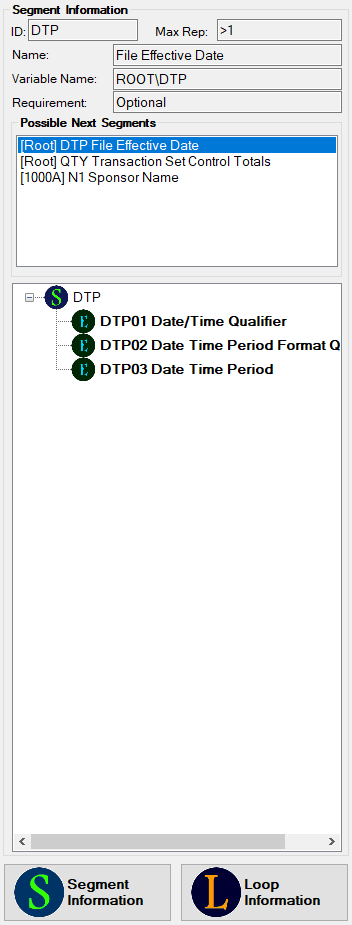
The "Segment / Loop Information" panel.
You can see and edit the following information:
oID
oMax Rep
oName
oVariable Name
oRequirement
You can also see which segments or loops can come next in the "Possible Next Segments" box. Lastly, you can see the structure of the segments or loops in the tree view beneath the "Possible Next Segments" box. The icons give you details about the segments and loops.