|
<< Click to Display Table of Contents >> Processing an Entire Directory |
  
|
|
<< Click to Display Table of Contents >> Processing an Entire Directory |
|
A directory or folder, as it is also known, is an address space that contains one or multiple files. You can process every file within a directory with the HIPAA Eligibility Responder application. The files will be processed according to the user's settings. For example, you can load a group of EDI files, regardless of the number of files. This feature is useful when processing through Task Scheduler. In addition, if you have years of historical data to import, this option makes it easier and faster to process.
To process a directory, follow the instructions below:
1.Make sure the "Output Mode" option is not "Screen." The Output mode defines the destination where the result file will be sent to. It does not make sense to open every Eligibility Benefit in a directory one by one, so the directory processing is limited to "Printer ," "Image File" and "Data Import" option. The output modes are described in Processing an Electronic Claim.
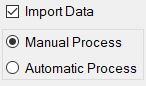
The "Output Mode" options.
2.Go to File > Open Directory in the main menu window.
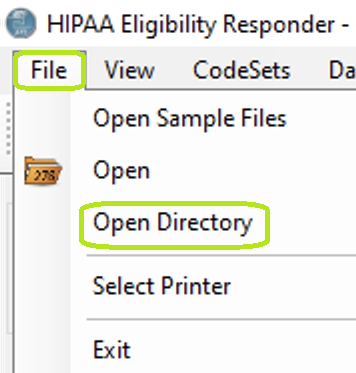
The "Open Directory" menu.
3.Browse for the folder containing EDI files. Click on that folder and then click "OK."
Note: Only 270 file format can be opened via the HIPAA Eligibility Responder. The program will display an error message if you select a file in a different format.
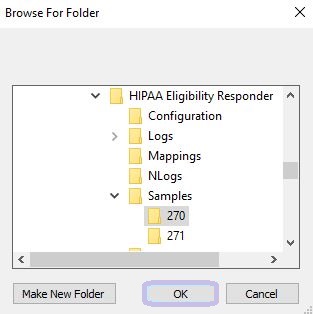
The "Browse for Folder" pop-up.
4.Click on the "Run" button to send all files from the folder to the destination.
Note: The pre-defined settings will be applied. See also: Configuring Program Options.
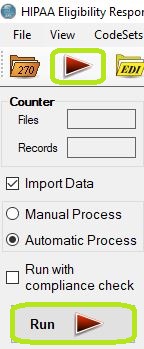
The "Run" buttons.
You can see the current status at the bottom pane.
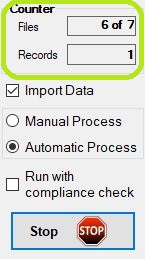
The file counter at the bottom of the info bar.
5.Once all files have been processed, the "Processing Results" pop-up will report the results of the operation.
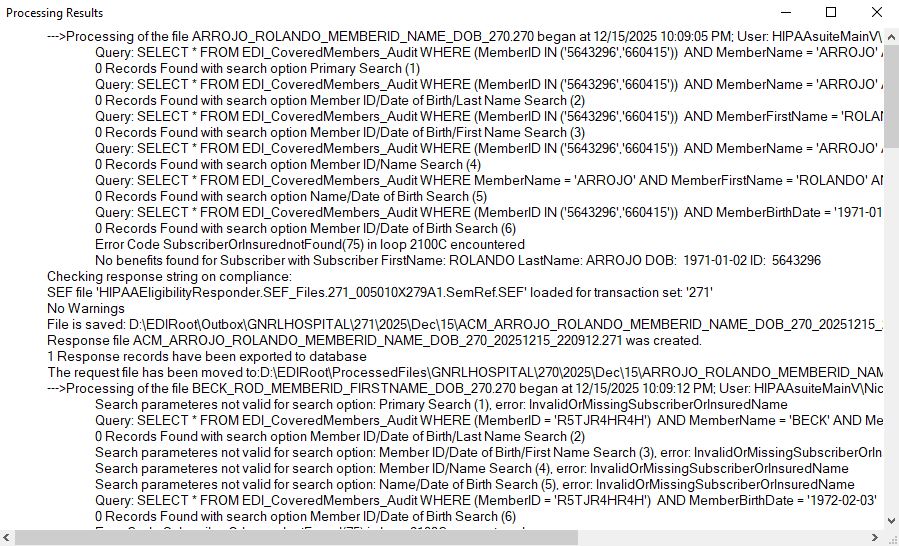
The "Processing Results" window.
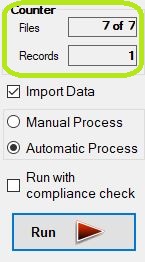
6.The number of processed files and records is displayed in the "Counter" pane.