|
<< Click to Display Table of Contents >> Processing an Eligibility Benefit Inquiry |
  
|
|
<< Click to Display Table of Contents >> Processing an Eligibility Benefit Inquiry |
|
The HIPAA Eligibility Responder application makes it simple to process and view electronic responses. Follow the instructions below to open a single EDI file and display its details in an easy-to-read table format:
1.Go to File > Open on the main menu window.
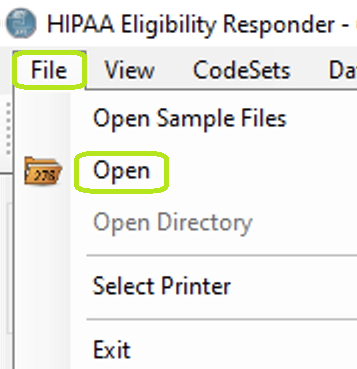
The "Open" option is under the "File" tab.
Alternatively, click the "Open Document" icon in the Taskbar.
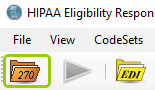
The "Open Document" icon.
2.Browse the folders and select a file with a .edi extension. Then, click "Open."
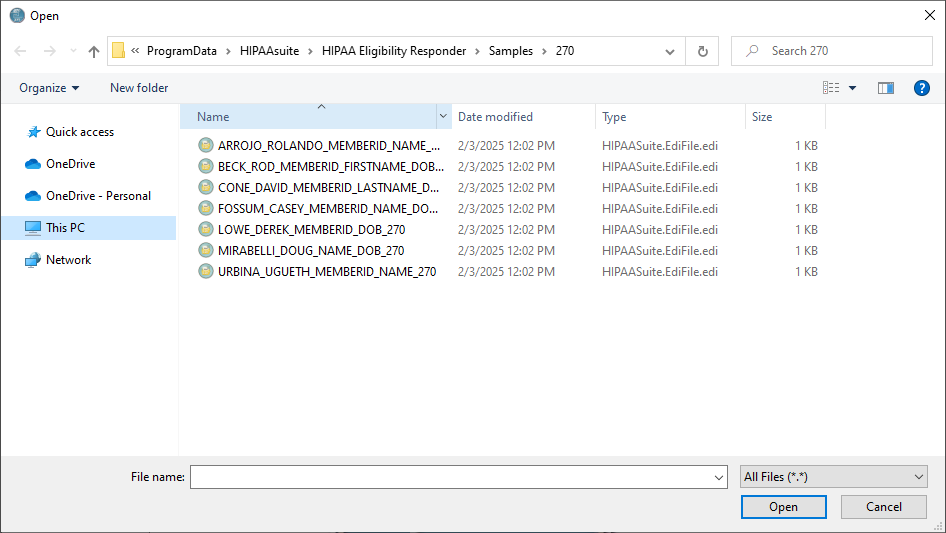
Check for the .edi extension when opening a file.
3.Click the "Run" button in either the Taskbar or at the bottom of the Info Bar to process the file.
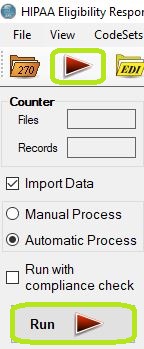
You can process the file by clicking "Run" in the Taskbar or the Info Bar.
4.When you click the "Run" button, the file will be parsed and the information displayed in the Workplace.
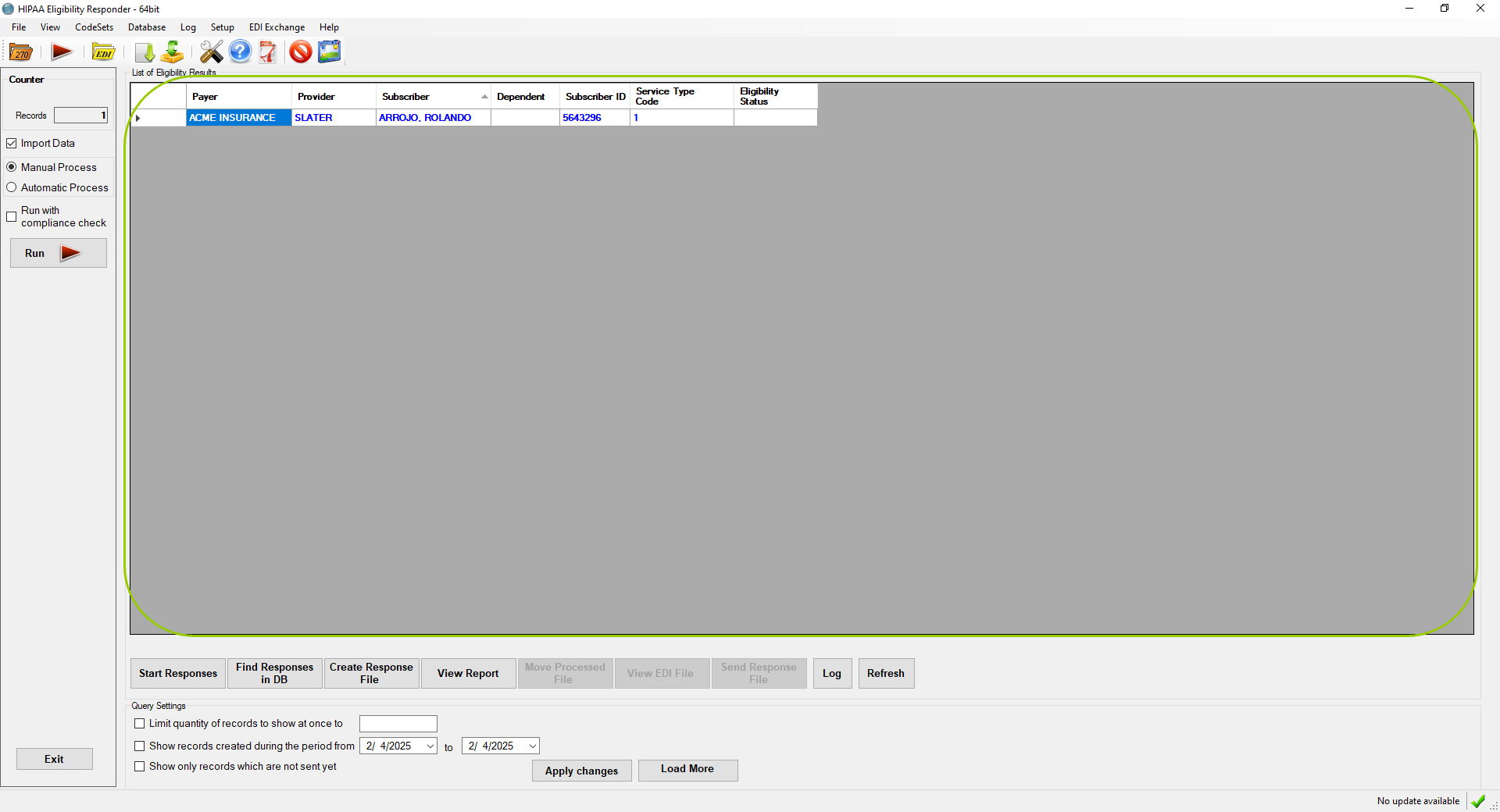
The list of responses will show in the Workplace.
You can see at the top the column titles: Payer, Provider, Dependent (if applies), Subscriber ID, Service Type Code, and Eligibility Status. Please note that the last column with the eligibility status is empty.
5.To view a response, you can either double-click on a row in the request list or by clicking on the "Start Responses" button. The "Start Responses" button will start with request number one.
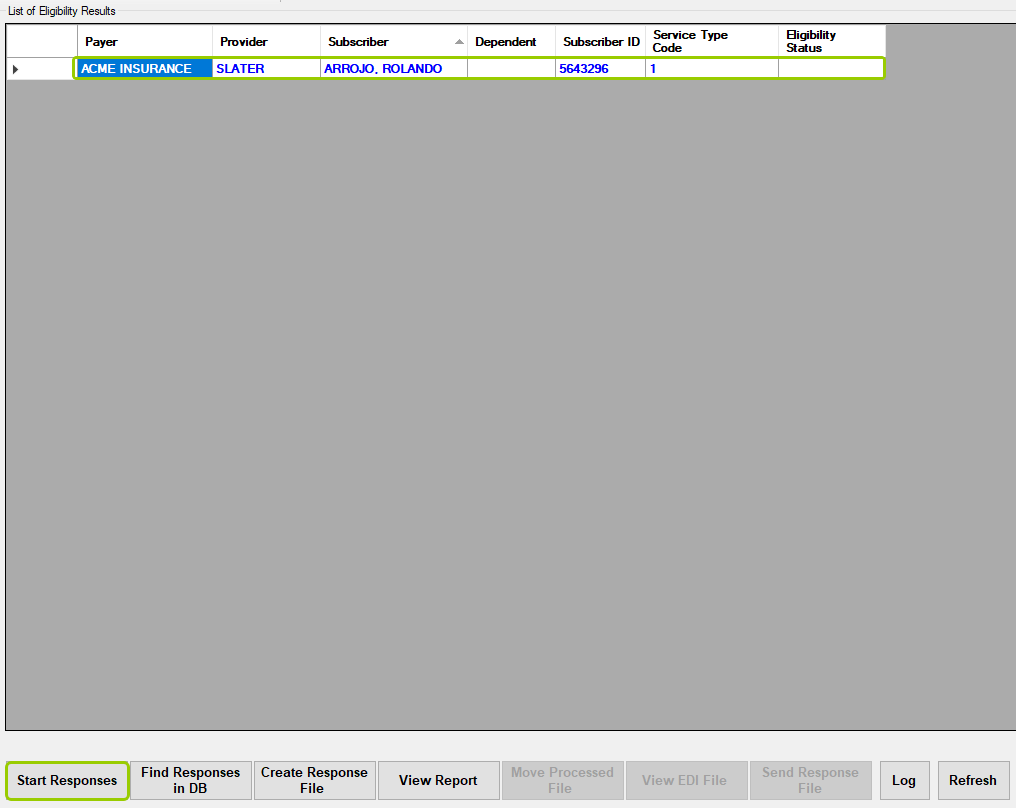
Double-click a request or click the "Start Responses" button.
Either option will open a "Create Response" window, where you can see the claim file as an image and a response panel.
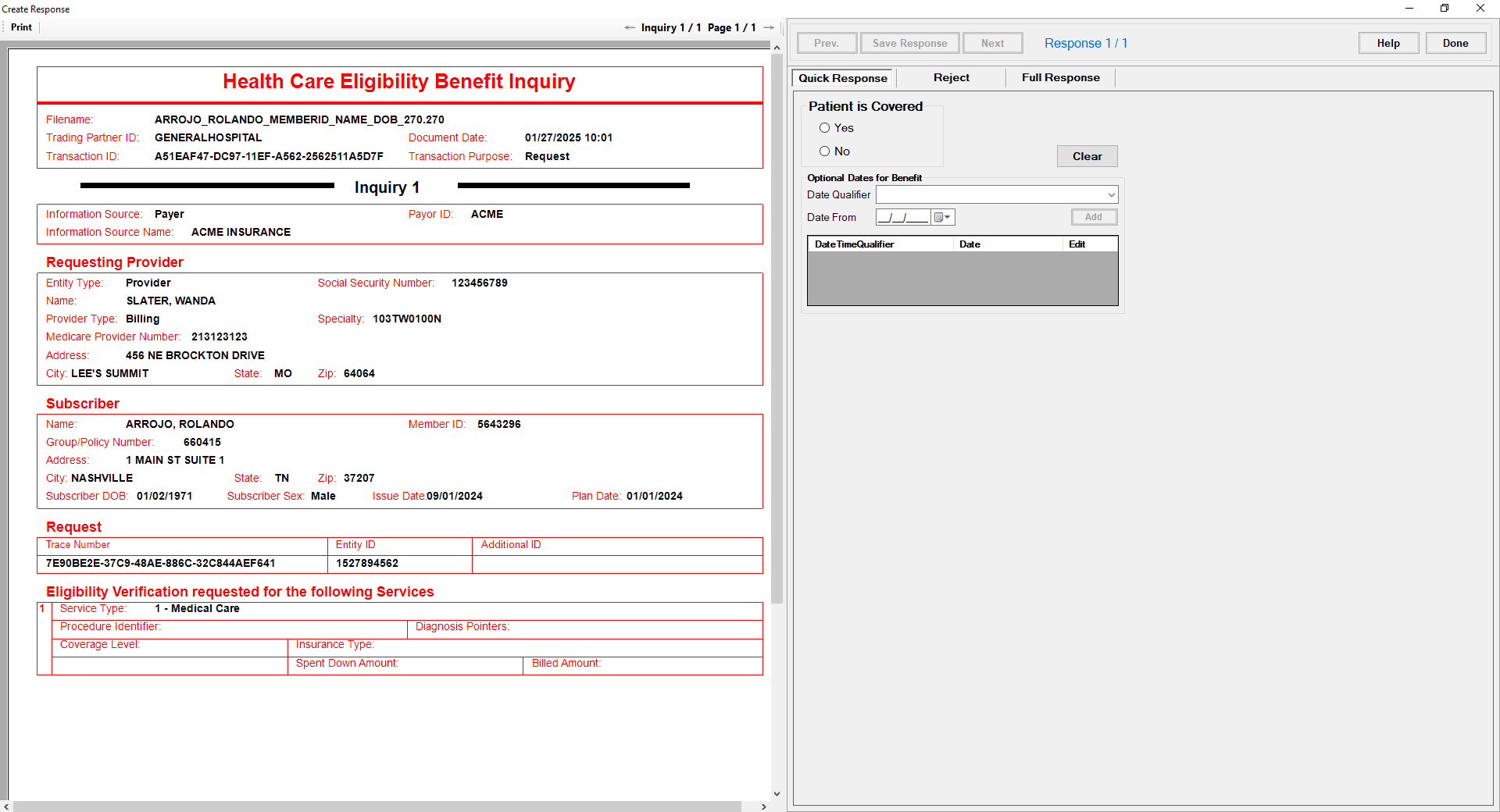
The "Create Response" window.
Once the eligibility information has been added, one can create the response file by clicking on the "Create Response File" button. The "Move Processed File" button will move the file to the directory that has been specified in the setup screen.
Once the file is created, the "View EDI File" and the "View Report" buttons will be enabled. See Returning a Quick Response, Answering an Individual Request, and the Creating a Full Response chapter.