|
<< Click to Display Table of Contents >> Answering an Individual Request |
  
|
|
<< Click to Display Table of Contents >> Answering an Individual Request |
|
To answer an individual request, select a row in the list of eligibility results and click the "Start Responses" button at the bottom of the screen.
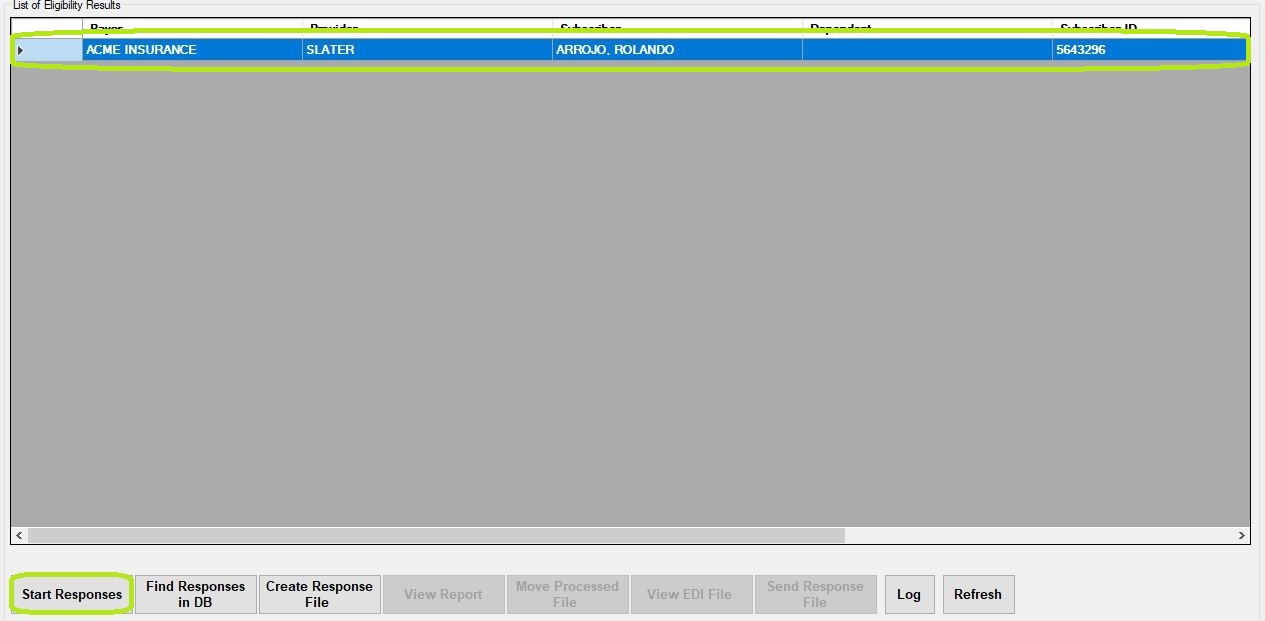
"Start Responses" button.
When we double-click a line in the request grid or click the "Start Responses" button, the following split screen will come up that lists, in detail, all the information contained in the request on the left side and has the tools to create the answer on the right. Since the incoming data cannot be changed, is makes sense to display the request in a report form and visually separating the request from the response.
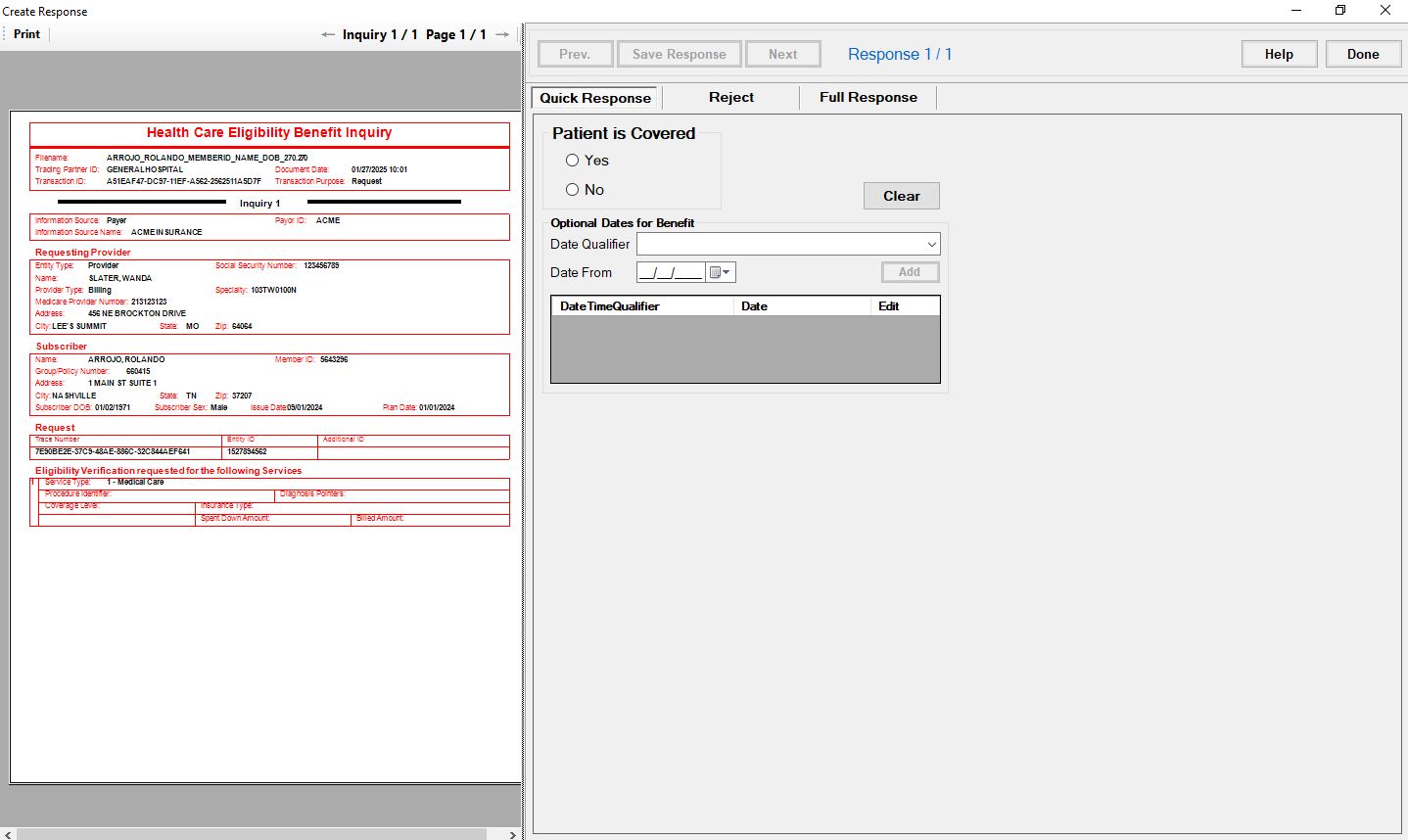
The detailed view of an eligibility request on the left and the response creation on the right.
Here one can see the details of the request starting with envelope data, the organization that has the desired information, the requesting provider with all his information is below, followed by subscriber information as well as dependent information if the patient is not the subscriber. The details of request are then displayed in the grid below. This particular request has 1 request line.

The response option and the navigation within the file.
We have several options to answer this request
| 1. | Give a quick response with the HIPAA minimum information |
| 2. | Reject the request for a variety of reasons |
| 3. | Give a full response with all the capability of the 271 transaction set. |