Provider, Patient, and Payer Tables |
  
|
Provider, Patient, and Payer Tables |
|
Filling in provider, patient, and payer details multiple times is a repetitive task that can be alleviated by storing the relevant entity in a table for later retrieval. For example, entering a provider's ID number will suggest a stored provider to select from and automatically fill the remaining fields in the provider form with the relevant data. To create the provider, patient, or payer tables, follow the steps below:
1. Go to Claim Entry/Edit > Create Tables for Entities in the main window.
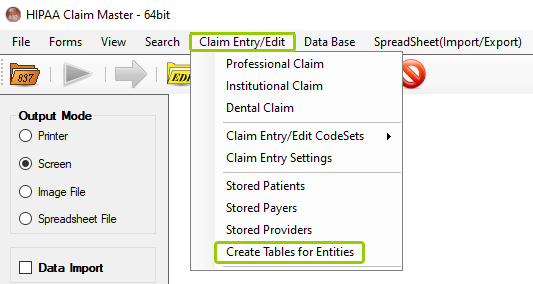
The "Create Tables for Entities" option is in the "Claim Entry/Edit" tab.
The following window will open:
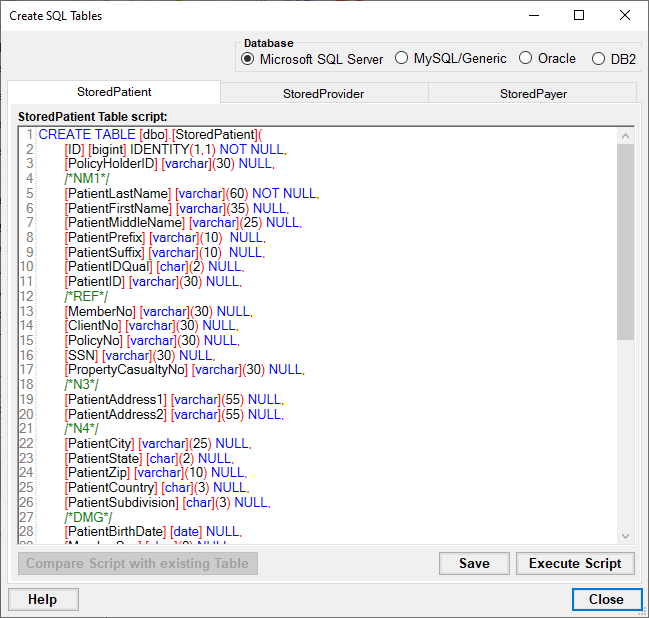
The "Create SQL Tables" window.
2.Select the appropriate database from the "Database" box (see below):

The "Database" box.
3.Depending on the table you would like to create, select the appropriate tab. Clicking on a tab will show the script in the text box. See each tab's text box below:
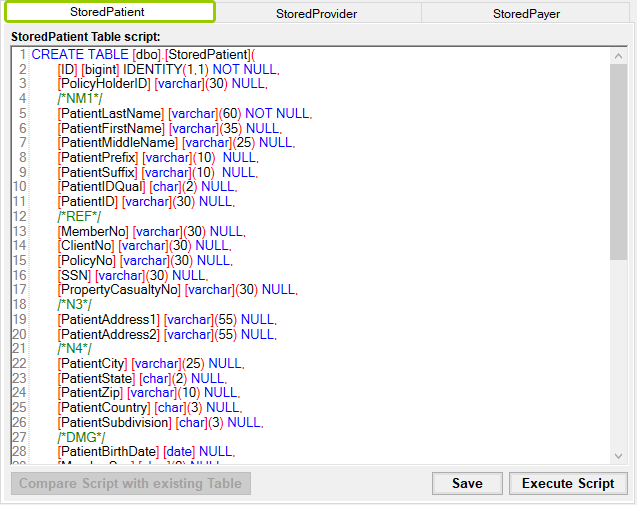
The "StoredPatient Table" script text box.
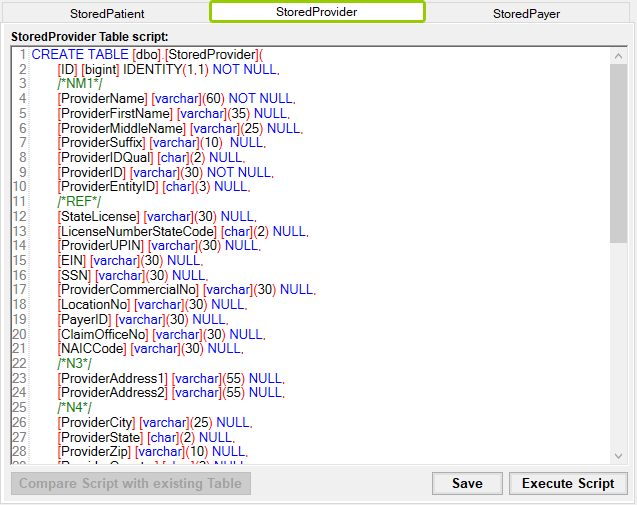
The "StoredProvider Table" script text box.
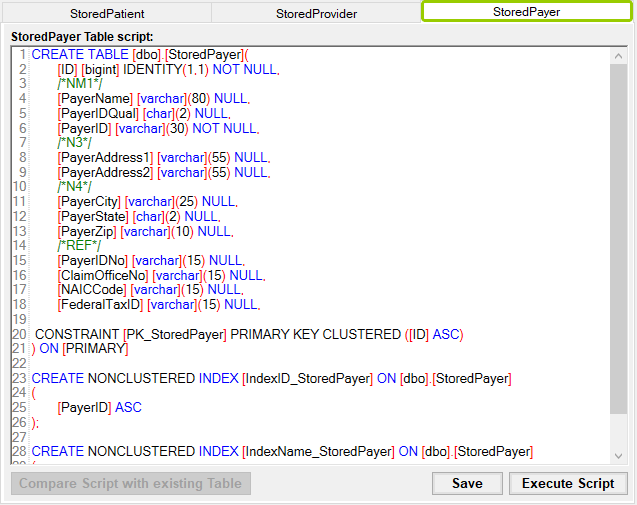
The "StoredPayer Table" script text box.
4.Once you make any changes, click the "Save" button to keep the changes, then the "Execute Script" to create the table. Once the table is created, a pop-up window will confirm the creation of the table (see below). If the table has been changed in a new release, clicking "Compare Script with existing Table" will create a script to adjust the table, though changes to database tables do not occur often.
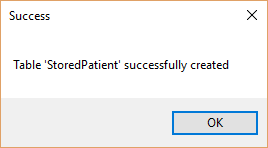
Pop-up window confirming table creation.
The next sub-chapters, you will see how to view stored providers, patients, and payers from the database.