Stored Providers |
  
|
Stored Providers |
|
How can I view stored providers?
Providers stored in the database can be viewed and edited in the Stored Providers editing window. To open the Providers viewer, follow the steps below:
1.Go to Claim Entry/Edit > Stored Providers in the main window.
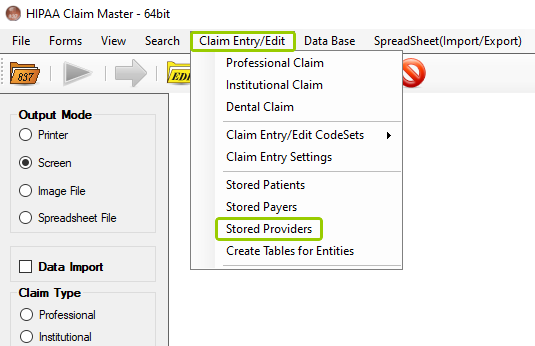
The "Stored Providers" option is under the "Claim Entry/Edit" tab.
The following window will open:
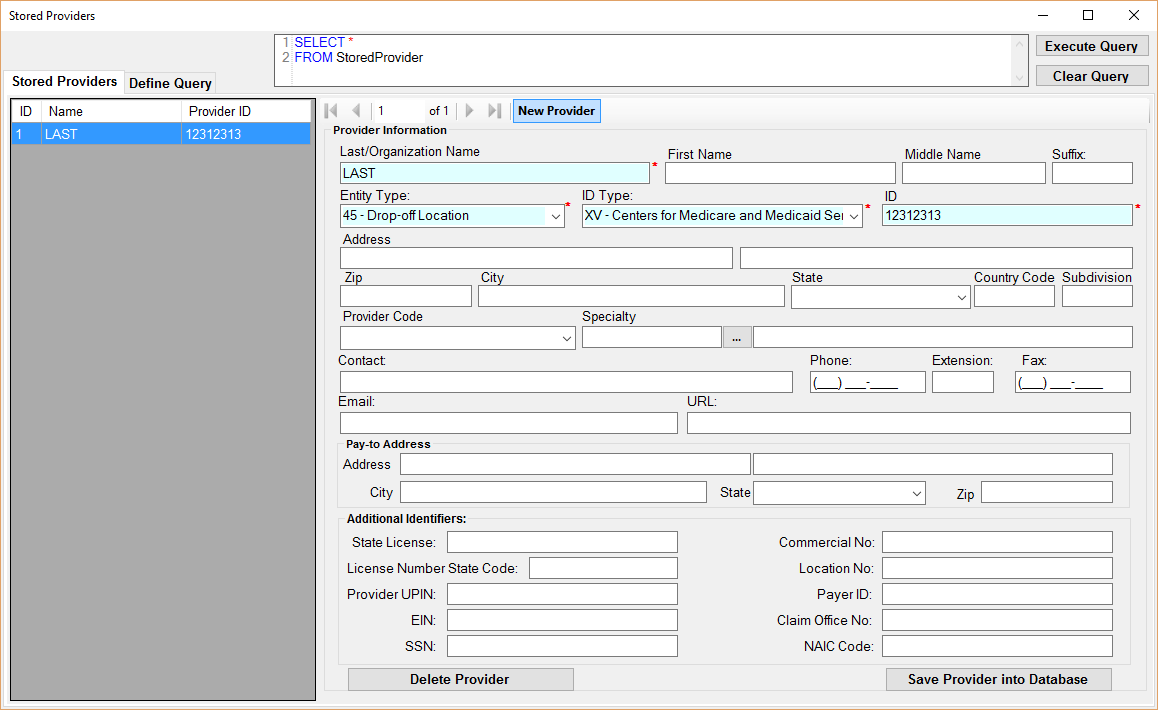
The "Stored Providers" window.
2.There are three parts within the "Stored Providers" window (see details in the next section): the Query Box, the Stored Providers Panel, and the Provider Information Panel. Fill and modify the information, and once you are done, click on the "Save Provider Into Database," which will modify the contents of the selected provider's row to match your changes. If you want to delete a provider instead, select the provider you want to delete, then click on the "Delete Provider" button.

The "Delete Provider" and "Save Provider into Database" buttons.
Which are the different parts of the "Stored Providers" window?
See the details for each part below.
Query Box

The "Query Box" with the "Execute Query" and "Clear Query" buttons.
The Query Box uses a SQL statement to search the database.
Stored Providers Panel
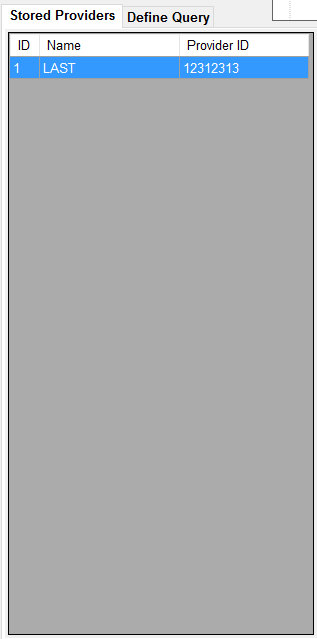
The "Stored Providers" and "Define Query" tabs panel.
The Stored Providers Panel has two tabs: the "Stored Providers" and "Define Query" tabs. Within the first, you can see the list of any stored providers. Selecting one will fill out the Provider Information form beneath it. The second tab allows you to define specific search criteria.
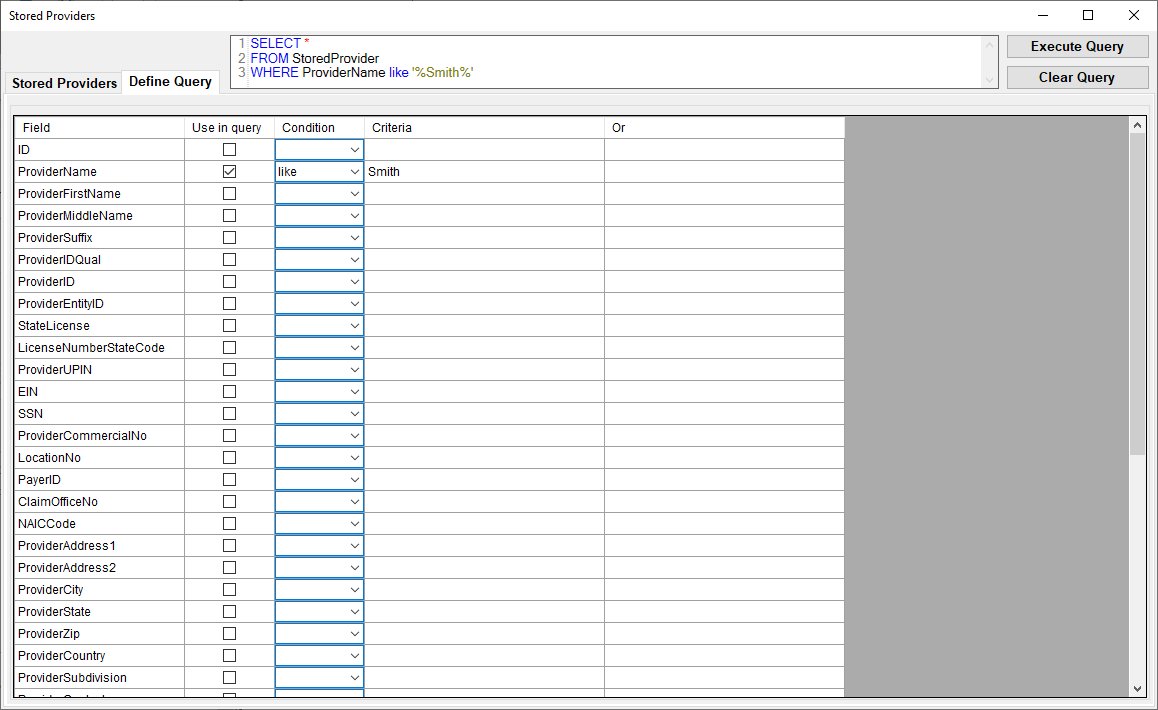
Sample of a query for "Smith" in the "Define Query" tab.
Provider Information Panel
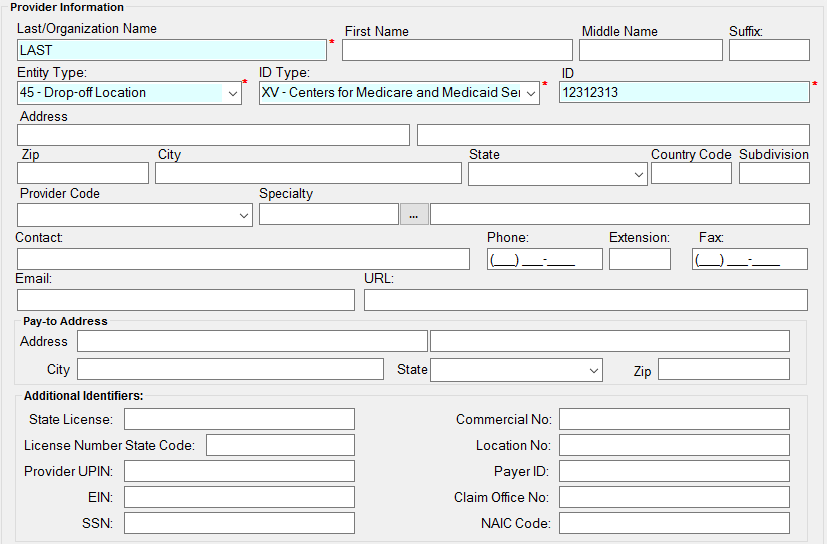
The "Provider Information" panel.
The "Provider Information" panel displays the fields in which you can fill in the providers' information. To create a new provider, click the "New Provider" button below the Stored Provider table. Editing the provider fields and clicking "Save Provider into Database" will modify the contents of the selected provider's row to match your changes.
Once you have filled out all the relevant fields, click on the "Save Provider into Database" button to save the information into the database.
Note: Fields with a red asterisk ("*") are required.