Creating 277CA from EDI Files |
  
|
Creating 277CA from EDI Files |
|
In this first section, you will see the first way of creating 277CAs manually. Follow the steps below to create them from EDI files:
1.Go to Data Base > Create 277CA in the main menu window.
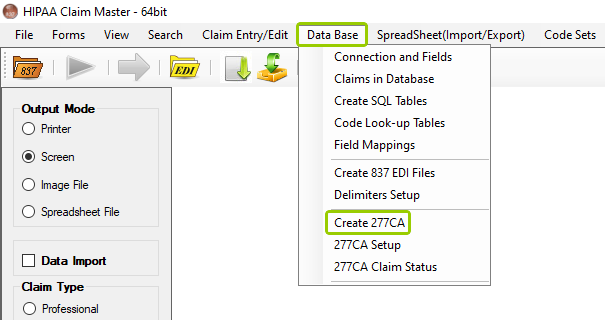
The "Create 277CA" option is under the "Data Base" tab.
The following window will open:
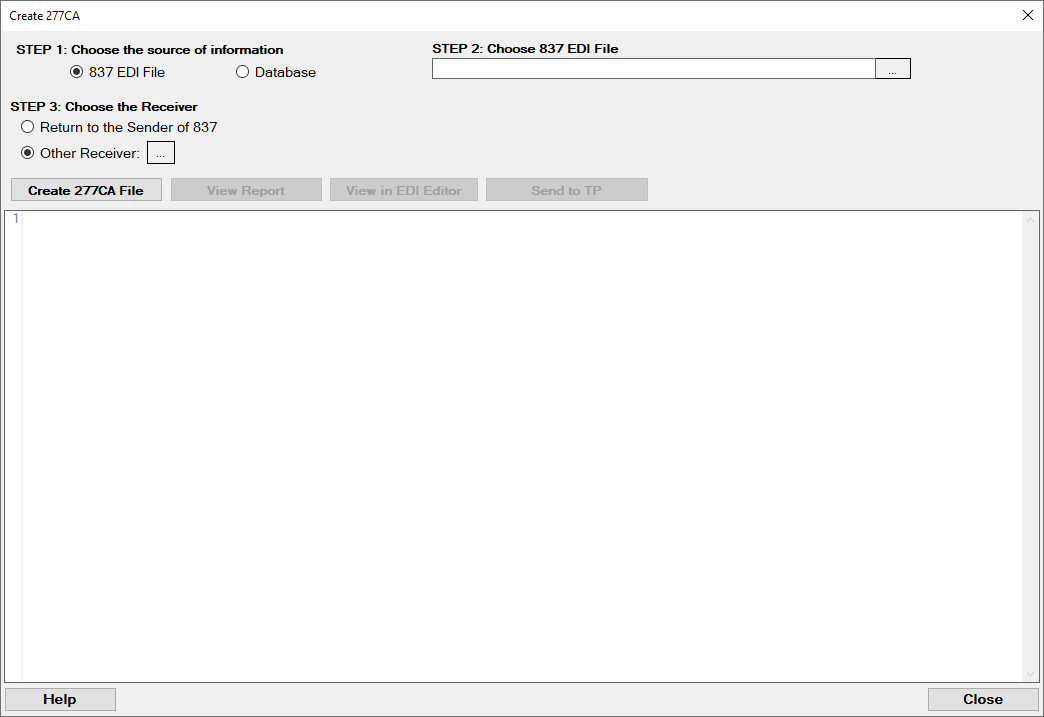
The "Create 277CA" window.
2.There are three steps to create the 277CA. In the first step, select the "837 EDI File" option.

Choose the "837 EDI File" option.
3.In the second step, click on the "..." box, which will allow you to search for the 837 EDI File you want.

Click the "..." box to search for your 837 EDI File.
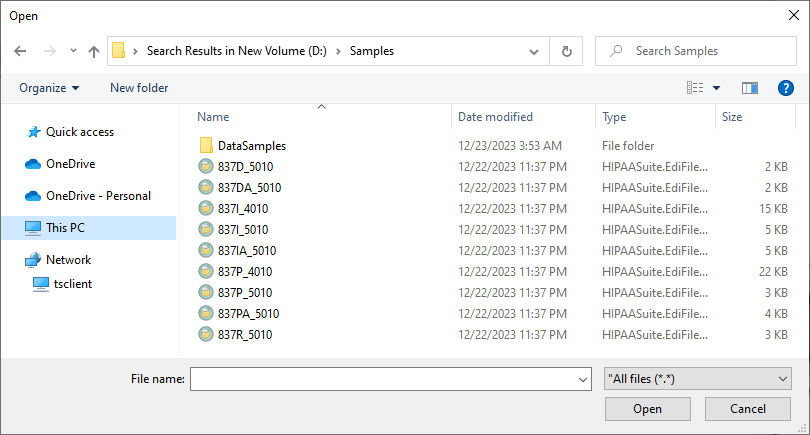
Choose the 837 EDI file you want to use.
4.In the third step, you have two options for who receives the 277CA file:
oReturn to the Sender of 837 — This options sends the 277CA file back to the original sender of the 837; this means the ISA and GS headers are reversed.
oOther Receiver — This option allows you to select another receiver from your list of Trading Partners in the database; if you click on the "..." button, a list of Trading Partners comes up on the right side of the window.

In the third step, select who will receive the 277CA.
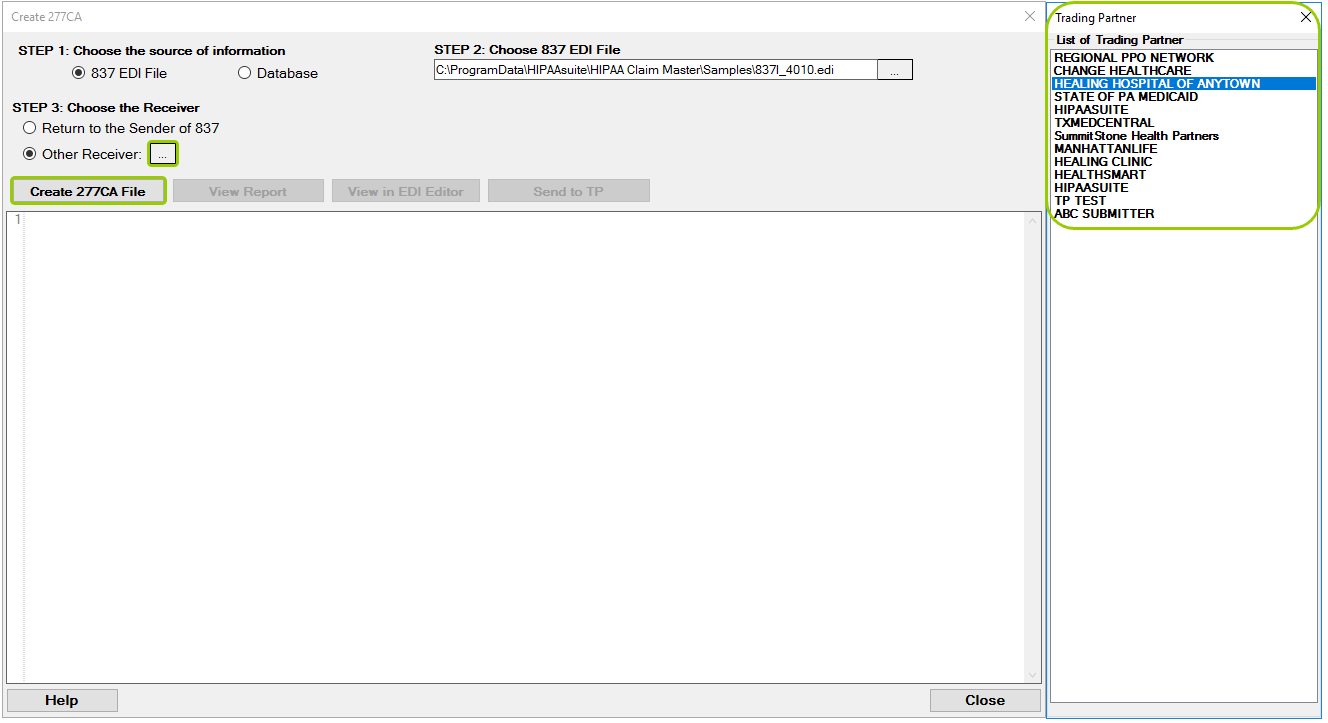
Select the Trading Partner from the list on the right.
5.Once you make your selection, click on the "Create 277CA File." A process result window will show where the 277CA file was saved. This will be the folder defined in EDI Exchange Setup > Root Directory Path.

The "Processing Results" window.
After the 277CA file is created, you will be able to see it in the pane below the "Create 277CA File" button. You will also have three action options (see the descriptions below):
oView Report — You can view the 277CA file as an easily readable and printable form.
oView in EDI Editor — You see the file displayed in the EDI Editor.
oSend to TP — You can send the file if the Trading Partner has FTP selected and configured the file will be sent to the Trading Partner and a success message is visible.
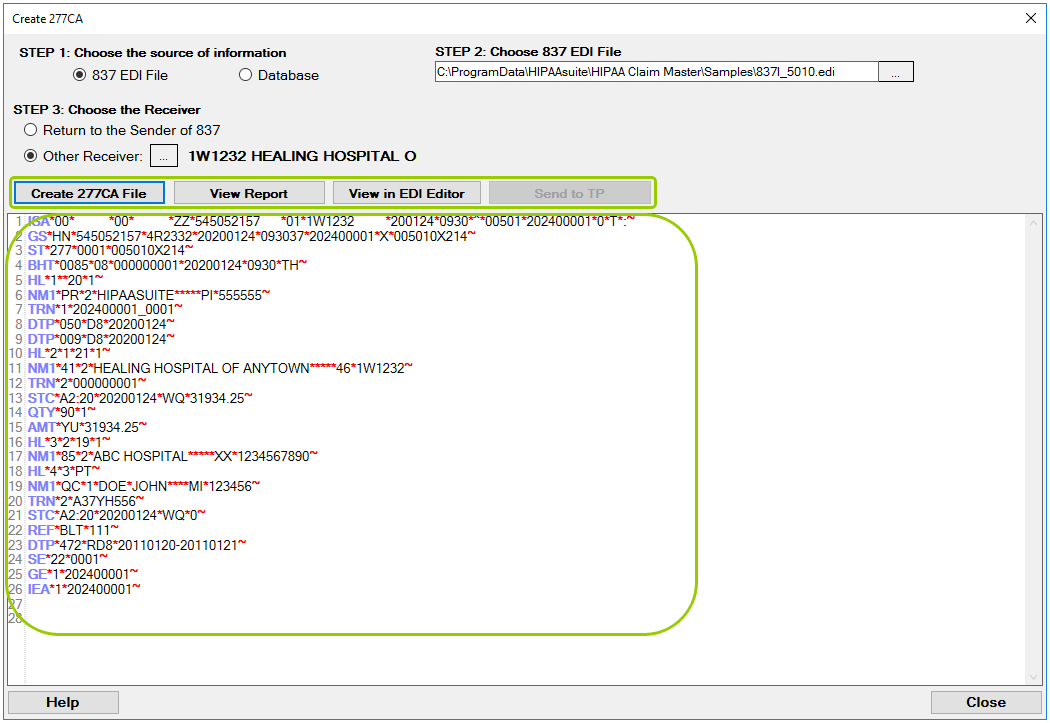
277CA processing options.