Initializing EDI Exchange |
  
|
Initializing EDI Exchange |
|
After configuring all the mandatory settings, you can complete the initializing process to begin using EDI Exchange in your hosting HIPAAsuite application. Follow the steps below:
1.Go to EDI Exchange > EDI Exchange Setup in the main menu window.
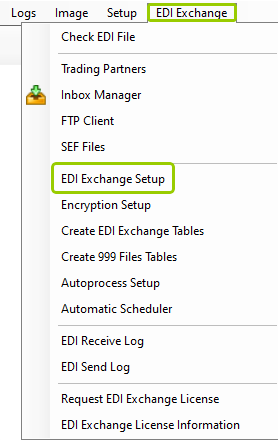
The "EDI Exchange Setup" option is under the "EDI Exchange" tab.
The following window will open:
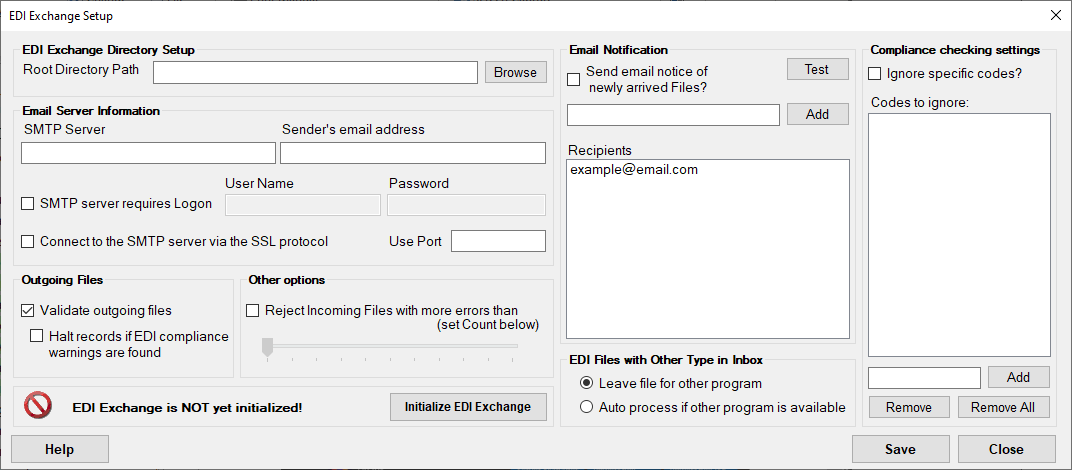
The "EDI Exchange Setup" window.
Note: The icon in the lower left corner indicates that EDI Exchange has not been initialized yet.
2.After completing the mandatory settings, you can initialize the EDI Exchange module by clicking "Initialize EDI Exchange." This will allow the application to check if the settings were configured correctly.

The "Initialize EDI Exchange" button.
A "Processing Results" window will inform you whether the initialization was successful. If there is an error, check the previous configurations and try again.
See the details of the verification process.
The first configuration the initialization process checks is the connection to the database and the presence of the necessary tables. EDI Exchange relies on the database connection of the hosting HIPAAsuite application. If this part is not set up, then you will get an error message:
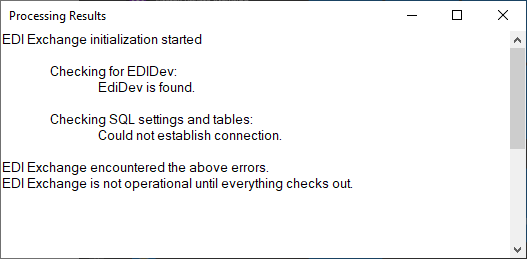
Sample "Processing Results" window if initialization does not work due to a failed connection.
EDI Exchange requires a database connection. Please see your hosting HIPAAsuite application's user manual for more information on its database connection.
Once the database connection is established, the application will verify that the correct tables exist. If the SQL verification checks out, then you will see the following message:
Checking SQL settings and tables:
Connection settings are checked. Trading Partners table is checked.
TRANS_LOG table is checked.
TRANS_LOG_ERRORS table is checked.
SEND_LOG table is checked.
If you get an error, please review your database tables and try again. See Creating Database Tables for more details.
In the next step of the initialization process, the application checks and, if necessary, creates the root directory and five sub-directories. Within these root directories, there will be folders for each Trading Partner and type of transaction. The location and names of the sub-folders are managed in the "Trading Partner" setup. The root folder is specified via the "EDI Exchange Setup" window. The sub-directories that EDI Exchange creates are as follows:
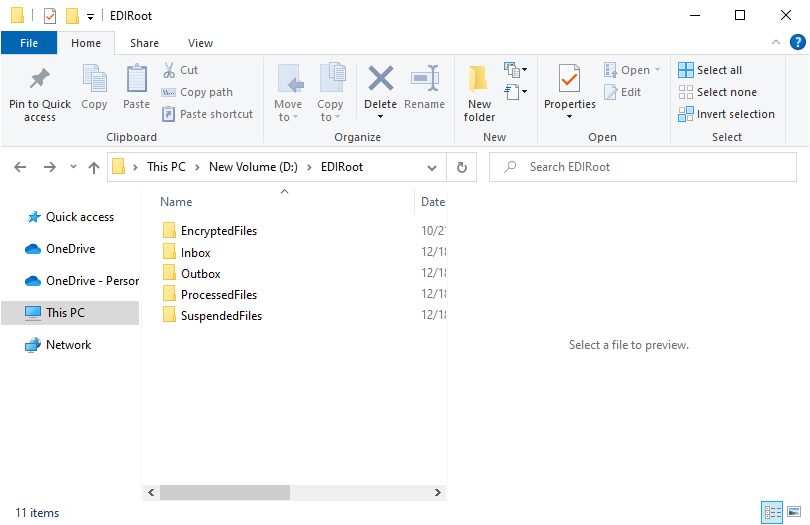
The root directory structure of EDI Exchange.
Read more in Defining the Communications Directory.
The next step of the initialization checks if the HIPAA EDI Compliance engine is working properly.
Read more in Checking EDI Files.
The last step in the verification process is to check if the Automatic File Processing options were configured. The options are important for the handover from EDI Exchange to the hosting HIPAAsuite application.
Read more in Defining Auto-Processing Options.
Once all verifications have been completed successfully, you will see the following message:
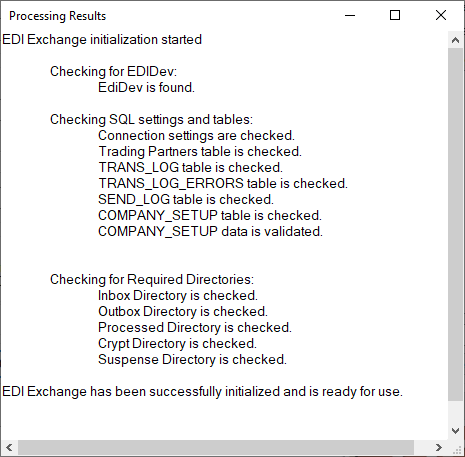
Successful initialization of EDI Exchange.
After the verification is successful, your EDI Exchange will be initialized. A green check-mark will be displayed showing the status of the module:

The "EDI Exchange is successfully initialized" message at the bottom of the "EDI Exchange Setup" window.
If the initialization process fails, review the mandatory configurations to ensure they were set up correctly. Sometimes, however, even after ensuring everything is correct, you may still see the following message in the "Processing Results" window:
Checking for EDIDev:
EDIDev is not installed!
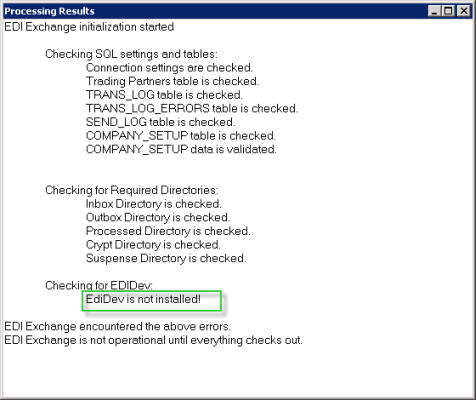
The "EDIDev component is not installed" message will show in the "Processing Results" window.
To resolve this issue, follow these steps:
1.EDIDev is included with the initial installation of any HIPAAsuite application when selecting the "setup.exe" item.

Select the "Setup.exe" item to download the application with EDIdev.
2.Some systems may require Microsoft Redistributable Package to be installed first.
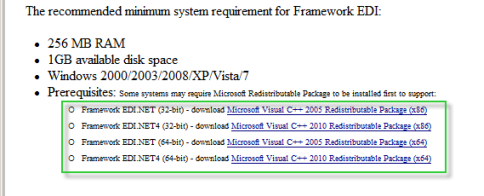
The Microsoft Redistributable Package installation options.
If you are not sure which package is missing from your system, contact us for assistance.
3.Install the downloaded components and start the EDI Exchange initialization procedure again.
If these steps do not resolve the issue, contact us for assistance.