277CA Files in HIPAA Claim Master |
  
|
277CA Files in HIPAA Claim Master |
|
277 Claim Acknowledgment (CA) Files are reports created after a claim has been received.
This type of transaction was formerly known as the "unsolicited claim status response" because the Trading Partner did not send a 276 status request to receive the 277CA. It was used to tell the sender of a claim in detail whether the claim was rejected, if there was additional information necessary, if the claim was already adjudicated, or any other requested claim information. Usually, a 277CA was sent by the receiver after an 837 claim file came in and had been pre-processed.
The HIPAA Claim Master application allows two mechanisms to create the 277CA:
a.A file is processed and the Trading Partner is set up to receive the 277CA.
b.Each claim is parsed from the 837 claim file.
c.A 277CA record is created and filled with a standard claim status and status category determined in the 277CA setup screen.
To use Method 1 to create 277CA files, follow the steps below:
1.Go to Data Base > 277CA Setup in the main menu window.
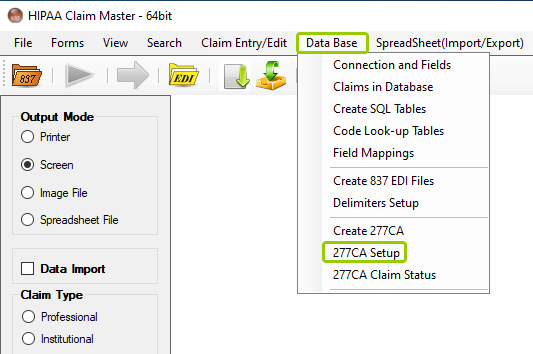
The "277CA Setup" item is under the "Data Base" drop-down menu.
The window below will open:
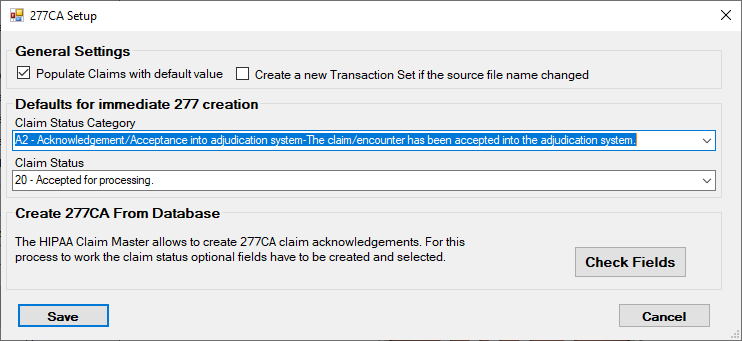
The "277CA Setup" window.
2.Within this window, you can set the standard messages for claim status after the 837 file has been received. See the settings for Method 1 below:
General Settings

The "General Setting" box.
The "General Settings" allow two options about the behaviors of 277CA responses and their information.
Populate Claims with default value
If this box is checked, it will enable the "Defaults for immediate 277 creation" section, which allows you to select default values for the responses as detailed in Method 1.
Create a new Transaction Set if the source file name changed
If this box is checked, a new transaction set will be created if the source file name changes.
Defaults for immediate 277 creation

The "Defaults for immediate 277 creation" box.
This section allows you to select the claim status category and the status. Currently, the default values are shown below, but you may choose whichever you need from the drop-down menus:
oClaim Status Category: A2- Acknowledgment/Acceptance into (add "the") adjudication system. - The claim/encounter has been accepted into the adjudication system
oClaim Status: 20-Accepted for processing.
3.After you have made your selections, click on "Save" before closing the window.
a.The claims are imported into the database.
b.A separate process enters values in feedback fields, resulting from processing or adjudication.
c.Triggered by a query, a 277CA record can be created for each claim and packaged into a file.
d.The file package is sent back to the claim originator.
While the first process has only a canned message to convey, the second method is much more precise, since it returns actual processed data. The fields from the second method can also be used in the HIPAA Claim Status Responder application to return the status of a claim by finding it in the claim tables, and then reading the status from the feedback fields.
To use Method 2 to create 277CA files, follow the steps below:
1.Go to Data Base > 277CA Setup in the main menu window.
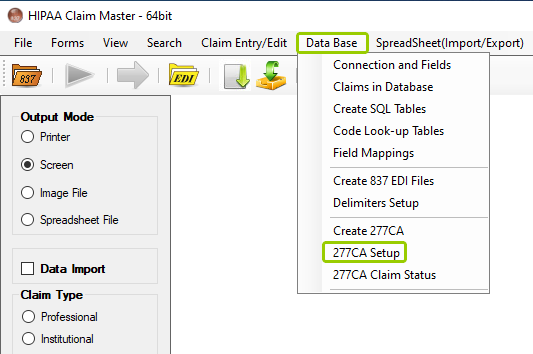
The "277CA Setup" option is under the "Data Base" tab.
The window below will open:
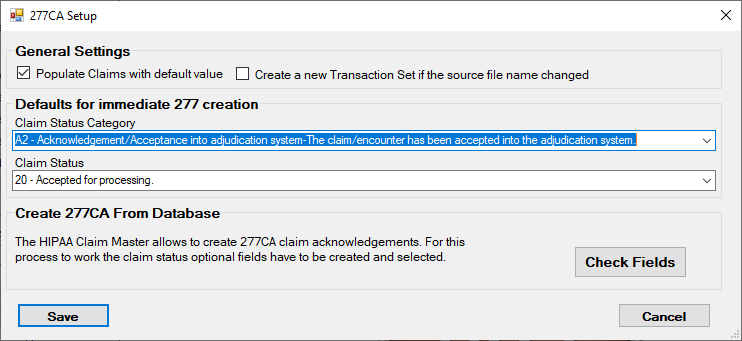
The "277CA Setup" window.
2.Within this window, you can verify that the fields necessary to create the 277CA claim acknowledgment exist in the database by clicking "Check Fields."

The "Create 277CA From Database" box.
3.If you have all the necessary fields, a pop-up message will inform you.
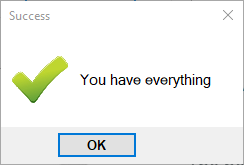
The confirmation message that all fields necessary are present.
4.If you do not have all the necessary fields, a pop-up message will alert you. In this case, you will need to create these fields. To do this, go to Data Base > Create SQL Tables in the main menu window.
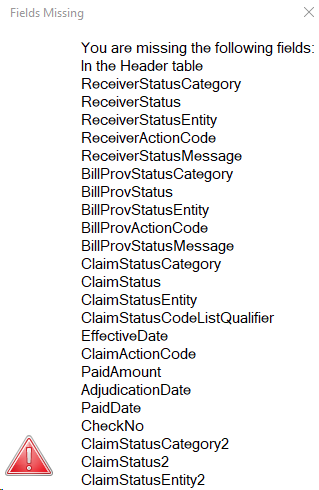
A pop-up message will notify you of any missing fields.
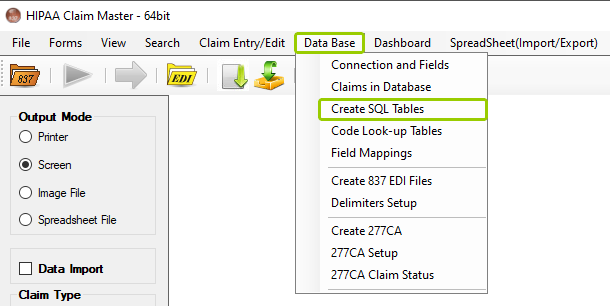
The "Create SQL Tables" option is under the "Database" tab.
The following window will open:
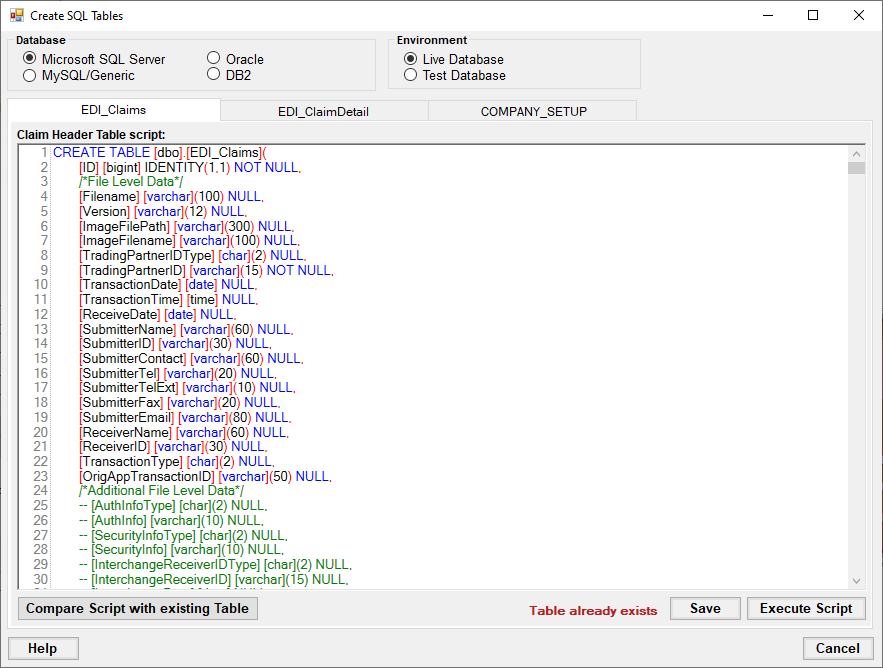
The "Create SQL Tables" window.
5.The feedback fields are included in the scripts to create the "EDI_Claims" and "EDI_ClaimDetail" tables, but they are commented out. If you open the window and scroll both scripts down to the bottom, you will see the commented-out area of the "Claim Feedback" fields:
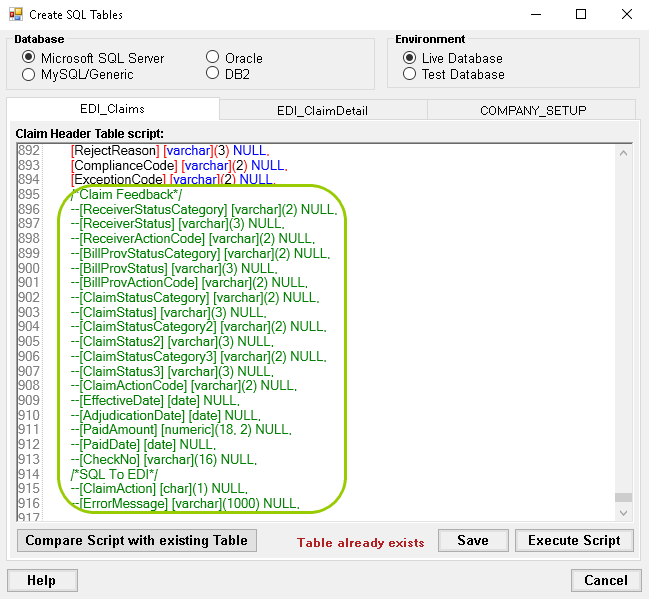
The feedback fields in the SQL scripts are under the "EDI_Claims" tab.
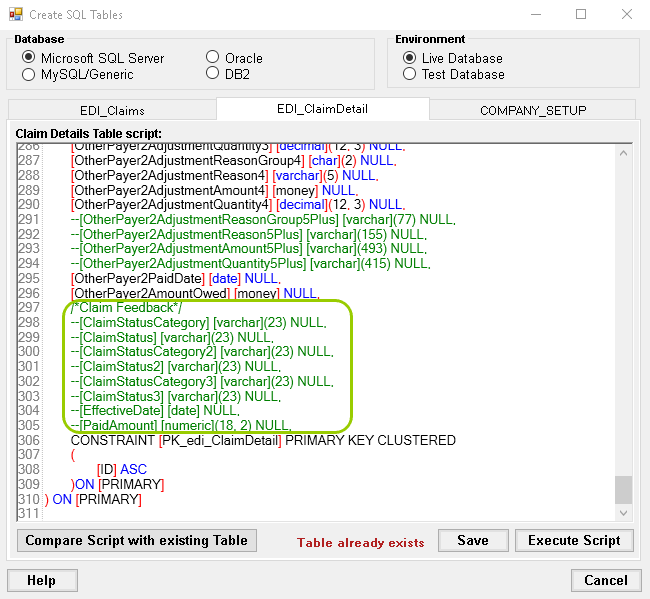
The feedback fields in the SQL scripts are under the "EDI_ClaimDetail" tab.
6.To create the fields, you must un-comment those rows and save the script. Then, you can click the "Compare Scripts with existing Table" button, which will add the fields to the data tables.
7.Now, you still have to select those fields. To do this, go to Data Base > Connection and Fields to set up the database connection and fields. Scroll to the bottom of the field lists and check all the fields in the "Claim Acknowledgment" section.
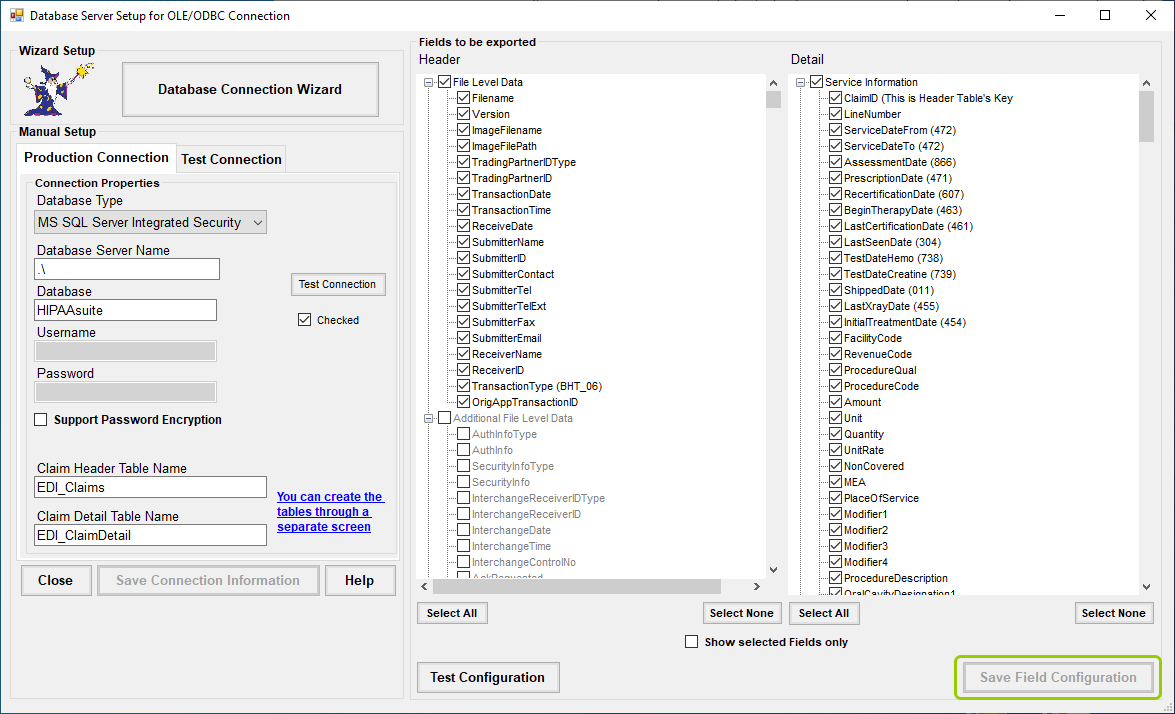
The feedback fields must be checked to be included in the processing.
8.Once all the fields have been selected, click "Save Field Configuration."