Stored Receivers |
  
|
Stored Receivers |
|
Stored receivers can be viewed and edited in this screen. To open the Stored Receivers editor, go to Manual Entry > Stored Receivers:
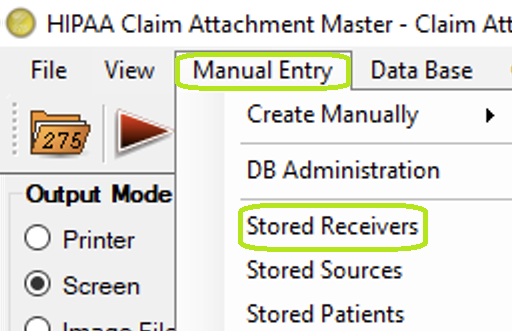
Stored Receivers menu option.
A new window containing all receivers stored in the StoredReceiver table will be opened. To create the StoredReceiver table, Creating the Receiver, Source, and Patient table.
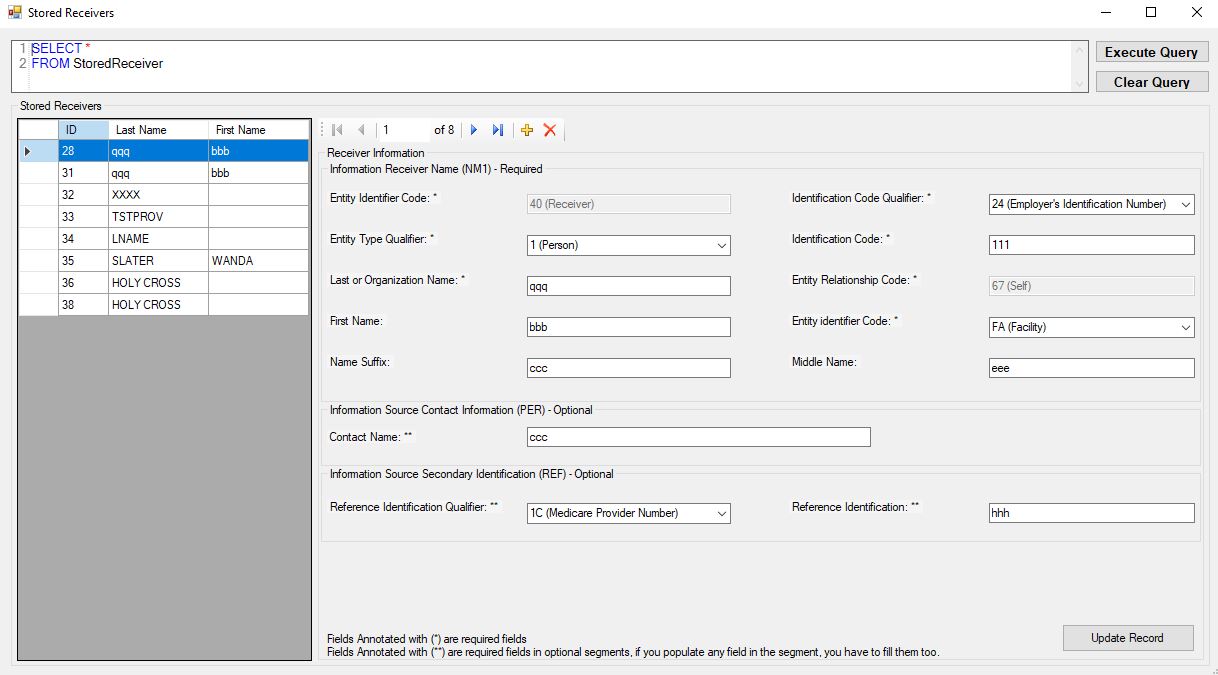
Stored Receiver editing screen.
The table contains all receivers present in the StoredReceiver table. Selecting one will fill out the Receiver Information form beneath it. Editing the receiver fields and clicking update record will modify the contents of the selected receiver's row to match your changes.
To create a new receiver, click the Add new icon button.
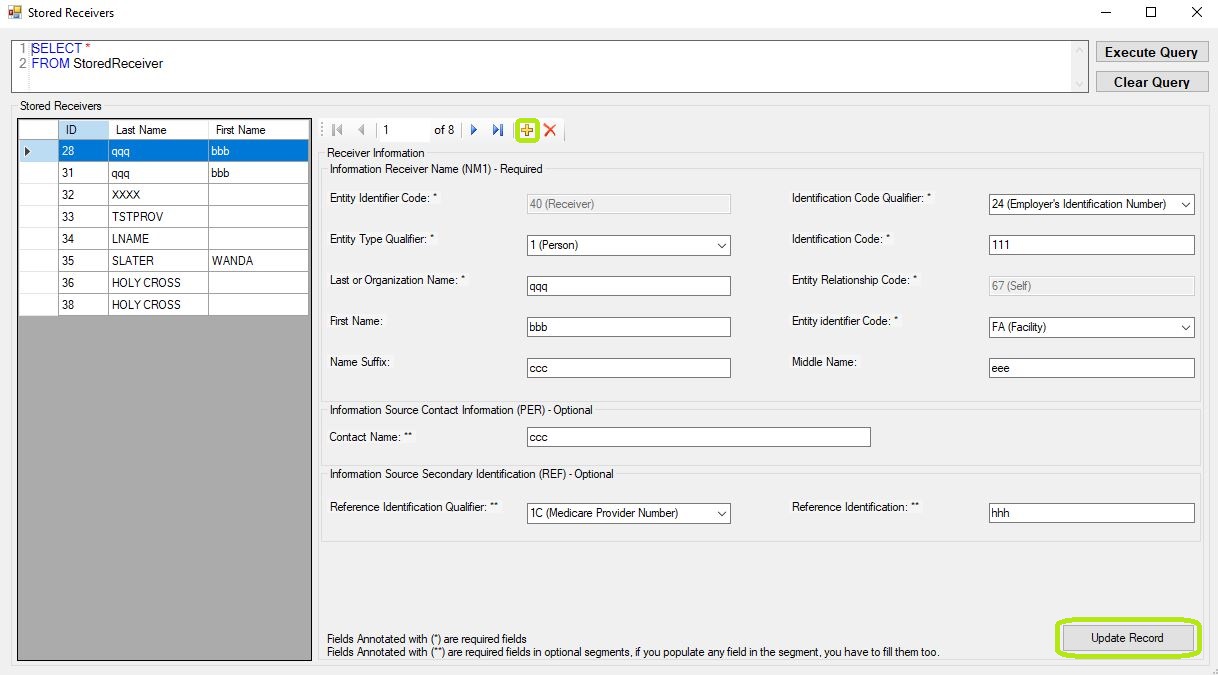
"New Receiver Record" screen.
A new blank item left side and empty the right side to fill the information. Click on "Update Record" button save the record.
To delete an existing receiver, select the receiver in the Stored Receiver table and click the Delete icon button. The application will ask to confirm and clicking "Yes" will delete the record.
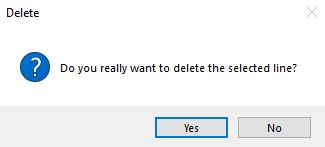
"Delete confirmation pop-up."
Click "Yes" to delete the record from the Stored Receiver table so the application replaces the screen and removes that record from left side list.