Stored Sources |
  
|
Stored Sources |
|
Providers stored in the database can be viewed and edited in the Stored Providers editing screen. To open the Providers editor, go to Manual Entry > Stored Providers:
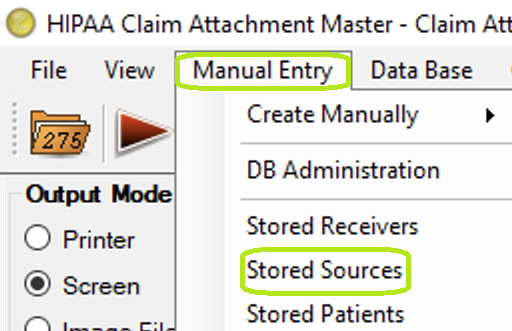
Stored providers menu option.
A new window containing all providers stored in the StoredSource table will be opened. To create the StoredSource table, Creating the Receiver, Source, and Patient table.
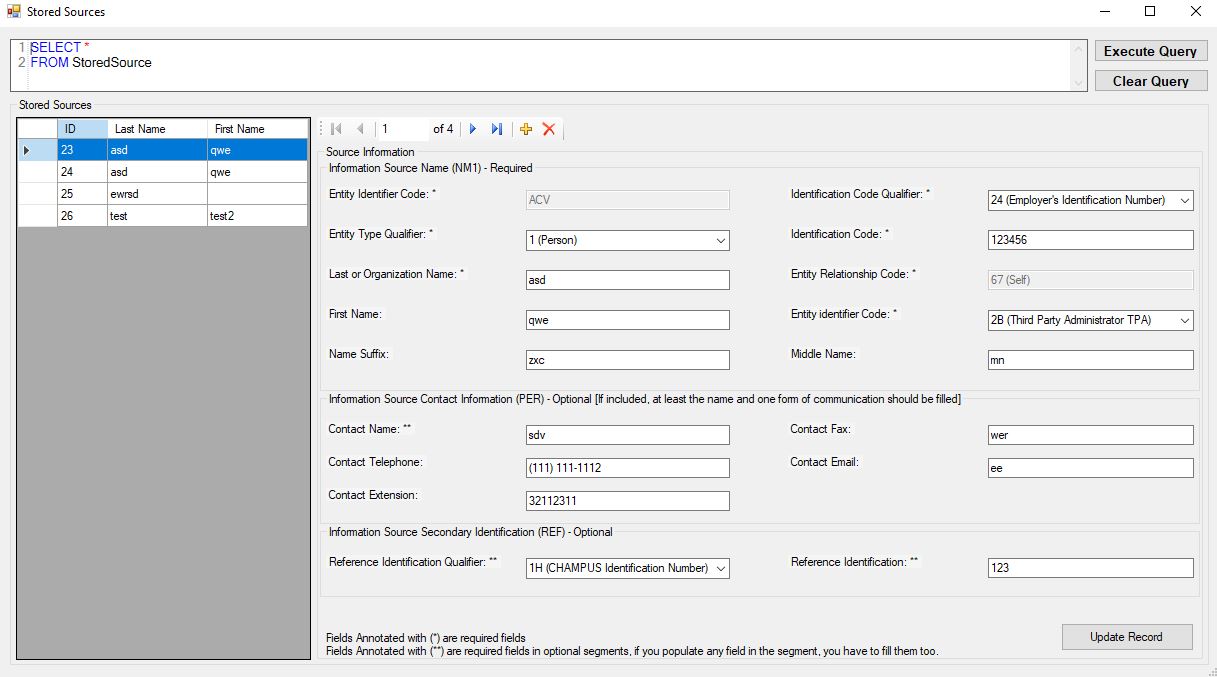
Stored Provider editing screen.
The table contains all the records based on the query execution mentioned within the query box. When the screen loads, the query box has "SELECT *" which will fetch all records from the database table.
Actions users can perform:
1.Execute query:
Executes queries mentioned within query box. Users can modify the query and can filter records by using this action. The tables will display the filtered records if user do perform this action.
2.Clear:
Removes the modifications made in the query box and changes it to "SELECT *(all records)" query and executes it to load all records in the table.
3.Add new record:
Click on Add new Icon, clear the right section.
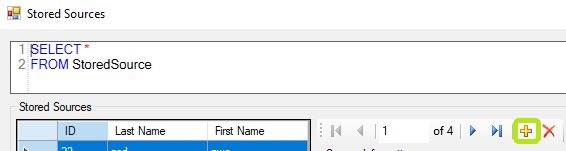
"Stored Providers Screen- Add new Section."
This section contains mandatory fields and details of such fields require to save the record into database. Without those fields, the application provides a validation message after you click the "Update Record" button.
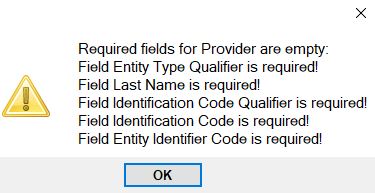
"Add new Provider - Validation Message."
This section contains two segments for information. If users fill out the information within the NM1 segment, the user will also be required to enter associate information required for that segment. The application will provide a validation message if associated segment details are missing.
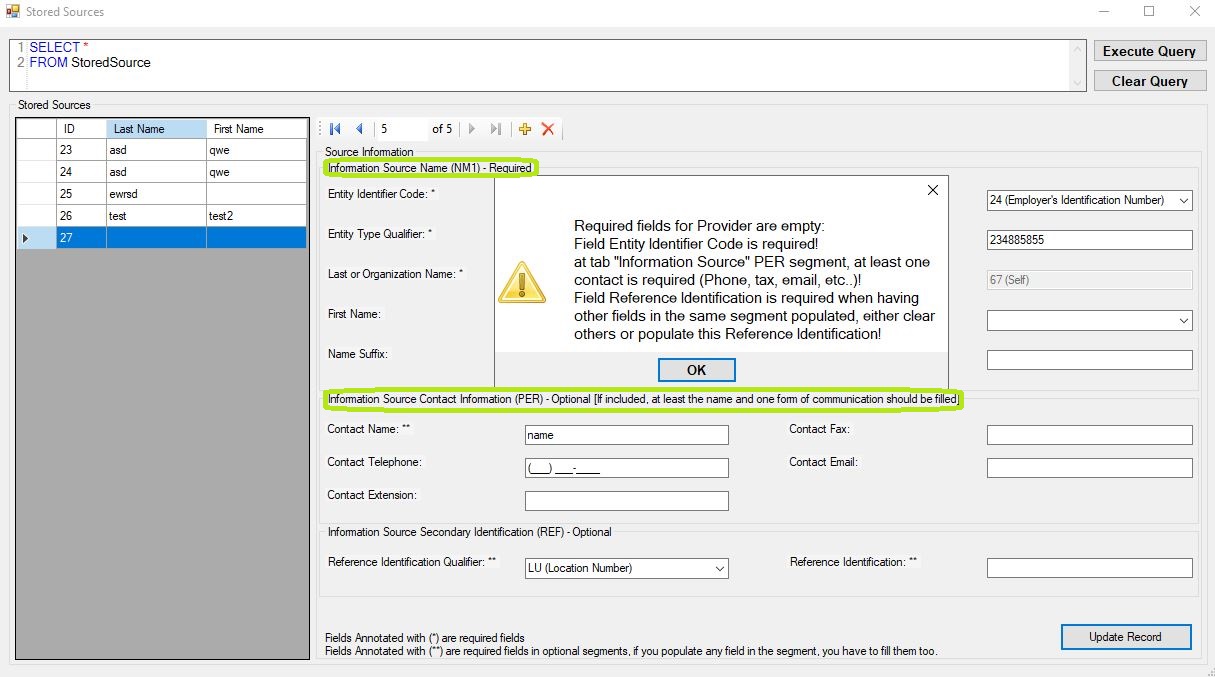
"Add New Provider - Segment validation"
After filling all of the required fields, click on the "Update Record" button to insert the record into the database. Once that is completed, you will be provided a success message.
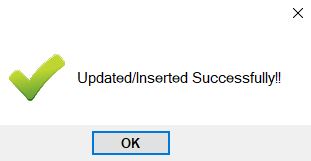
"Add Provider - Success Message."
After the addition, you will see the newly added record highlighted in the table and the details that correspond with that entry were added in the information sections.
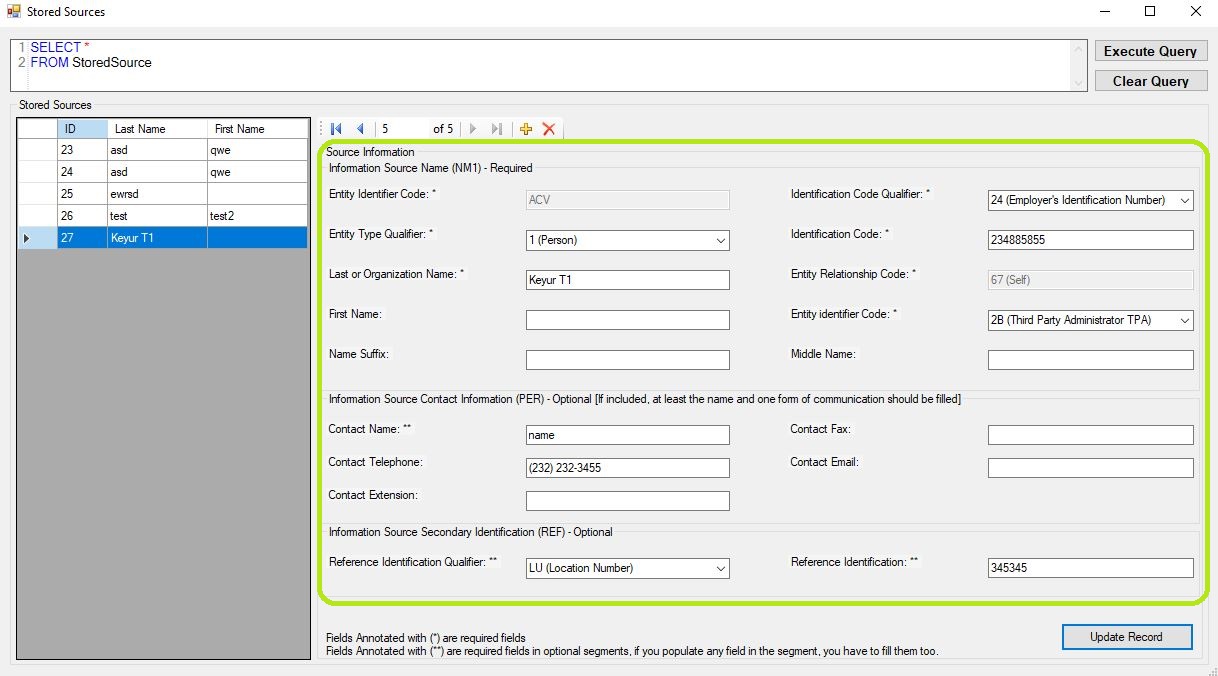
"Provider Screen- added record open in edit mode after add."
4.View/Update record:
Users can select any record from the table. When a record is selected, the corresponding details will load in the information sections. Users can review and modify the details. If you modify, click on the "Update Record" button to store the modification into database table.
The Update operation performs all validation as mentioned within Add operation.
5. Delete record:
To delete an existing provider, select the provider in the Stored Sources table and click the Delete icon button.
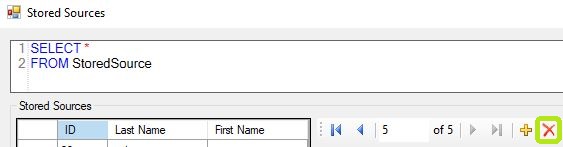
"Provider Screen - Delete Icon."
The application will ask to confirm and clicking "Yes" will delete the record.
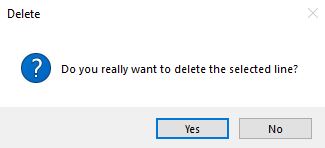
"Provider Screen - Delete confirmation message."
Click "Yes" to delete the record from the Stored Receiver table so the application replaces the screen and removes that record from left side list.
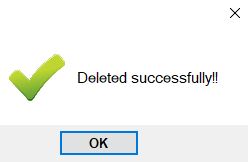
"Provider Screen- Success delete message."