|
<< Click to Display Table of Contents >> View EDI File |
  
|
|
<< Click to Display Table of Contents >> View EDI File |
|
If you are parsing a 278 EDI file and you want to look at the raw data, go to View > EDI File If there is no open EDI file, this option is not enabled.
"EDI File" button.
You will see the following screen:
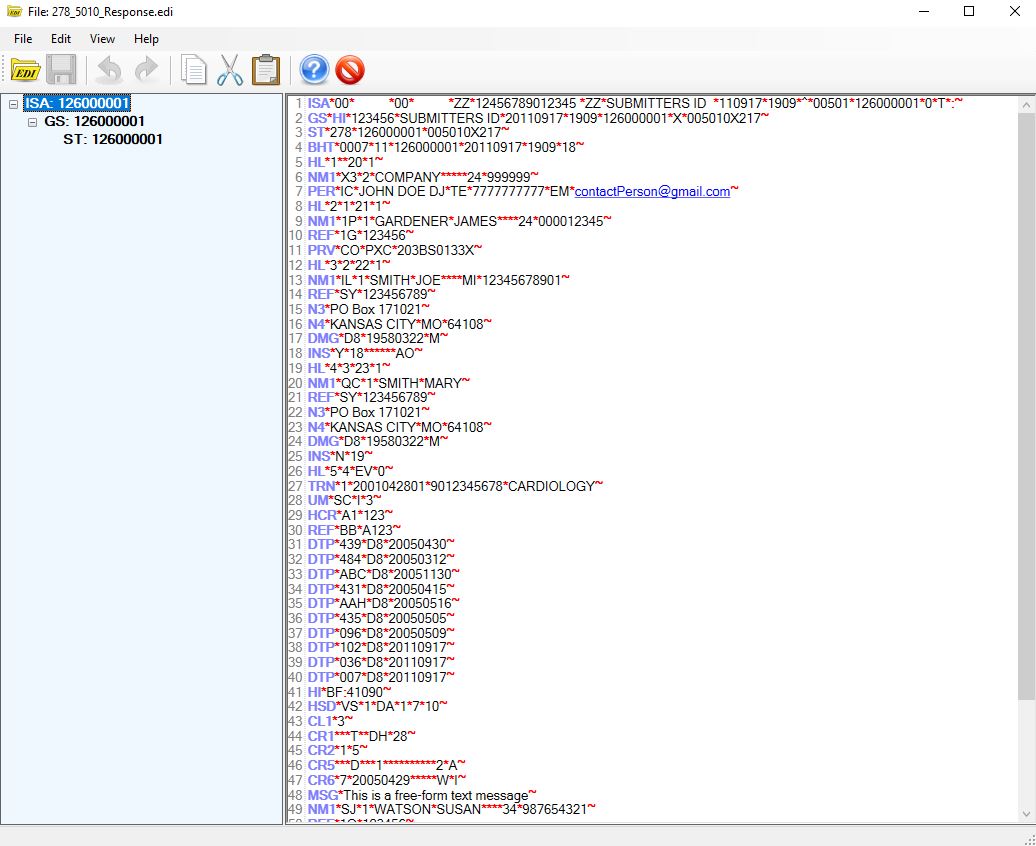
Displaying the 278 response file.
When you right-click anywhere in the text, a context menu will appear with typical test edit options such as cut, copy and paste.
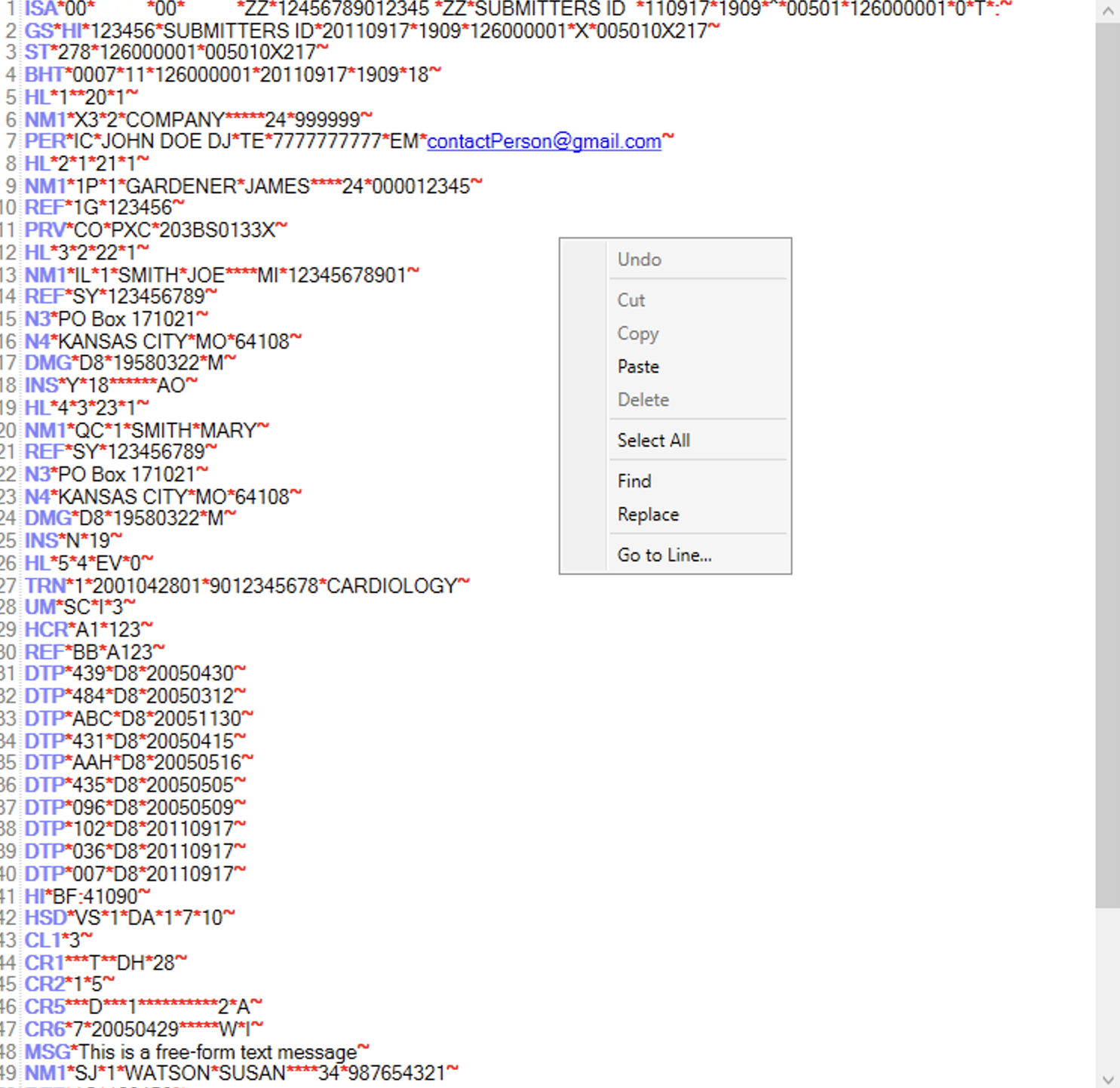
The floating menu of the EDI editor. right-click anywhere in the text to make it appear.
The "Find" and "Replace" utilities work as in a common text editor. To use them, right-click somewhere in the document and then from the displayed context menu select the "Find" or "Replace" command. Alternatively, you can press Ctrl F simultaneously on your keyboard to bring the text search utility.
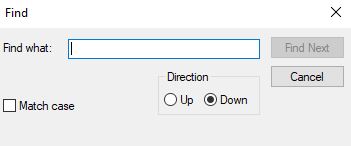
The search utility.
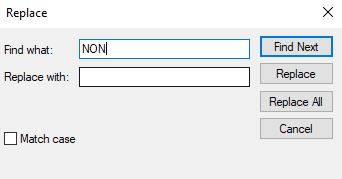
The Find and Replace utility.
As long as you don't save, there will be no changes to the file.
If you make changes to the file, the "Save" button becomes enabled and you can save any changes. The HIPAA Authorizer will further work with those changed files, so you don't have to open the file again.
Notice: Changing EDI files can be a tricky undertaking. You should be experienced in the format of the 278 and understand that an 278 claim file could be a legal document that should not be altered without the consent of the originator.